
Six Google Forms Settings Most People Never Switch On
Yassine Jaa Published Updated 6 minute read
Google Forms ships with about a dozen settings switched off by default, and many of them stay off for good. Not because they are hard to find — three of the six below are two clicks away — but because nobody goes hunting for a setting they do not know exists.
These are the six worth turning on, roughly in the order I would turn them on. The last one is genuinely useful and will cost you responses if you switch it on without reading the warning.
1. Response validation, which saves you the follow-up emails
Ask for a phone number and you will get phone numbers written eleven different ways. Ask for an email address and someone will type their name. Response validation refuses the answer at the point of entry, with a message you write yourself, instead of leaving you to chase it afterwards.
Open the question’s More menu, at the bottom right of the question card, and pick Response validation. Then choose the rule — a number range, a text length, a regular expression if you are that way inclined — and write the error message. That message is the part people skip, and it is the part that matters: “Invalid input” helps nobody, “Please include the area code” ends the conversation.
This is the single setting I would turn on before any other. It costs thirty seconds per question and it removes an entire category of work later.
2. Branching, so nobody answers questions that do not apply to them
A form that asks everyone everything is a form people abandon halfway. Branching sends a respondent to a different section depending on what they answered, so someone who is not a vegetarian never sees four questions about vegetarian options.
Build the sections first with Add section, then open the deciding question’s More menu and choose Go to section based on answer. You then map each answer to a destination.
One constraint that will save you redesigning the form: Google only offers this on multiple choice and dropdown questions. If your branching question is a checkbox list — where someone can pick several answers at once — there is no logical destination to send them to, and Google does not pretend otherwise.
3. Pre-filled links, for everything you already know
If you are sending a form to people whose names, ticket types or department you already have, there is no reason to ask them again. A pre-filled link opens the form with those fields already completed.
In the form editor, open the three-dot menu in the top right and choose Get pre-filled link. Fill in the fields you want pre-populated, submit, and Google hands you a URL with the answers encoded in it. Change the encoded values and you have a different pre-filled link, which is how people build one personalised link per row of a spreadsheet.
Worth knowing: a pre-filled field is a default, not a lock. The recipient can change it. If a value must not be altered, a form is the wrong container for it.
4. Quiz mode, which has moved since most guides were written
If you have read an older article about this, it told you to look in the top-right corner of the editor. It is not there any more. Open the Settings tab at the top of the form and turn on Make this a quiz.
Each question then gains an Answer key link at its bottom left, where you mark the correct answers, and a points field at its top right. Add answer feedback lets you write an explanation shown after submission — a written one, or a YouTube video, which is genuinely useful for a topic that needs demonstrating rather than describing.
The limit to plan around: Google can only build an answer key for six question types — short answer, multiple choice, checkboxes, dropdown, multiple-choice grid and checkbox grid. A paragraph answer cannot be marked automatically, and no setting will change that. Write your quiz knowing which questions you are volunteering to mark by hand.
5. The linked spreadsheet, set up before the responses arrive, not after
Google Forms shows you a summary. A linked Google Sheet gives you the data, live, with every new submission arriving as a new row. Anything you build on top of it — a pivot table, a chart, a conditional format that turns a cell red — keeps working as the answers come in.
On the Responses tab, click Link to Sheets at the top right and choose Create a new spreadsheet. Do it before you send the form. Linking afterwards works, but you will have spent the intervening week reading answers in a summary view that cannot sort.
Google documents three thresholds where this arrangement starts to strain, and they are worth knowing before you build a process on top of it. Past 10,000 responses, the per-question and individual views disappear from Forms and the CSV can no longer be sorted by timestamp. Past 50,000, the summary is unavailable. Past 100,000, responses stop syncing to the spreadsheet altogether.
6. File uploads, and the price nobody mentions
A file upload question lets respondents attach a document, and the files land in the form owner’s Google Drive, in a folder for the form with a subfolder per question. For an assignment hand-in or a job application, it is far better than a thread of email attachments.
Here is the part most articles leave out. Adding a file upload question forces every respondent to sign in to a Google account. If your form is anonymous, aimed at the general public, or sent to people who may not have a Google account, that single question changes who can answer it at all. It is not a setting you can switch off; it comes with the feature.
So the question to ask is not “would file uploads be convenient”. It is “am I willing to lose the responses of everyone who will not sign in”. For a classroom on Google Workspace, that number is zero. For a public feedback form, it is not.
One more constraint: file upload is not supported on shared drives.
What I would actually turn on
Response validation and the linked spreadsheet, on every form, without thinking about it. Branching as soon as a form passes eight questions or asks anything that only applies to some people. The other three when the specific job calls for them, and file uploads only after answering the question in the paragraph above.
None of this requires an add-on, a paid plan or a third-party tool. It is all sitting in Google Forms, switched off, waiting.
Where these steps come from
The menu paths for quiz mode, sections, branching, the linked spreadsheet, the response thresholds and the file upload sign-in requirement were checked against Google’s own help documentation on 9 September 2026. Google moves these menus — quiz mode has already moved once — so if a step does not match what you see, tell us and we will check it again.
Build the form on the device you already have
Keep reading
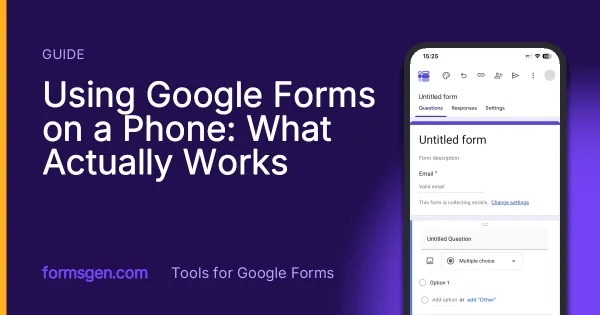
Using Google Forms on a Phone: What Actually Works
I built, published and read a Google Form from an iPhone in Safari, screen by screen. What the mobile editor does well, the two things it does badly, and where an app changes the arithmetic.
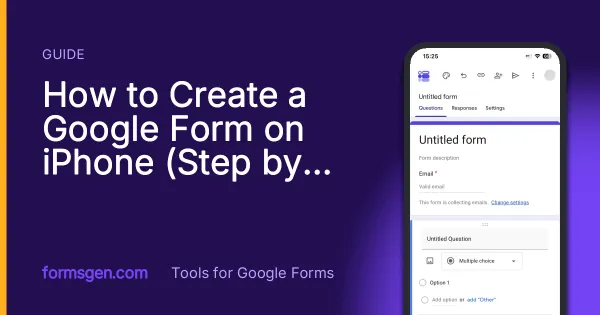
How to Create a Google Form on iPhone (Step by Step)
Seven steps in Safari, each with a screenshot from an iPhone: open a blank form, add questions, set the theme, publish, copy the link, test it, read the responses.
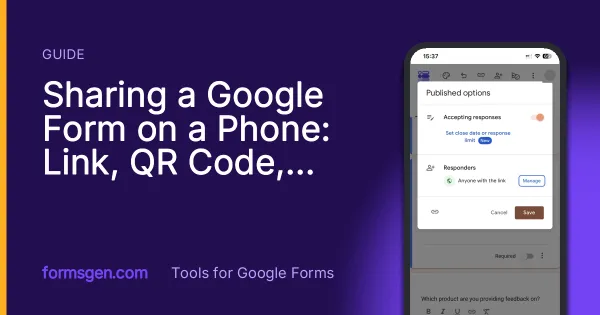
Sharing a Google Form on a Phone: Link, QR Code, WhatsApp
Where the link hides in the mobile publish dialog, how to make the QR code Google Forms does not offer, and the two settings to check before the link leaves your phone.
Tools for this task
Google Forms Header Image Size and Maker
The header size Google never documents, why the often-repeated figure makes your header blurry, and a maker that crops it properly.
Step-by-step guideGoogle Forms to PDF
A PDF of the responses and a PDF of the blank form are two different jobs. Both routes, with the one that Google does not document flagged as such.