
How to Read and Analyse Google Form Responses in the App
Yassine Jaa Published Updated 5 minute read
The responses to a Google Form live in Google’s servers, and Google’s own way of reading them on a phone is a spreadsheet in the Sheets app. This guide is the alternative: the Responses tab of FormsGen version 2.0 on an iPhone, as of 20 September 2026, with a screenshot of each view, followed by the exports, and the one setting that stops a form on its own. The form in the screenshots is a café satisfaction survey with 32 responses; it is the same one built in the creation guide and shared in the sharing guide.
Since version 2.1, reading responses in the app is free, charts and exports included. The AI analysis of responses is the Premium part, with one free try; the weekly and yearly plans start with a 3-day free trial.
Step 1: open the Responses tab
Open the form from My Forms and tap Responses, the third tab at the top. The count sits at the top of the screen, “32 responses” here, and updates each time you open the tab. There is no refresh button because there is nothing to refresh by hand: the app reads the responses from your Google Form each time.
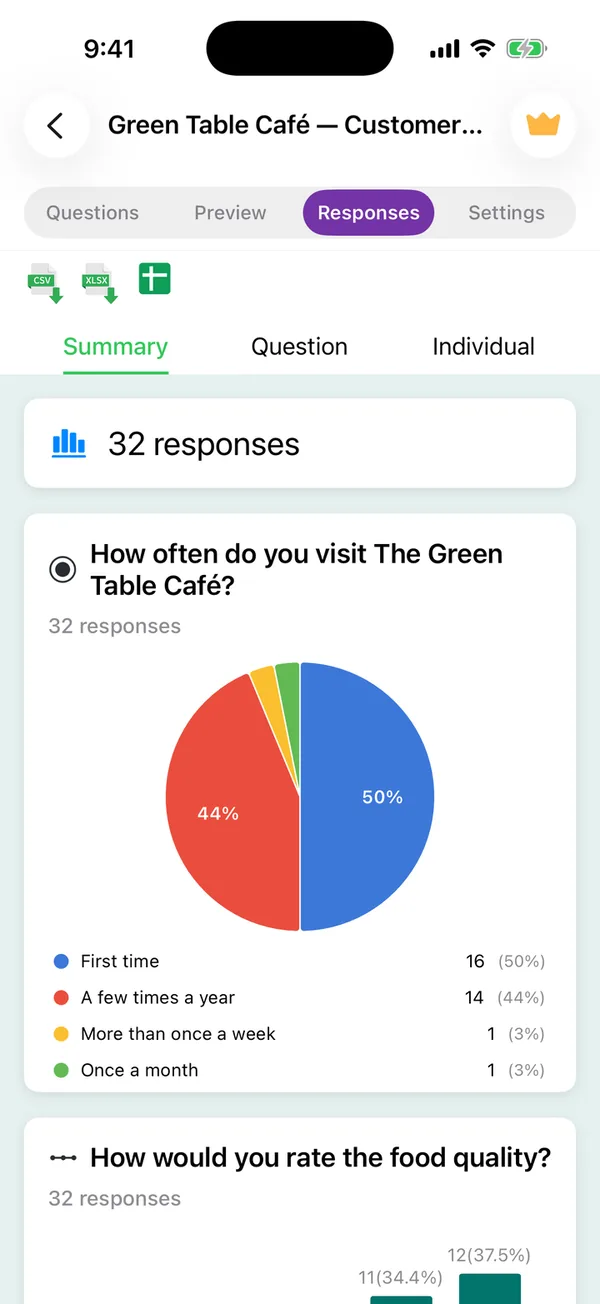
Three export icons sit under the tabs, green: CSV, Excel and Google Sheets. They are step 4.
Step 2: read the summary
Summary is the default view and the one I use during an event. Each question gets a chart matched to its type: a pie chart for a multiple-choice question, with the count and the percentage per option; a bar chart for a linear scale or a rating, one bar per value; a list of the answers for short answer and paragraph questions. The example above shows the frequency question as a pie, 50 percent first-time visitors, 44 percent a few times a year, and the food quality rating starting as bars below it.
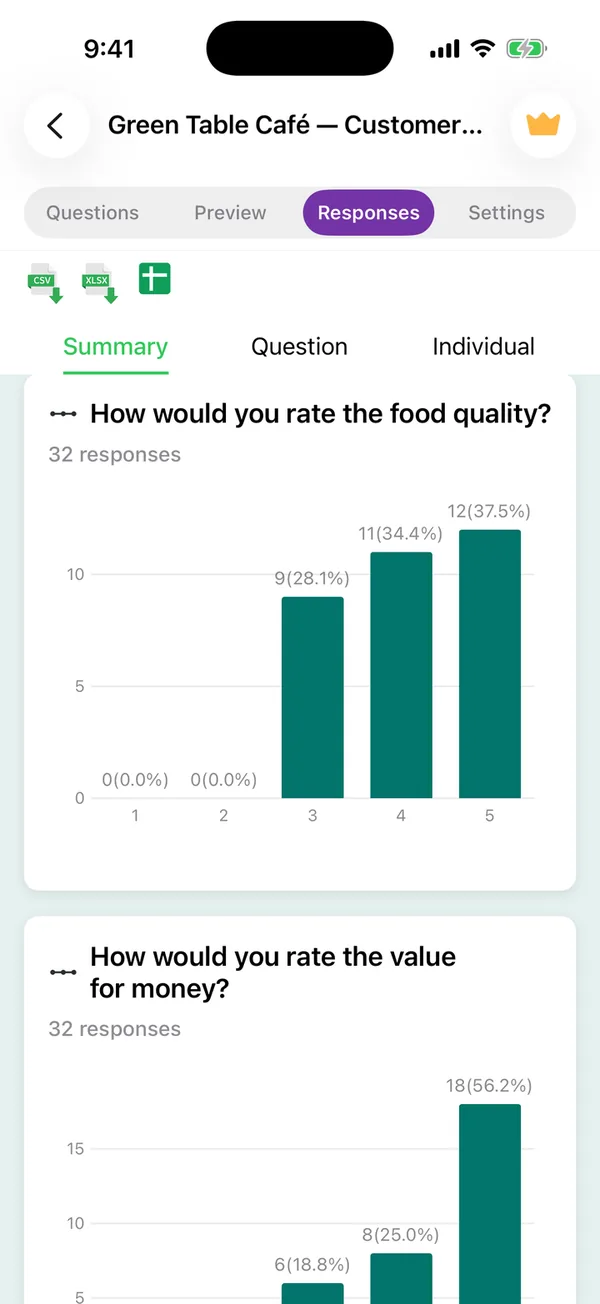
What the summary is good for: reading the mood of a room while the room is still in it. If forty people rated the venue 2 out of 5 on the way out, you know before the caterer has packed up. What it is not good for: cross-tabulation. The app does not show you “value for money among first-time visitors”; for that you export.
Step 3: read one question, or one person
Two more views next to Summary. Question shows one question at a time, with every answer to it, useful for reading all the free-text suggestions in one place without scrolling past the charts. Individual walks through one respondent at a time, every answer they gave, with arrows to move to the next; this is the view for a job application form or a quiz, where a person matters more than a percentage.
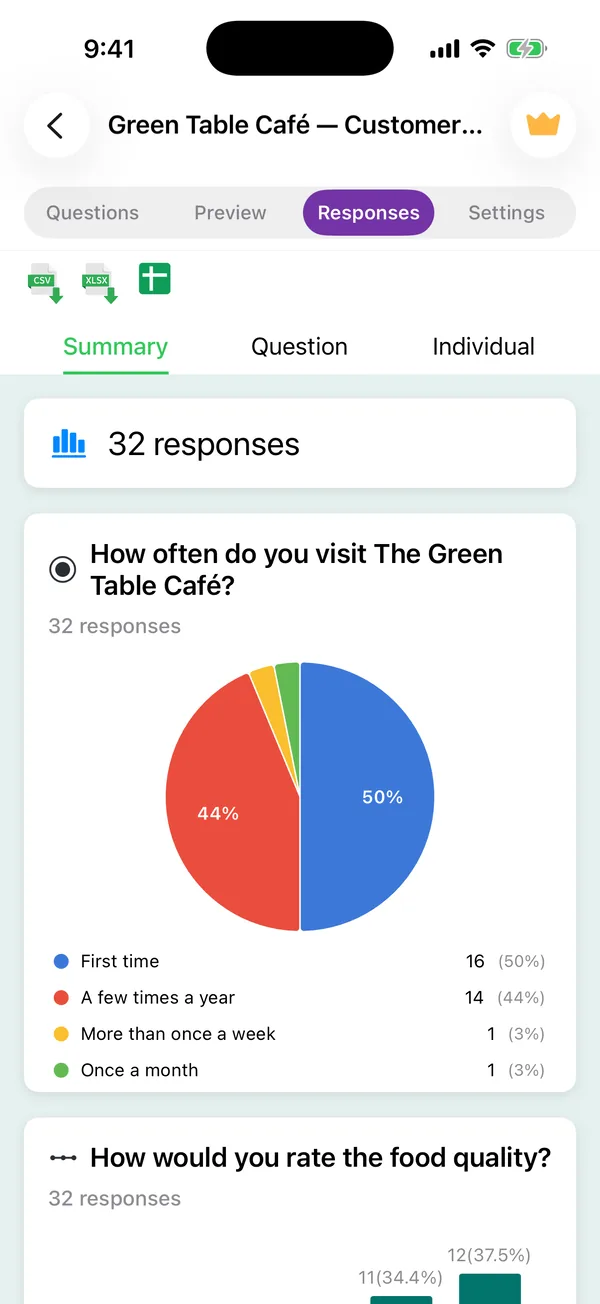
For a quiz, the Individual view is where the score appears, computed by Google Forms from the answer keys you set when building it.
Step 4: export
The three green icons under the tabs. CSV and Excel produce a file on the device, one row per response, one column per question, with the timestamp first, and hand it to the iOS share sheet: AirDrop it to a Mac, save it to Files, mail it to whoever asked for “the numbers”. Nothing passes through our servers; the file is built on the phone from the responses the app just read.
Google Sheets does something different: it creates a spreadsheet in your own Google Drive, linked to the form, so that every future response lands in it as a new row. This is the one to use when the analysis will happen on a computer, or when someone else needs live access. It is the same link Google Forms offers in a browser; the app just saves you finding it.
Step 5: let the form close itself
A form that keeps accepting answers after the event is how you end up with a response from someone in March about a dinner in September. Version 2.0 adds automatic closing in the Settings tab: after a number of responses, on a date, or both. The app checks the condition when you open it and, when iOS allows, in the background, and turns off “accepting responses” on your own Google Form when it is met.
Two uses I have for it. Sign-ups with a cap: 40 seats, closes at 40, the poster can stay up. Time-boxed feedback: closes on the Friday, and the summary you read on Saturday is the final one.
Step 6: when the phone is not enough
I read summaries on the phone and I do the real work on a computer, and I would tell anyone the same. Sorting, filtering, a pivot table, a chart for a report: Google Sheets, from step 4, on a screen wide enough for twelve columns. The phone’s job is to tell you, in the room, whether the thing went well. It does that in about four seconds from the lock screen. Fast enough.
One caveat on the data itself. Keeping your responses out of our hands does not take them out of Google’s; a Google Form is governed by Google’s terms whoever created it, and the responses sit in your Google account. If that matters for your respondents, say so in the form’s description before they answer.
Build the form on the device you already have
Keep reading
How to Create a Google Form with AI in the FormsGen App
Every screen from "I need a form" to a Google Form in your Drive: the New Form screen, the AI composer and its four settings, the preview, the editor, the answer key, and Save.

AI Form for Google Docs 2.0: Describe It, Scan It, Grade It
Version 2.0 of the FormsGen iOS app: describe a form and the AI writes it, scan a paper questionnaire, grade quizzes, share by QR code and see answers as charts.
How to Publish and Share a Google Form from the App
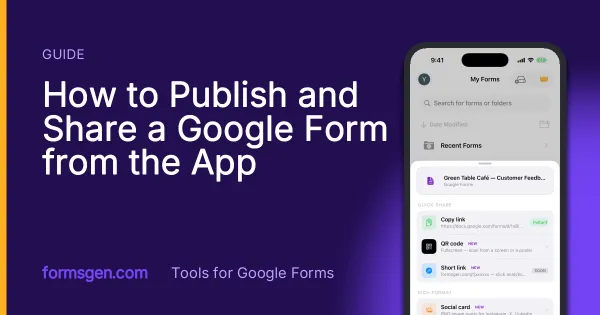
The share sheet of the app, screen by screen: the settings to check first, the link, the fullscreen QR code, the social card and the printable PDF, and which one for which situation.
Tools for this task
Export Google Forms Responses to Excel
The one-off CSV download and the live linked spreadsheet, when to use each, and the response counts at which Google stops keeping up.
Step-by-step guideGoogle Forms to PDF
A PDF of the responses and a PDF of the blank form are two different jobs. Both routes, with the one that Google does not document flagged as such.
Step-by-step guideGoogle Forms to Google Docs
There is no native export from Forms to Docs. Three things people mean by the question, and what actually works for each.