
AI Survey Generator for Google Forms
Describe your survey in a sentence and get a real Google Form with the questions written and the scales set. You review it first.
The hard part of a survey is not typing the questions. It is deciding what to ask, in what order, and on what scale, so that the answers tell you something you can act on. The survey generator in our app gives you a first draft of all three from a single sentence, as a real Google Form in your own Drive.
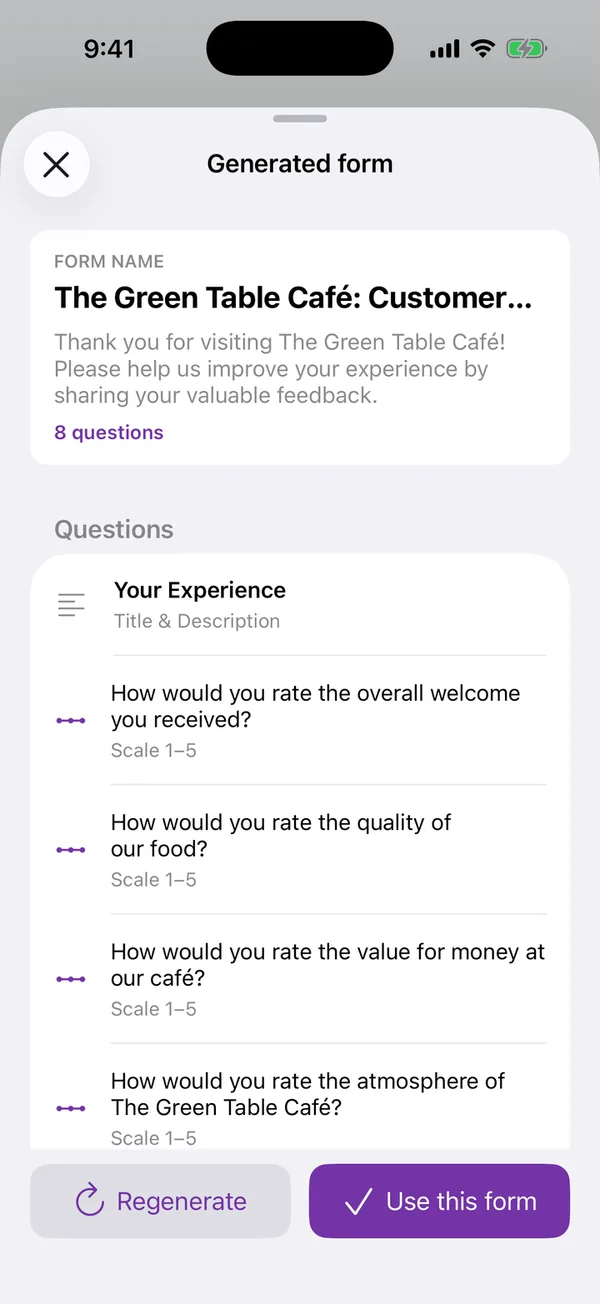
The example below is the one in our screenshots. The description was “Customer satisfaction survey for The Green Table Café: welcome, food quality, value for money, atmosphere, how often they visit, favourite dish, whether they would recommend us, and suggestions”. The app came back with eight questions, with 1 to 5 rating scales for the welcome, the food, the value and the atmosphere.
Nothing is written to your Google account until you tap Use this form. Read the draft first: reword a question that sounds like you are fishing for compliments, cut one that you would not act on, and tap Regenerate if the whole set misses the point. After that, the form behaves like any other Google Form. You can keep editing it in the app or in Google Forms on a computer, and share it by link or QR code.
When the answers come in, Google Forms’ own Responses tab works as usual, for free. The app can also show them as charts, with CSV, Excel and Google Sheets exports, as part of Premium.
Prefer to start from a tested questionnaire? See the customer satisfaction survey and the event feedback form templates.
Why it helps
A first draft from one sentence
Describe what you want to learn and from whom. The AI writes the questions, picks the question types and sets the rating scales.
You approve it before it exists
The draft is shown first. Regenerate it, or use it and edit it. Nothing reaches your Google account until you say so.
A real Google Form
It lands in your own Google Drive, answers collect in your Google account, and respondents need nothing but the link.
How to do it
-
1
Describe the survey
In Create with AI, say what the survey is for and what it should cover, in one or two sentences. Set the form type to Survey and choose 5, 7, 10 or 15 questions, the language and the tone.
-
2
Review the draft
Read the generated questions. Tap Regenerate if the set misses the point, or Use this form to create it, then adjust any question in the editor.
-
3
Share it and read the answers
Share the link or a QR code. Read the answers in Google Forms, or as charts in the app with Premium.
Questions people ask
- Is it a real Google Form?
- Yes. The app creates it in your own Google account through Google's Forms API, and you can keep editing it in Google Forms on any computer.
- What should I write in the description?
- Who the survey is for and the topics it should cover, in plain words. A list of topics, as in our café example, gives the most focused questions.
- Can I change the questions?
- Yes, before and after. Regenerate the draft, or use it and then edit, reorder or delete any question in the app or in Google Forms.
- Do respondents need the app?
- No. They open a normal Google Forms link, or scan a QR code, on any phone or computer.
- Is it free?
- Creating and sharing surveys is free with ads, and Google Forms' own Responses tab stays free. Charts and exports of the answers inside the app are part of Premium.
- Which devices does the app run on?
- iPhone and iPad (iOS 15.6 or later), Macs with Apple silicon, and Apple Vision Pro. There is no Android version.
Generate a survey in the app
Related tools
QR Code Generator for Google Forms
Paste a Google Form link, get a QR code ready to print. Free, no sign-up, and nothing leaves your browser.
Export Google Forms Responses to Excel
The one-off CSV download and the live linked spreadsheet, when to use each, and the response counts at which Google stops keeping up.