
QR Code Generator for Google Forms
Paste a Google Form link, get a QR code ready to print. Free, no sign-up, and nothing leaves your browser.
Your QR code appears here as you type.
A QR code is the shortest path between a printed thing and a form. A teacher puts one on the whiteboard and thirty phones open the same quiz in ten seconds, without anyone mistyping a URL that contains both a capital I and a lowercase l. A stand at a trade show puts one on the table so visitors leave their details without queueing for the one laptop. A poster by the door of a village hall collects feedback from people who were never going to open an email about it.
The generator above turns your form’s link into that code. It runs entirely in your browser: the address you paste is never sent to us or to anyone else. If you want to check rather than take our word for it, open your browser’s network tab and generate one. There is no request to inspect, because there is no request.
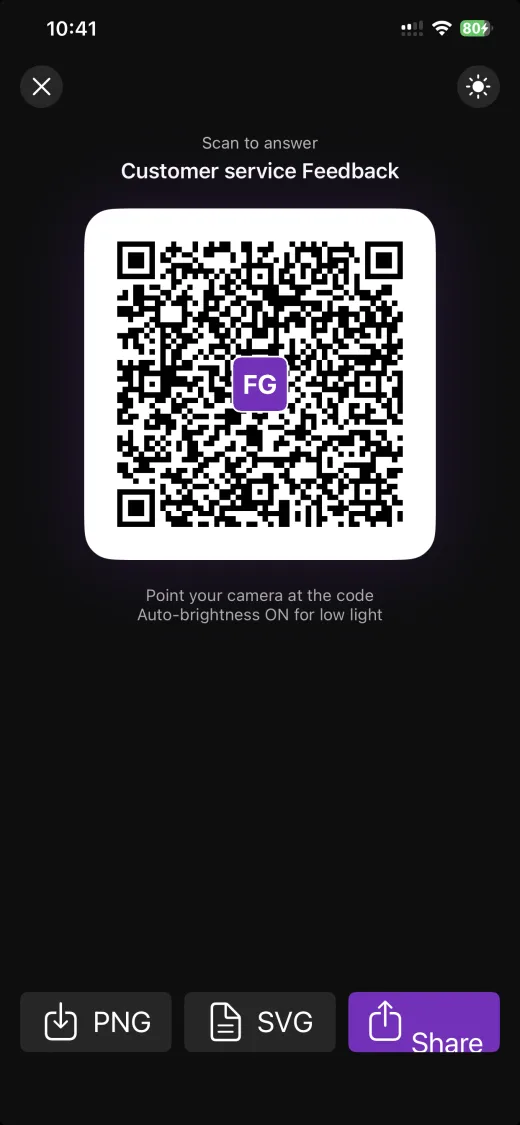
One thing worth saying plainly. This page does the same job as the QR sharing already built into the FormsGen app, where you never paste a link at all: you tap share on a form you just made and the code fills the screen, with the brightness turned up automatically so it can be scanned straight off your phone in a dim room. The web version exists because plenty of people arrive here with a form they built on a laptop three years ago, and they should not have to install anything to print a code for it.
Why it helps
The link never leaves your browser
Some online QR generators build the image on their server, which can mean a log somewhere of every address pasted in. Here the code is computed by your own device. There is nothing to log.
SVG for print, PNG for screens
A PNG is a fixed grid of pixels. Enlarge it past that grid and the edges go soft, which is exactly when scanners start failing. The SVG is a set of drawing instructions, so it stays sharp on a business card and on an A0 poster alike.
Black on white, deliberately
There is no colour picker here, and that is not an oversight. Scanners look for contrast between light and dark squares. A brand colour lowers that contrast and buys nothing in return.
How to do it
-
1
Copy the responder link
Open your form and make sure it is published. On a computer, open the preview (the eye icon) and use Copy responder link at the top right; on a phone, in Safari, it is the small chain icon at the bottom left of the Published options dialog. The link must end in
/viewform, not/edit: the editor link opens a permission error for everyone else. If you have a forms.gle short link, use it here: a full docs.google.com address produces a 41 × 41 grid of squares, while a forms.gle link produces 29 × 29. Same sheet of paper, larger squares, scannable from further away. -
2
Paste it into the field above
The code appears as you type. Nothing to click, nothing to confirm.
-
3
Pick the right format
SVG for anything heading to a printer. PNG for slides, screens and messaging apps, at 512, 1024 or 2048 pixels depending on where it lands.
-
4
Size it for the distance
The rule of thumb used across the industry is that a printed code should be at least a tenth as wide as the distance people will scan it from. Two metres away means twenty centimetres wide. And leave the white margin around the code alone: it is not padding, it is the frame scanners use to find the code in the first place.
Questions people ask
- Does the QR code expire?
- No. It contains the address itself and nothing else. There is no service sitting in the middle that could shut down, and no redirect counting your scans. As long as the form accepts responses, the code opens it.
- Can I still edit the form after printing the code?
- Yes. The code points at the form's address, not at its contents. Add questions, reword them, change the theme: the printed code keeps working.
- How big should I print it?
- At least a tenth of the distance people will scan it from. A code on a table people lean over can be small. A code on a wall read from three metres away needs to be about thirty centimetres wide.
- Why can't I change the colours?
- Because coloured codes fail more often. A scanner is looking for a strong difference between light and dark squares, and any brand colour reduces that difference. A code that looks on-brand and scans on the second attempt is worse than a black one that scans on the first.
- Do you keep the link I paste?
- No, and you can verify it rather than trust it. Open your browser's network tab and generate a code: no request is sent. The whole thing is computed on your device.
- Can I put a logo in the middle?
- Not with this tool, and the reason is a trade-off rather than a rule. A QR code carries enough error correction to survive a small covered area, which is why a centred logo usually still scans — our own app puts one there. But that redundancy exists to survive creases, dirt and bad light, and a logo spends it in advance. On something printed once and left on a wall for a year, we would rather you kept it.
- Does it work with links that aren't Google Forms?
- Yes. The page is built around Google Forms, and the field warns you when a link looks like something else, but the generator takes any web address.
Sharing a form you just built? Skip the copy-paste.
Related tools
Turn a Paper Form into a Google Form
Photograph a printed questionnaire and get a real Google Form in your Drive. The page is read on your device, never uploaded.
Google Forms Header Image Size and Maker
The header size Google never documents, why the often-repeated figure makes your header blurry, and a maker that crops it properly.
Guides that use it
Using Google Forms on a Phone: What Actually Works
I built, published and read a Google Form from an iPhone in Safari, screen by screen. What the mobile editor does well, the two things it does badly, and where an app changes the arithmetic.
Sharing a Google Form on a Phone: Link, QR Code, WhatsApp
Where the link hides in the mobile publish dialog, how to make the QR code Google Forms does not offer, and the two settings to check before the link leaves your phone.
How to Make a QR Code for a Google Form on Mobile
Google Forms does not make QR codes. Where the link hides on a phone, and three ways to turn it into a code without a laptop, with the one that encodes the wrong address.