
How to Close a Google Form from Your Phone
Yassine Jaa Published 7 minute read
To close a Google Form from an iPhone, open it in Safari, tap the paper-plane icon at the top, switch off “Accepting responses” and tap Save. The link you shared keeps working; it just opens on a page saying the form is closed. When I tested it on 20 October 2026, the form was refusing answers 39 seconds after I tapped Save, which was the first moment I checked.
I ran every step on this page on an iPhone 16 Pro with iOS 26.5, in Apple’s Simulator, against a test sign-up form for a school trip that already had 35 dummy responses. That covers closing now, scheduling a close for later, and the automatic closing in our own app, which turned out to behave quite differently from Google’s.
Closing it now, in Safari
Google has never made a Forms app for the iPhone (the overview of Google Forms on a phone explains what that changes), so this happens in the browser, signed in to the account that owns the form. The toolbar is cramped on a phone. The icon you want is the paper plane with a small tick on it, second from the right; the tick means the form is published.
It opens a dialog called Published options. Switch off the first toggle. Its label changes to “Not accepting responses”, and a block appears underneath with the message respondents will see, “This form is no longer accepting responses.”, and an Edit link if you want to word it differently. Then tap Save.
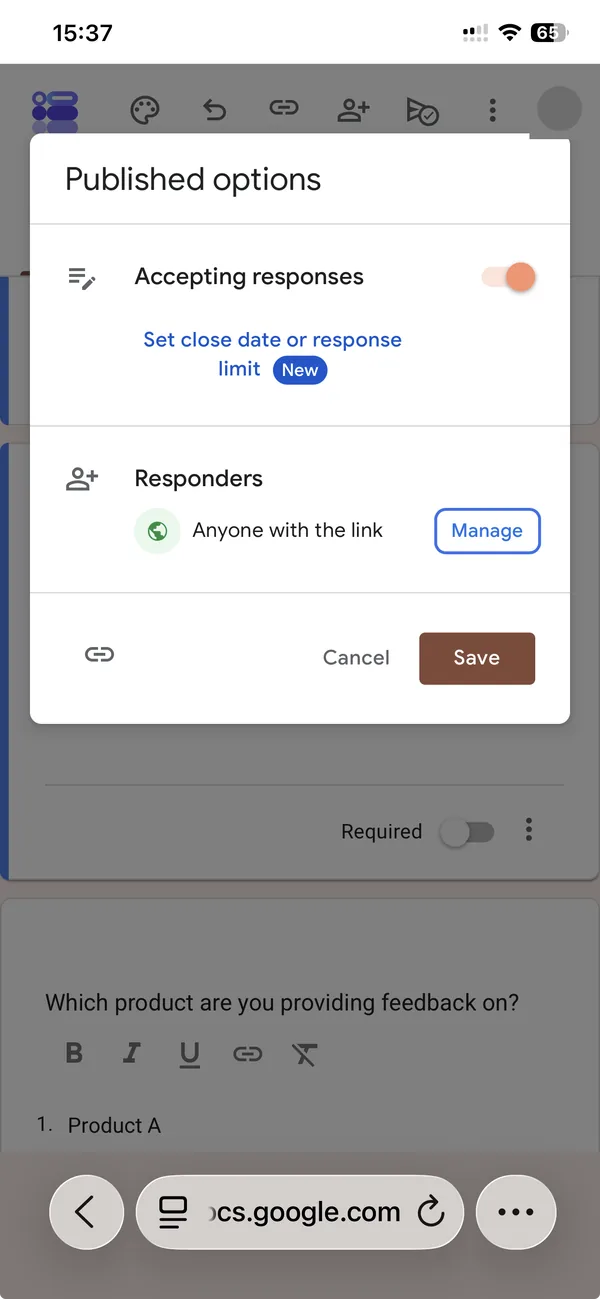
Before: accepting responses
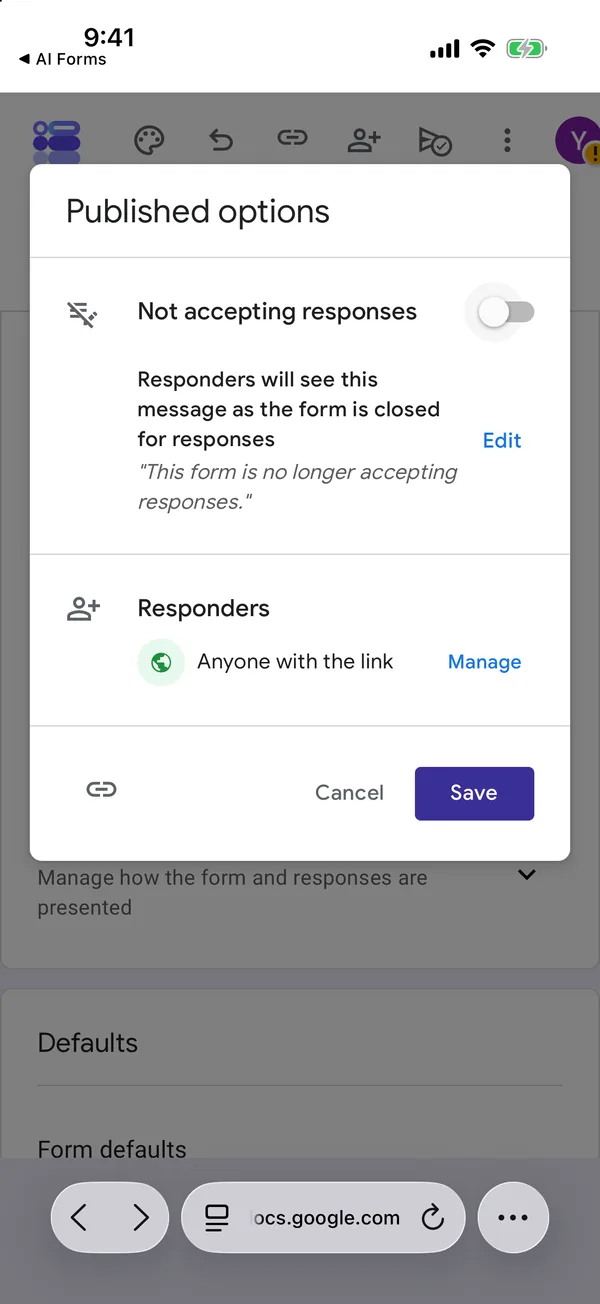
After: closed, with the message to respondents. Nothing changes until you tap Save.
Do not skip Save. The toggle moves as soon as you touch it, which makes the job look done, and it is not. Back in the editor, a yellow banner confirms it: “This form isn’t accepting responses.”
What people see after that
The link does not break. Anyone who opens it, from a QR code on a noticeboard or an email sent three weeks ago, lands on a page with the form’s title and this line: “The form Year 8 trip to the Science Museum: sign-up is no longer accepting responses. Try contacting the owner of the form if you think this is a mistake.” I had left the message in the dialog as it was, and the page showed Google’s standard wording.
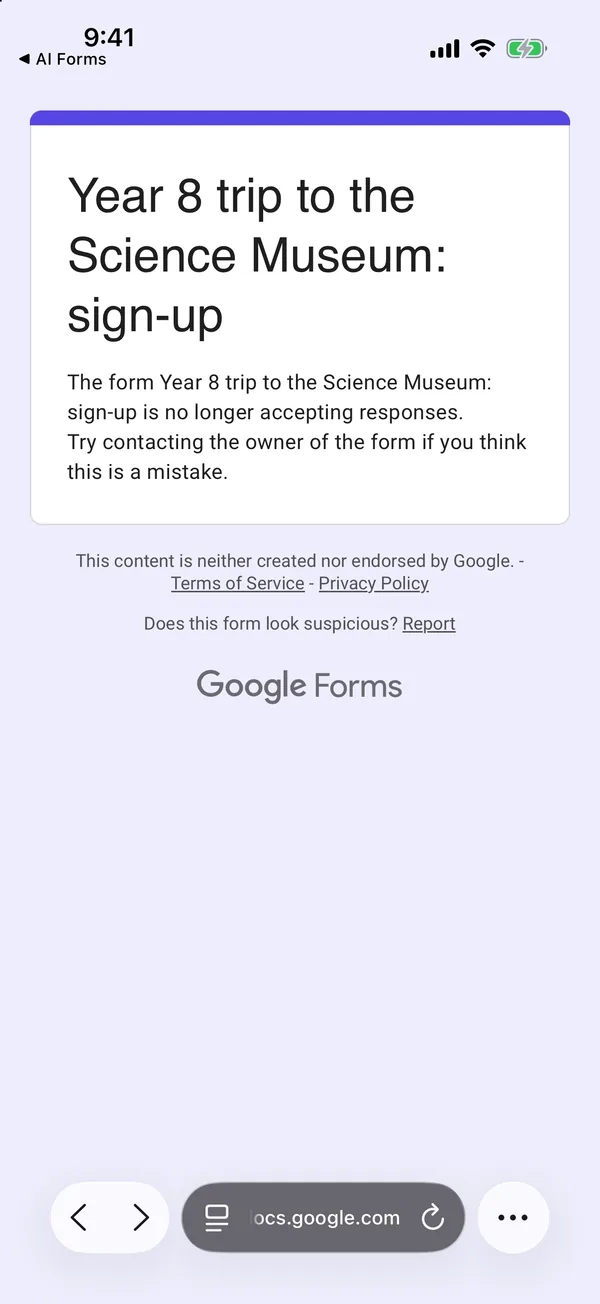
One case deserves a warning. Before closing the form, I had filled it in completely in a private tab and left it unsent. When I tapped Submit after the close, I got the same closed page, and the response counter stayed at 35: the answers were simply lost. On a ten-minute survey, that is ten minutes of a stranger’s goodwill thrown away. When a deadline is public, I close the form an hour or two after it, never exactly on it.
That page is also the reason to close a form rather than delete it once it has served its purpose. A deleted form leaves every printed QR code pointing at an error page that explains nothing.
Closing it later: a date or a number of responses
Under the toggle sits a link marked New: “Set close date or response limit”. It opens a box called “Stop accepting responses” with two choices, and you can only pick one of them. “On a date” takes a date and a time, shown in your account’s time zone; mine read “November 15, 2026 at 06:00 PM GMT+0”. “After a number of responses” takes any number you type.
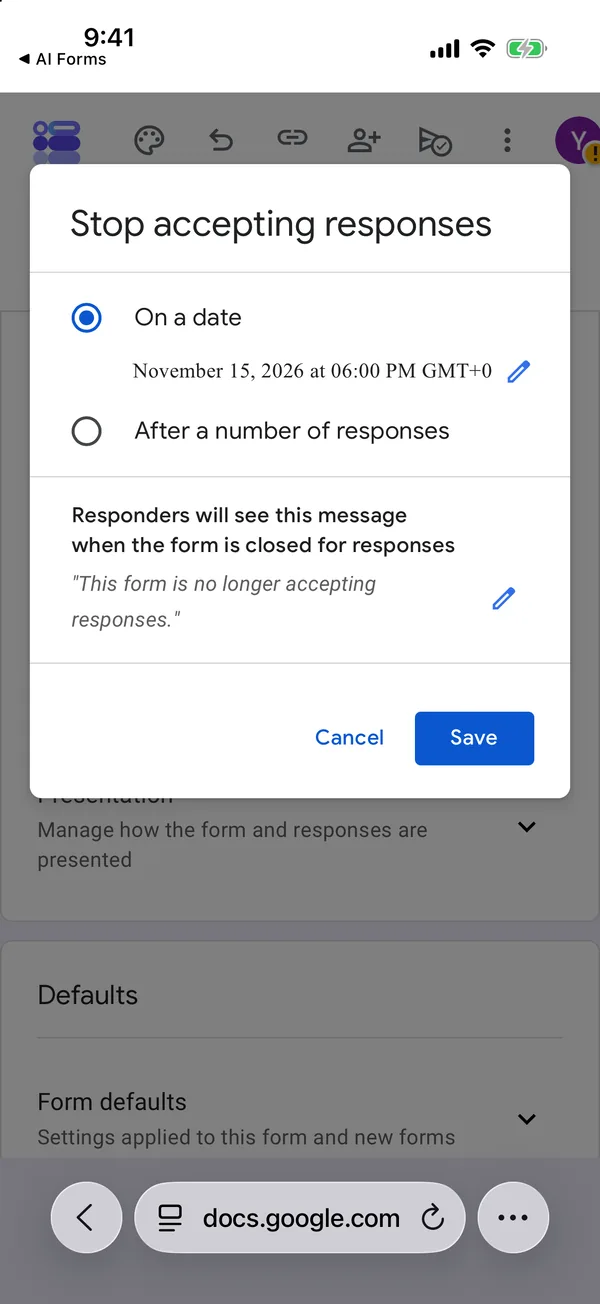
A closing date and time
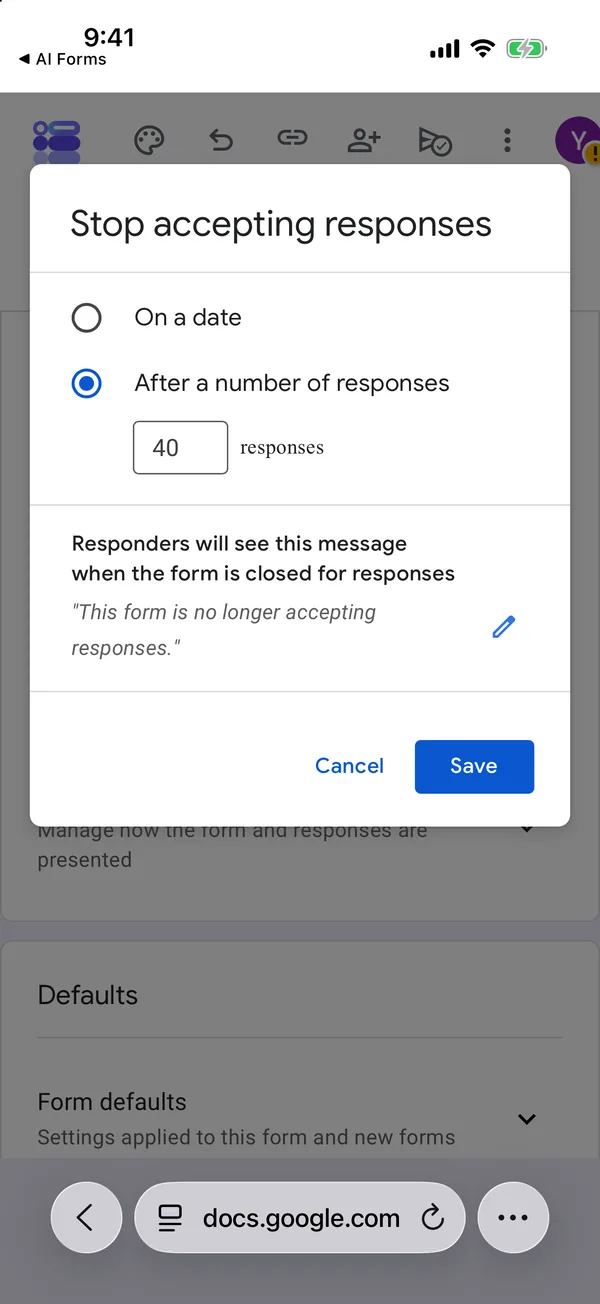
Or a response limit. One or the other, not both.
A small trap in Safari: tapping the time field zooms the page. Pinch back out inside the box. If you pinch outside it, the box closes without saving anything.
I set a limit of 40 and sent five more answers. The 40th went through with the usual “Your response has been recorded.”, just without the “Submit another response” link, and the link was closed for the next visitor within half a minute. The editor then says why: “This form isn’t accepting responses because the set response limit has been reached.” This is Google’s own setting, so it runs on Google’s servers; your phone can be switched off in a drawer and the form still closes.
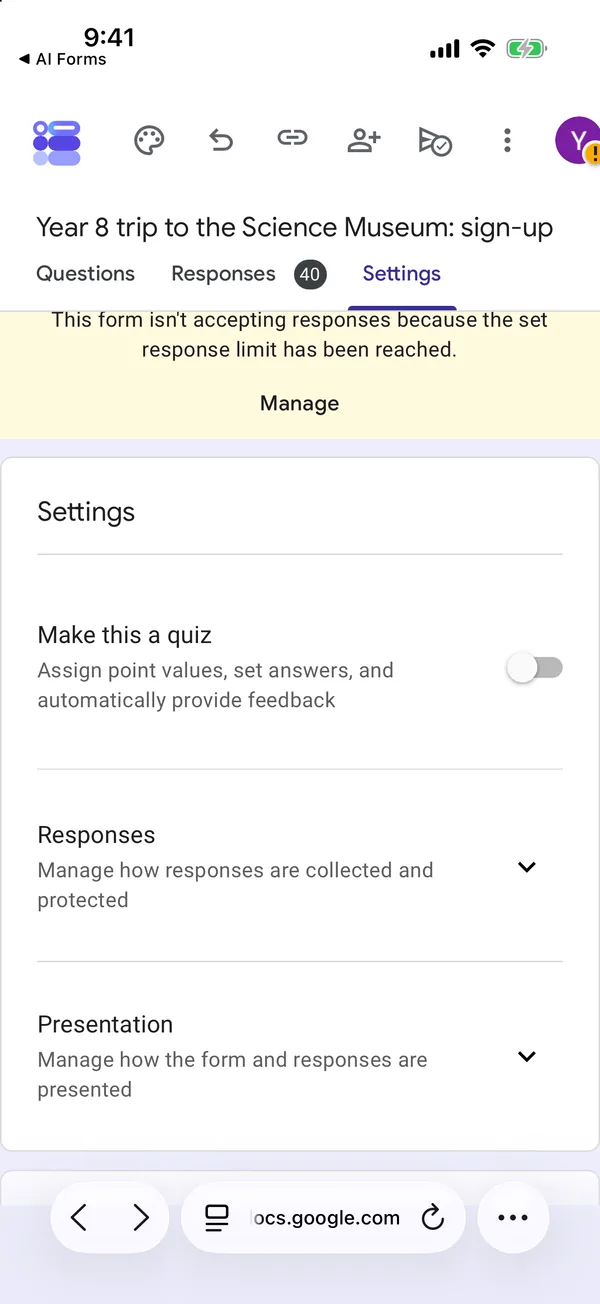
A response limit counts responses, not people, and that catches out anyone running a sign-up. With “Limit to 1 response” off, one keen parent can take three of your forty places by submitting twice. Turning that setting on is not the fix it looks like, because it makes every respondent sign in to a Google account, and a sign-in screen loses you more people than duplicates ever will. For a capped sign-up I would leave sign-in off, set the limit a little above the real number of places, and read the linked sheet for duplicates the day before.
Opening it again
Reopening is the same switch, turned back on, then Save. It worked straight away, with no warning, even after the response limit had closed the form. The link, the QR code and every response already collected stay as they were. One thing surprised me: reopening clears the limit. When I went back to “Set close date or response limit”, the box was empty again, so if you reopen for a second wave of sign-ups, set the new limit before you share the link again.
In the app: automatic closing
AI Form for Google Docs, the app this site is built around, has its own automatic closing in the Settings tab of the editor. It offers a response limit from a list (10, 25, 50, 100, 250, 500 or 1,000) and a closing date and time, and unlike Google’s box it lets you set both at once.
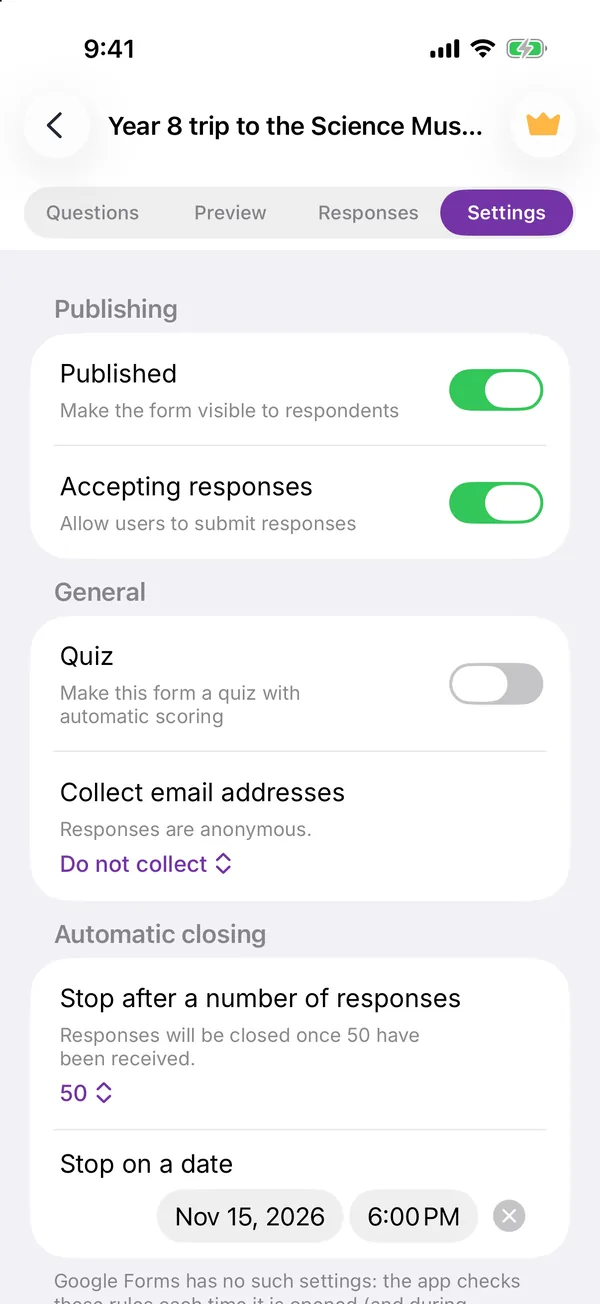
Here is the part I would rather tell you than have you discover on the day. The app does not close the form at the time you set. It closes it when the app is opened, or when you come back to its home screen, after that time. I tested it three ways with a deadline three minutes away. With the app open on the Settings screen, the form was still accepting answers six minutes after the deadline, and closed only when I went back to the home screen. With the app in the background, and then fully quit, it stayed open until I brought the app back, and closed six seconds later. In each case the app showed a short notice that the form “no longer accepts responses”.
So for anything that has to stop on time, an exam that ends at 11:00 or forty paid seats, use Google’s own close date or response limit in Safari. Forty is not on the app’s list anyway; the nearest choice is 50, which would let ten more families sign up for places that do not exist. The app’s rule is a convenience for forms you check in the app anyway, where closing the next time you open it is fine.
If you are about to share a form that will need closing, write the deadline in the form’s description too. People plan around a date they can see. A form that simply stops, with no warning anywhere, reads as broken, and the emails you get afterwards will say so. When it is closed, the responses guide covers reading what came in, and the sharing guide covers the other settings in that same dialog.
Build the form on the device you already have
Keep reading
Using Google Forms on a Phone: What Actually Works
I built, published and read a Google Form from an iPhone in Safari, screen by screen. What the mobile editor does well, the two things it does badly, and where an app changes the arithmetic.
How to Make a QR Code for a Google Form on Mobile
Google Forms does not make QR codes. Where the link hides on a phone, and three ways to turn it into a code without a laptop, with the one that encodes the wrong address.
Is There a Google Forms App for iPhone?
No, Google does not publish one. What works instead on an iPhone, compared honestly, including when the browser is the better answer.