
How to Make a QR Code for a Google Form on Mobile
Yassine Jaa Published 6 minute read
Google Forms does not make QR codes. Not on a computer, not on a phone, not in the new “Published options” dialog that replaced the Send button. So “make a QR code for a Google Form on mobile” is really two questions: how do you get the link out of Google Forms on a phone, and where do you turn it into a code without a laptop. This page answers both, tested on my iPhone in Safari on 15 September 2026, with the three ways I actually use, in the order I use them.
The short answer: copy the link from the small icon in the publish dialog, then either paste it into the generator on this site, which runs on the phone, or open the form in our app, where the QR code is one tap and fills the screen. The third way, a browser’s built-in QR code, exists but is one wrong tab away from encoding the wrong address.
Step 1: get the link from Google Forms on your phone
Open the form in Safari, signed in. The paper-plane icon at the top right does not say Send any more; it opens a dialog called “Published options”. The link is behind the small chain icon in its bottom-left corner, next to Cancel and Save. Tap it and the address is on your clipboard. There is no “Copy link” button and no visible address, which is why people miss it; I did, the first time.
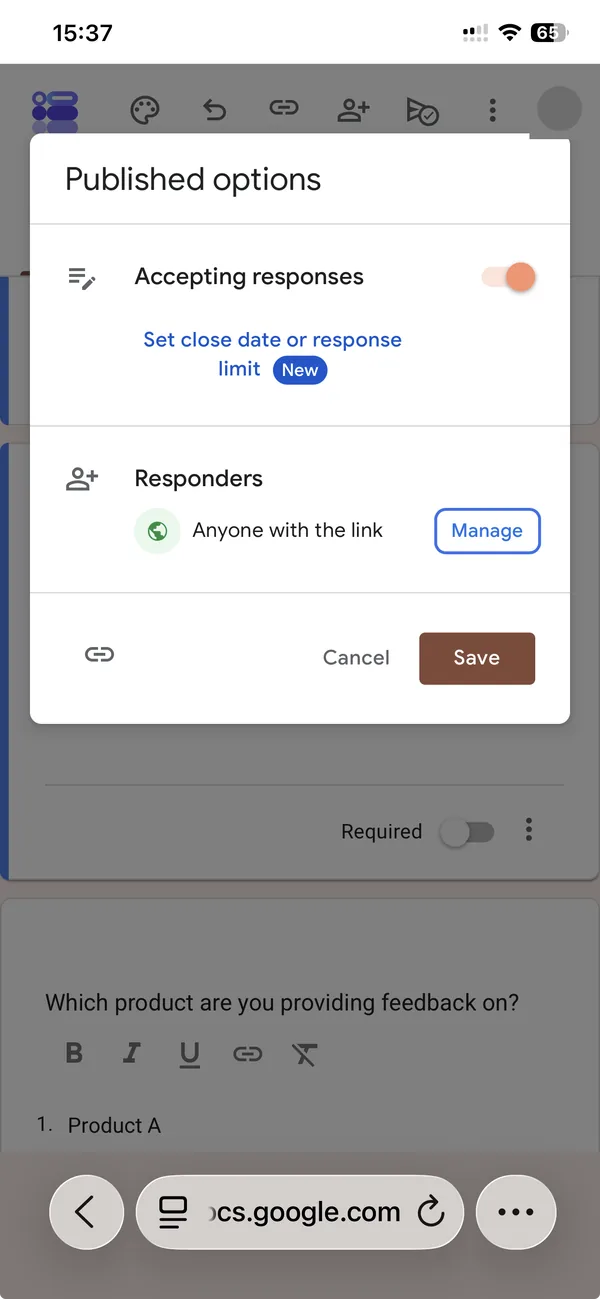
Before you tap it, check two rows in that same dialog: “Accepting responses” must be on, and “Responders” must say “Anyone with the link” unless the code is for people inside your organisation. A QR code on a poster cannot be corrected later; the settings behind it can, but nobody will scan it twice.
One thing you get on a computer and not on the phone: the “Shorten URL” checkbox that turns the address into a forms.gle link. It matters for QR codes, because a shorter address makes a simpler code, 29 by 29 modules instead of 41 by 41, which scans from further away on the same sheet of paper. If the code is going on a poster, open the form on a computer once and copy the short link there. For a screen or a slide, the long link is fine.
Step 2, option A: the generator on this site
Open the QR code generator in the same Safari, long-press in the field, paste. The code draws as you type. It runs entirely in the browser: the link is never sent to us or anyone, and you can check that in the network tab if you like, because there is no request to see.
Save it as PNG for a slide, a message or a document; as SVG for anything a printer will scale. On a phone, the download lands in Files, or you can share it straight to Mail, AirDrop or the app you are building the poster in. No account, no app, no watermark.
Step 2, option B: the app
If the form was built in our app, or you opened it there from its link, the share sheet has a QR code row. Tap it and the code takes the whole screen, black background, the form’s name above it, and the brightness goes up on its own so it scans in a dim room. Hold the phone up, or leave it on the table by the door.
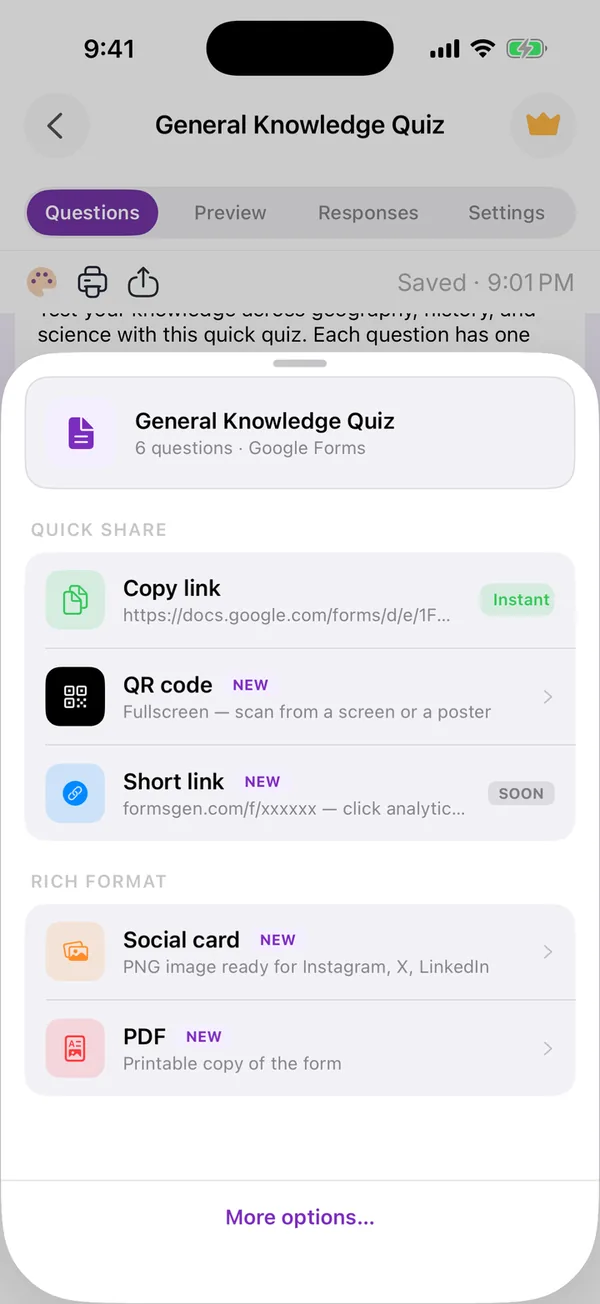
The share sheet
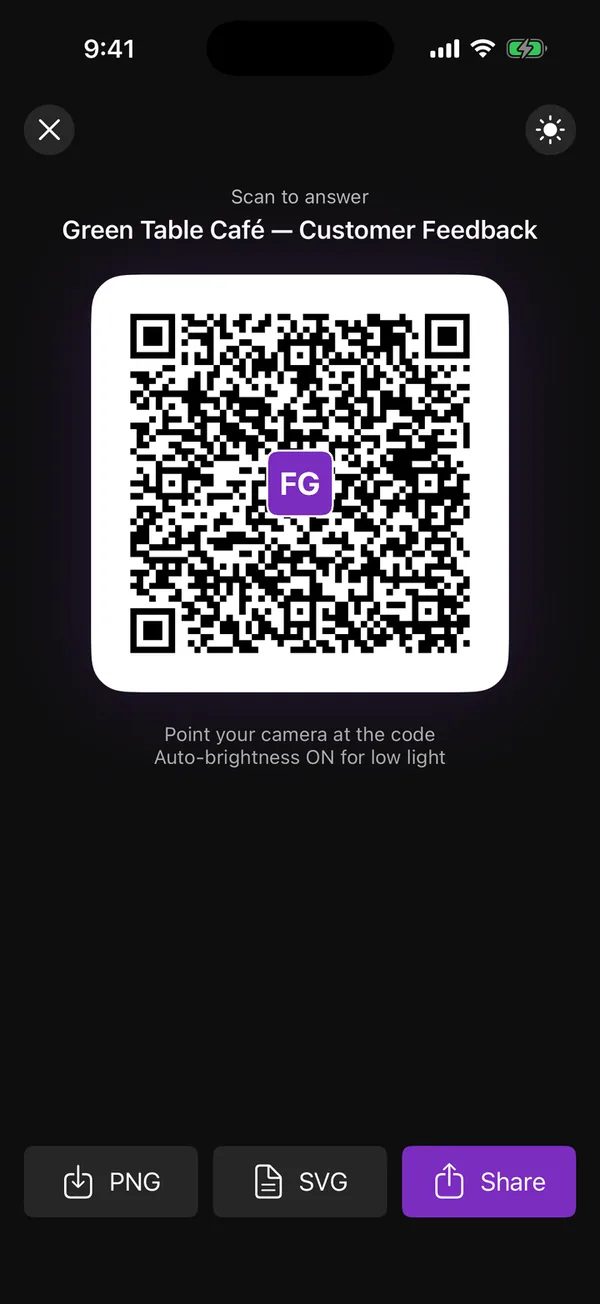
Fullscreen, ready to scan or export
PNG and SVG export are at the bottom, and Share sends the image through the iOS share sheet. This is the option I use when I am the one holding the phone at the event; the generator is the one I use when the code is going to a printer and I am at a desk anyway. The app’s sharing guide covers the rest of that sheet.
Step 2, option C: the browser’s own QR code (and why to be careful)
Chrome on iPhone can draw a QR code for the page you are on, from its share menu. The catch is that it encodes the address of the page you are looking at, and when you are in the editor that address is the edit URL, ending in /edit. Anyone scanning it gets a permission error, or, if they happen to be a collaborator, the editor itself. The address respondents need ends in /viewform, and only the chain icon in the publish dialog gives you that one. If you use a browser’s QR feature, open the form’s viewform link in a tab first, then make the code from that tab. I find it easier to paste the copied link into the generator.
Sizing the printed code
The rule used across the industry: the code should be at least a tenth as wide as the distance people will scan it from. Two metres from a poster means twenty centimetres wide. A table card scanned from forty centimetres can be four. And leave the white margin around the code alone; it is not padding, it is the frame the scanner uses to find the code at all.
Test it before printing a hundred. Open the camera on another phone, point it at the code on your screen, and check that the form that opens is the right one and accepts responses. Then print.
What the code will and will not do
A QR code is just the link, drawn. It does not track scans, it does not expire, and it does not change if you edit the form; the same code keeps working through every edit, and stops working only if you delete the form or turn off “Accepting responses”. If you want to know how many people scanned it, put the form behind a link you can measure, or ask a question in the form (“Where did you find this?”), which is what I do.
If you want the form to stop on its own once the poster has done its job, set a response limit or a close date in the publish dialog before you share; the page on sharing a Google Form on a phone covers those settings, and Using Google Forms on a phone covers everything around them.
Build the form on the device you already have
Keep reading
Using Google Forms on a Phone: What Actually Works
I built, published and read a Google Form from an iPhone in Safari, screen by screen. What the mobile editor does well, the two things it does badly, and where an app changes the arithmetic.
Is There a Google Forms App for iPhone?
No, Google does not publish one. What works instead on an iPhone, compared honestly, including when the browser is the better answer.
Google Forms on iPad: What Changes from the iPhone
Safari on an iPad opens the full Google Forms editor, except on an iPad mini held upright. What works with a finger, Forms and Sheets side by side, and how to run a sign-up stand on one iPad. Tested on 21 October 2026.
Tools for this task
QR Code Generator for Google Forms
Paste a Google Form link, get a QR code ready to print. Free, no sign-up, and nothing leaves your browser.
Runs in your browserGoogle Forms Header Image Size and Maker
The header size Google never documents, why the often-repeated figure makes your header blurry, and a maker that crops it properly.