
How to Grade a Google Forms Quiz on Your Phone
Yassine Jaa Published 8 minute read
To grade a Google Forms quiz on an iPhone, open the form in Safari and go to Responses. Multiple choice, checkboxes, dropdowns and exact short answers are already marked for you. Written answers wait for you in the Question view, where each one gets a cross, a tick or a part mark, and nothing counts until you tap Save. Then “Release scores” sends every student an email with their result.
I tested all of it on 21 October 2026 on an iPhone 16 Pro with iOS 26.5, in Apple’s Simulator, with an eight-point quiz for a Year 8 class called “Year 8 science: forces and motion”. It had five questions: a multiple choice worth 1 point, a checkbox question with two right answers worth 2, a dropdown worth 1, a short answer whose answer was “9.8”, worth 1, and a paragraph worth 3, marked by hand. Four made-up students answered it.
Setting up the answer key on a phone
A form only grades itself once it is a quiz. In Settings, switch on “Make this a quiz”, and a running “Total points” appears next to the tabs. The same screen asks when grades go out: “Immediately after each submission”, or “Later, after manual review”. If any question has to be marked by hand, choose Later; otherwise students see a score that is missing the points you have not given yet.
The answer key for each question sits behind a small clipboard icon at the bottom left of the selected card. It changes with the question type: you tick the right options for choice questions, you type accepted answers for a short answer, and a paragraph only gets “Edit feedback and points”, because there is nothing to compare it against.
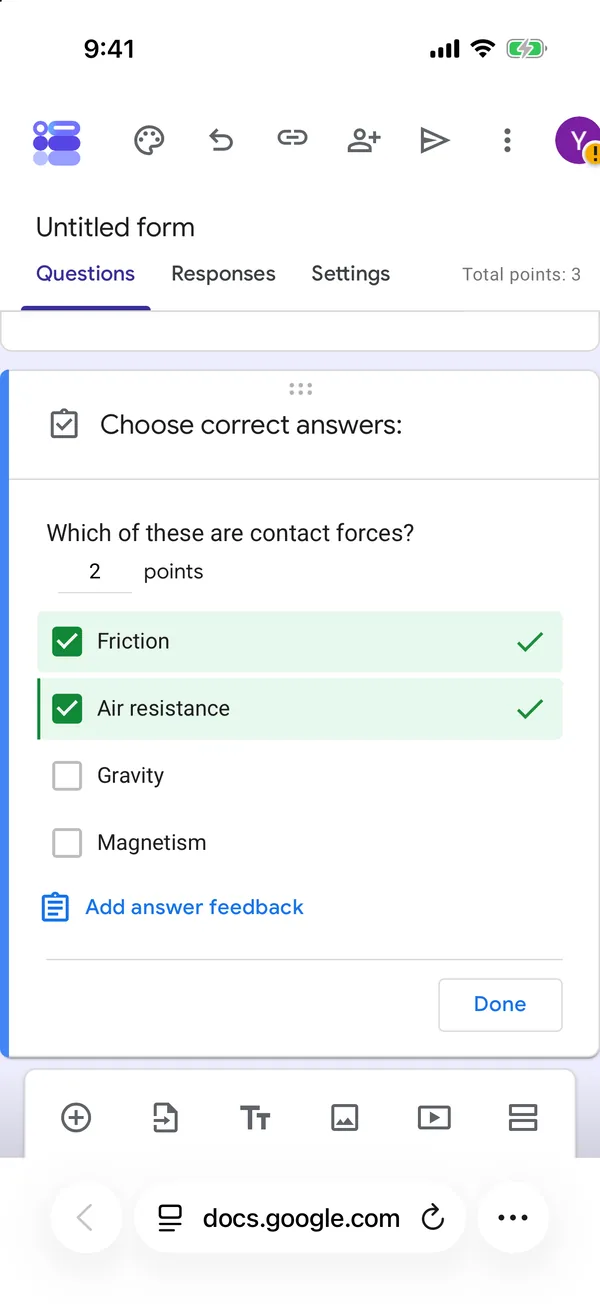
Typing the points is the fiddly part. My first two taps on the number only brought up Cut, Copy and Paste. The keypad opens when you tap the short line just to the right of the number, and half the time the old value is not selected, so you delete it before typing. If most questions are worth the same, set “Default question point value” in Settings first and you will rarely touch that field.
What Google marks for you, and the short-answer trap
The three choice questions were marked as soon as the answers came in. The short answer was marked only when it matched exactly. “9.8” scored, and so did “9.8 ” with a stray space at the end, which Google ignores. “9.8 m/s²” and “9,8”, the way a student in much of Europe writes it, were neither right nor wrong: each sat in the Question view as “1 ungraded response” with an empty points box.
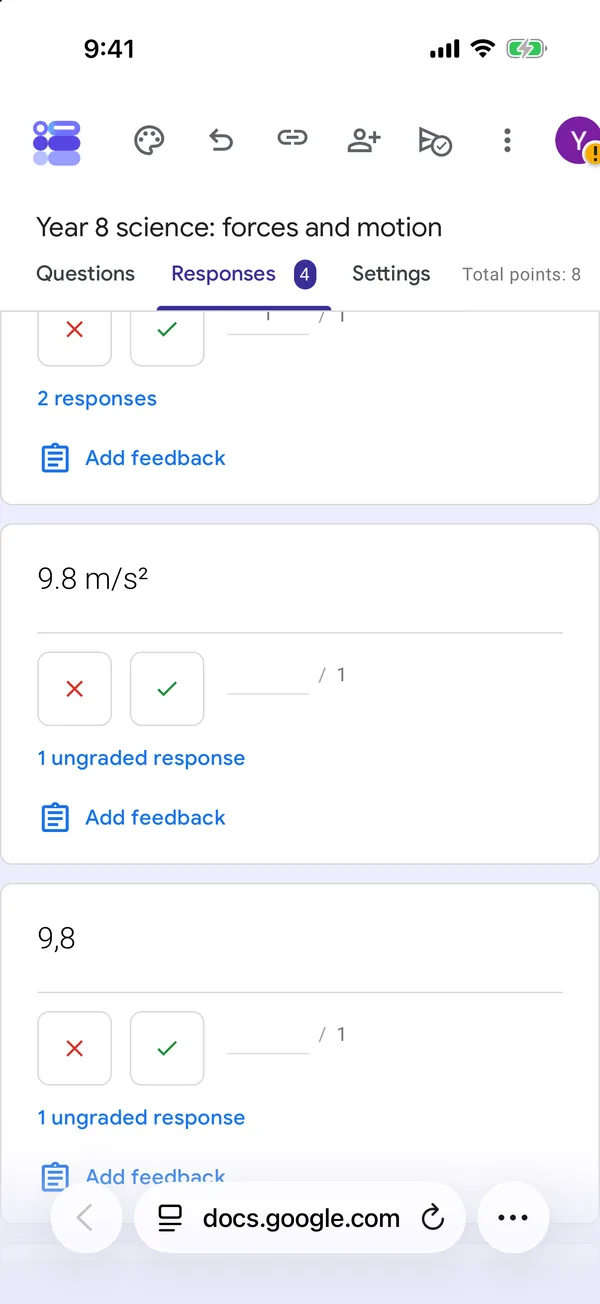
That is because “Mark all other answers incorrect” is off by default in the answer key, and I would leave it off. Switched on, those two students would simply get zero. Off, they wait for you. The catch is the Individual view, which shows the same ungraded answers in red with a cross and “Correct answer 9.8”, as if they had been marked wrong. They have not, and they count for nothing until you give the point. The fix that saves the most time is upstream: add “9.8 m/s²” and “9,8” to the list of accepted answers before you share the quiz.
Marking the written answers
There are two ways in, and on a phone the difference is large. In Responses, the Question tab shows every answer to one question, one after another. Each answer has a cross for zero, a tick for full marks, and a box for a part mark out of 3. The Individual tab shows one student’s whole quiz at a time, with “7 of 8 points” at the top.
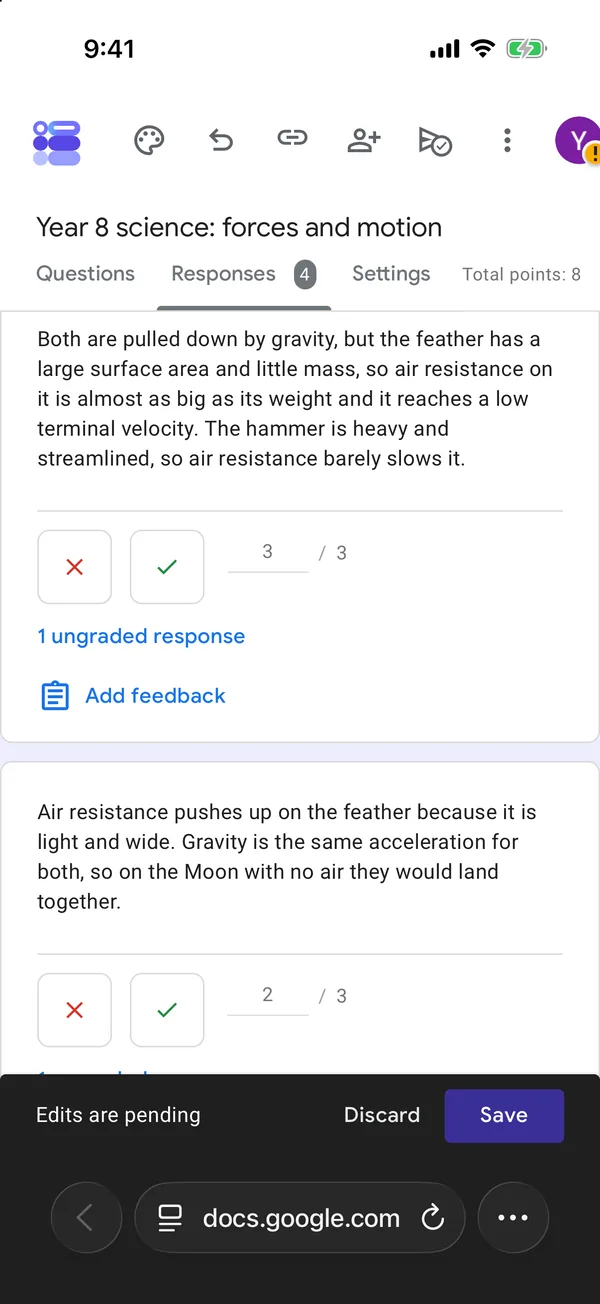
Question view: every answer to one question
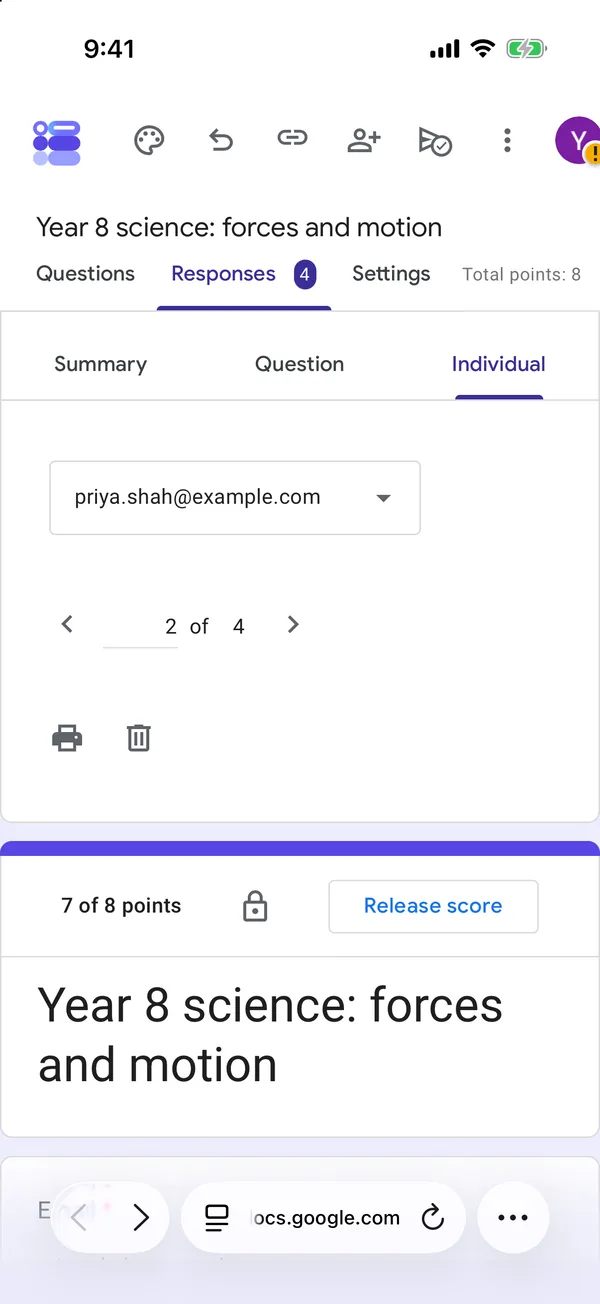
Individual view: one student, 7 of 8 points
I timed both. In the Question view, the four paragraphs took 2 minutes 18 seconds, about 35 seconds each. In the Individual view, two students took 3 minutes 36 seconds with a comment each, about a minute and a half per student, most of it spent scrolling three screens down to reach the question. On a phone, mark by question.
Whichever view you use, a black bar slides up after your first change: “Edits are pending”, with Discard and Save. Nothing is recorded before you tap Save. It is easy to mark three answers, switch apps to check something, and lose all three.
I will say plainly where I stand, though: when I have a pile of written answers to mark, I wait until I am at my Mac. Bigger screen, a mouse and a keyboard, and the answer, the points and the student’s whole paper in one window instead of a card at a time. The phone is fine for what is left: checking the automatic marks, settling the odd “9,8”, a short set of written answers in the Question view, and releasing the scores.
Comments, and when students see their score
In the Individual view, “Add individual feedback” under an answer opens a full-screen box for a comment, with a link and a video button. Save it, then Save again in the pending bar.
With “Immediately”, students get a “View score” link on the confirmation page the moment they submit. With “Later”, they get nothing until you release. The Summary tab then shows an Insights card (my class averaged 5.25 out of 8, median 4, range 2 to 8) and a Scores card with a padlock next to every result not yet released, and the “Release scores” button.
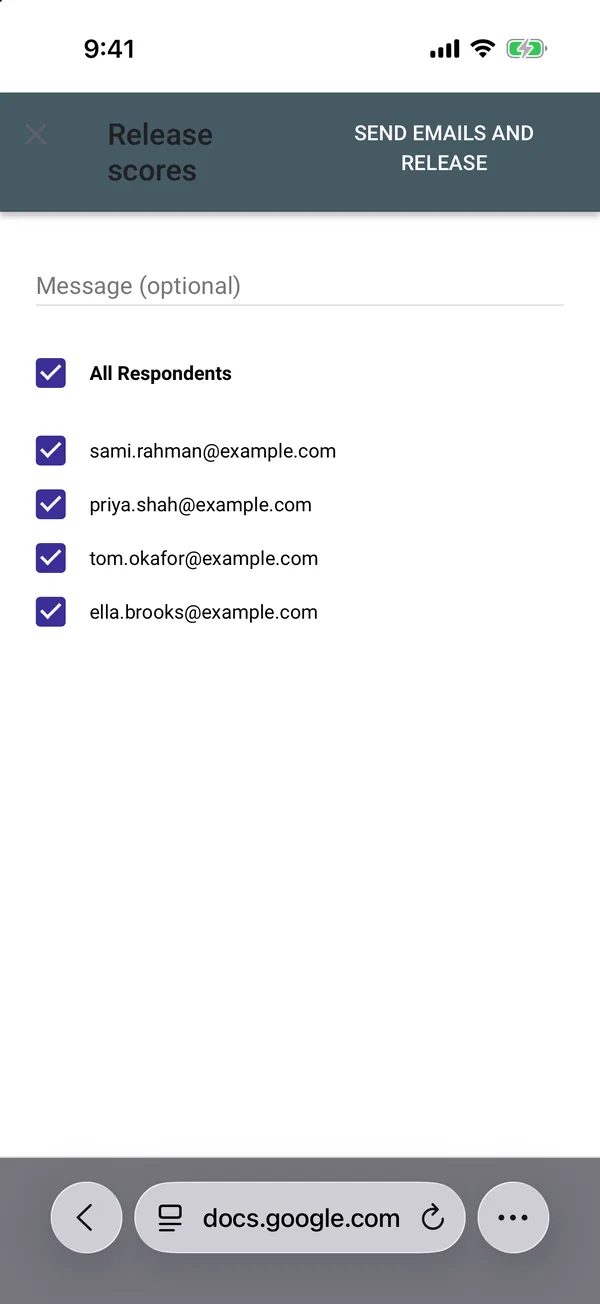
Releasing means emailing: there is no other button
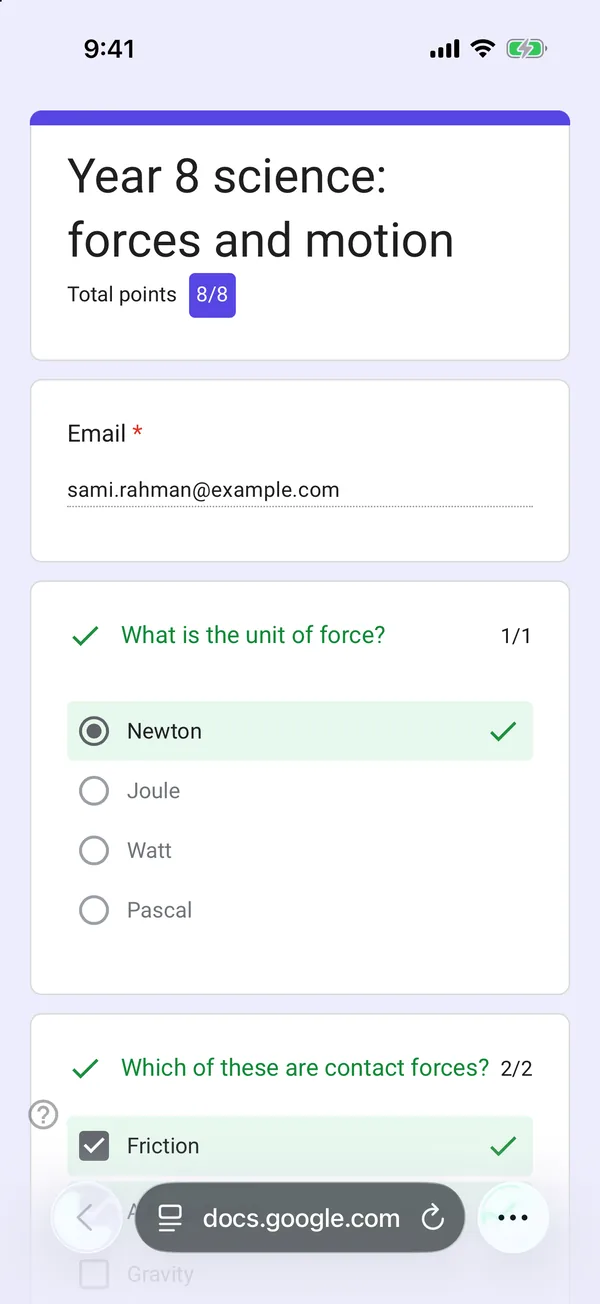
What the student sees: 8/8, question by question
Releasing always sends an email. The screen has an optional message, a tick box per student, and one button: “Send emails and release”. There is no way to release quietly, so write the message as if it will be read, because it will. This is also why “Later” switches on email collection: without addresses, Google has nowhere to send the scores. My test students had example.com addresses, which receive nothing, so I cannot show you the email itself; the “View score” page it links to opened without asking the student to sign in, with the total in a badge and each question marked.
Getting the marks out
The green Sheets icon in Responses creates a linked spreadsheet. Its third column is “Score”, written like “7 / 8”, and it includes the points you gave by hand. There is no column of points per question, only each student’s answers. On the phone, Safari opens a cut-down Sheets with a prompt to install the Sheets app, which is fine for reading the scores and not much else. For anything more, the Excel export guide covers the rest.
In the app
AI Form for Google Docs, the app this site is built around, helps with the first half of this page and not the second, and I would rather say so. Its AI writes the quiz questions, but it does not pick the right answers or the points, and it does not switch the form to a quiz. After saving, you turn on Quiz in the Settings tab, and each question gets an Answer key sheet with a points counter and the options to tick. On a phone, that sheet is easier to use than Google’s tiny points field.
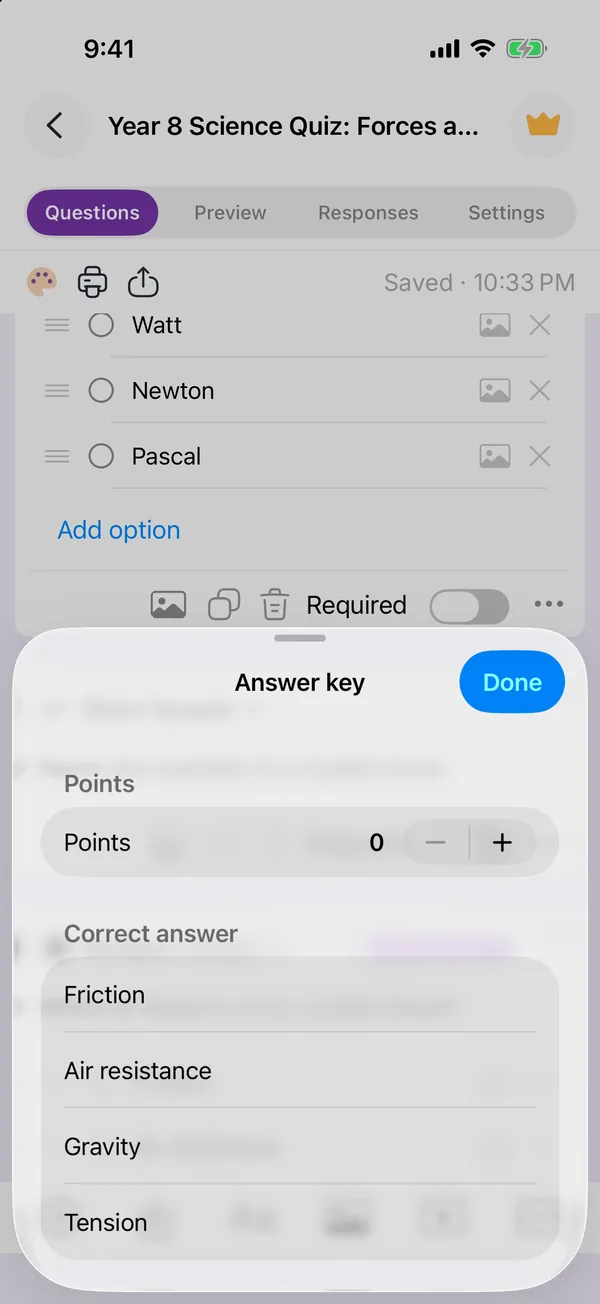
The app’s Answer key sheet: you set the points and tick the answer
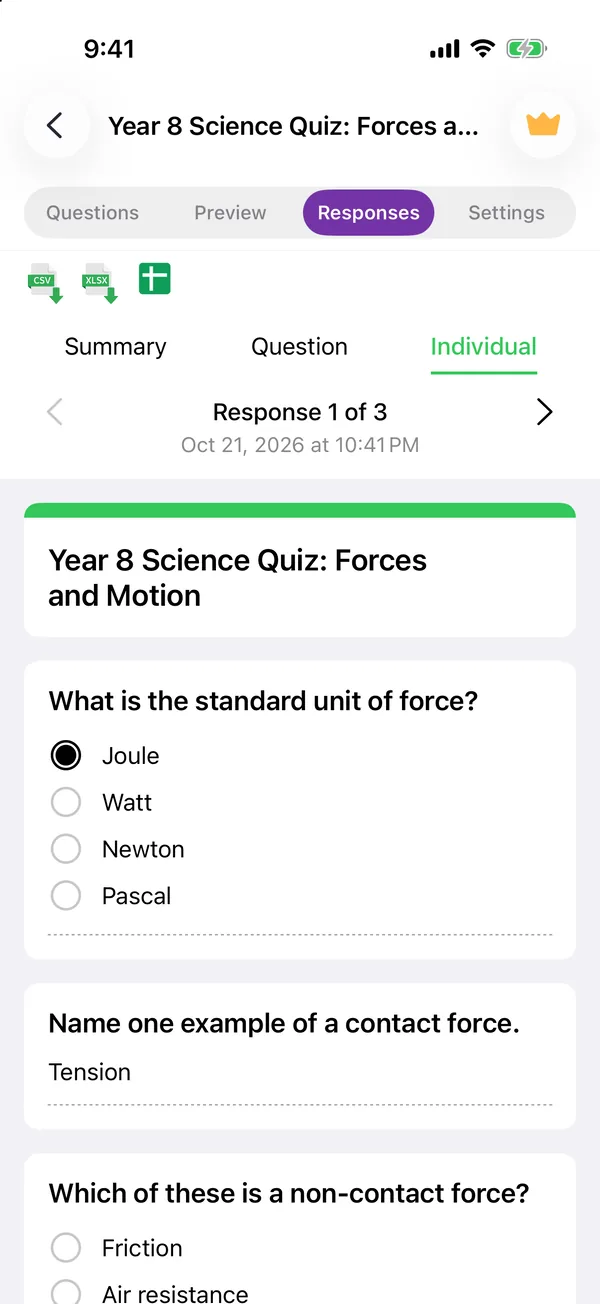
Responses in the app: the answers, but no scores
The marking itself happens in Google Forms. The app’s Responses tab shows every answer with charts, but no scores, no totals and no points box for a written answer. So the app is where I build the quiz and set its key; Safari, or better my Mac, is where I mark it.
The AI quiz generator page explains how the quiz itself is made.
Build the form on the device you already have
Keep reading
Using Google Forms on a Phone: What Actually Works
I built, published and read a Google Form from an iPhone in Safari, screen by screen. What the mobile editor does well, the two things it does badly, and where an app changes the arithmetic.

Six Google Forms Settings Most People Never Switch On
Six settings that are already in Google Forms and rarely switched on, with the menu paths checked against Google’s documentation — and the one that will cost you responses.
How to Create a Google Form on iPhone (Step by Step)
Seven steps in Safari, each with a screenshot from an iPhone: open a blank form, add questions, set the theme, publish, copy the link, test it, read the responses.
Tools for this task
AI Quiz Generator for Google Forms
Describe a topic and the app writes the quiz questions as a real Google Form. You set the answer key in the app, then share it.
Step-by-step guideExport Google Forms Responses to Excel
The one-off CSV download and the live linked spreadsheet, when to use each, and the response counts at which Google stops keeping up.