
AI Quiz Generator for Google Forms
Describe a topic and the app writes the quiz questions as a real Google Form. You set the answer key in the app, then share it.
Writing a quiz is two jobs: the questions, and the answer key. The quiz generator in our app does the first one. You describe the topic, the AI writes the questions, and you review them before a single form is created in your Google account. The answer key stays your job: you switch the form to a quiz and tick the correct answer and the points for each question in the app’s Answer key sheet, which is quicker with a finger than Google’s own panel on a phone.
What you get is a real Google Forms quiz in your own Drive, not a copy inside another service. Students answer it with an ordinary Google Forms link, on any phone or computer, and once the key is set, Google Forms grades each submission against it.
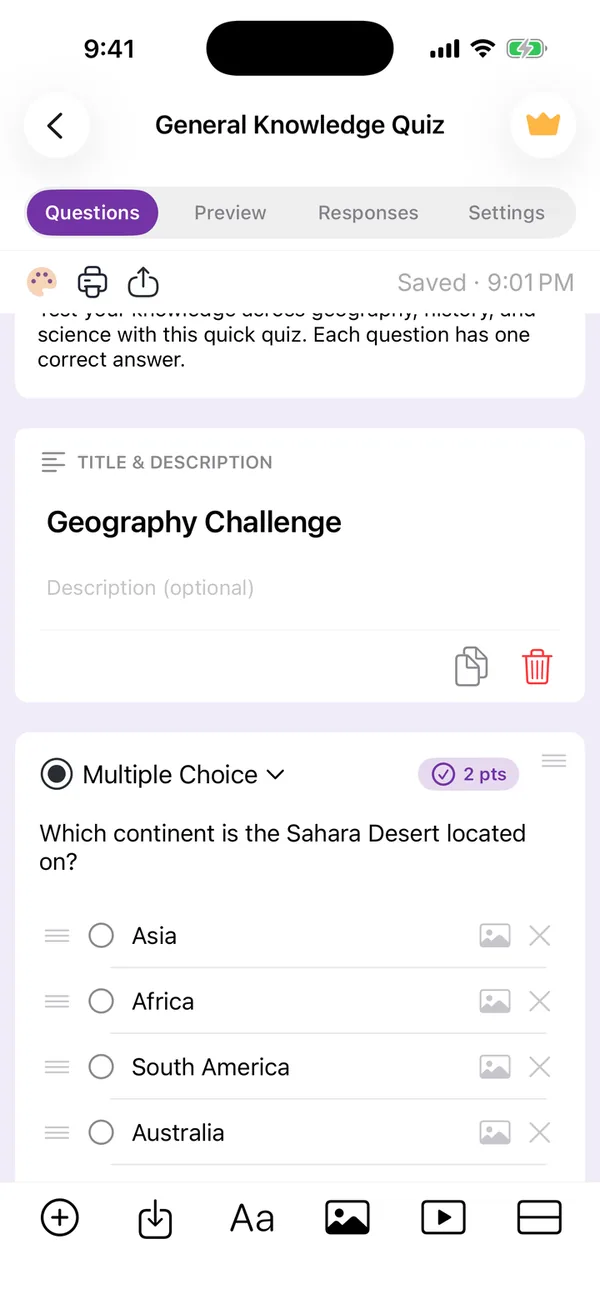
Two things to do before you share it. First, the AI does not switch the form to a quiz and does not fill in the key: after you save the form, turn on Quiz in Settings, then open the Answer key of each question, set its points and tick the right answer. Second, read the questions themselves. AI can get a fact wrong, and a question with no right option, or two, cannot be marked fairly.
Two limits to know. Automatic grading works for questions with fixed answers: multiple choice, checkboxes, dropdowns, and short answers with an exact expected text. Long written answers still have to be marked by hand in Google Forms. In the app, writing a quiz with AI is part of Premium; turning a form into a quiz and setting its answer key are free.
If you would rather start from a tested set of questions, the classroom quiz template lists ten end-of-lesson questions, with the steps to make Google Forms mark them for you.
Why it helps
The questions are written for you
Describe the topic and the level, and the AI writes a full set of quiz questions, mostly multiple choice and short answers. You check them and set the answer key in the app before sharing.
A real Google Forms quiz
It is created in your own Google Drive through Google’s Forms API. Google Forms grades every submission, and you can keep editing the quiz in Google Forms on a computer.
In the language of the class
Pick English, French or Arabic in the composer, or leave it on Auto, and set the tone: neutral, professional or friendly.
How to do it
Describe the topic and choose Quiz
In Create with AI, write what the quiz should cover, for example “ten questions on the water cycle for 12-year-olds”. Set the form type to Quiz, then choose 5, 7, 10 or 15 questions, the language and the tone.
Review the questions, then save
The preview lists every question. Tap Regenerate if the set is off, or Use this form when it is right, then Save to create the form in your Google Drive.
Turn on Quiz and set the answer key
In Settings, switch on Quiz. Each question then has an Answer key button: set its points and tick the correct answer. Questions with fixed answers are then graded by Google Forms.
Share it with the class
Send the link, or show the fullscreen QR code on the board. Students answer in any browser, without the app, and Google Forms grades each submission against your key.
Questions people ask
- Is this a real Google Forms quiz?
- Yes. The app creates it in your own Google account through Google’s Forms API. You can open it and keep editing it in Google Forms on any computer.
- Does the AI fill in the correct answers?
- No. The AI writes the questions and their options; it does not choose the correct answers or the points, and it does not switch the form to a quiz. You do that in the app after saving: turn on Quiz in Settings, then set each question’s points and correct answer in its Answer key sheet.
- Which questions are graded automatically?
- Questions with fixed answers: multiple choice, checkboxes, dropdowns, and short answers with an exact expected text. Paragraph answers are marked by hand in Google Forms.
- Do students need the app?
- No. They open a normal Google Forms link, or scan the QR code, on any phone or computer.
- Is it free?
- Turning a form into a quiz and setting its answer key are free in the app. Writing a quiz with AI, and the quiz templates, are part of Premium. If a free trial is available on a subscription, Apple shows it before you confirm.
- Which devices does the app run on?
- iPhone and iPad (iOS 15.6 or later), Macs with Apple silicon, and Apple Vision Pro. There is no Android version.