
Turn a Paper Form into a Google Form
Photograph a printed questionnaire and get a real Google Form in your Drive. The page is read on your device, never uploaded.
Paper forms outlive the people who designed them. A sports club still hands out the membership sheet somebody laid out in Word in 2011. A physiotherapy practice photocopies the same intake questionnaire it has used for years, because it works and nobody wants to retype forty fields to find out whether the digital version works as well. A primary school teacher has a reading assessment on paper that took an afternoon to write and has been reused every September since.
Retyping any of those into Google Forms is an hour of work, and it is the specific kind of hour nobody schedules. So the paper stays.
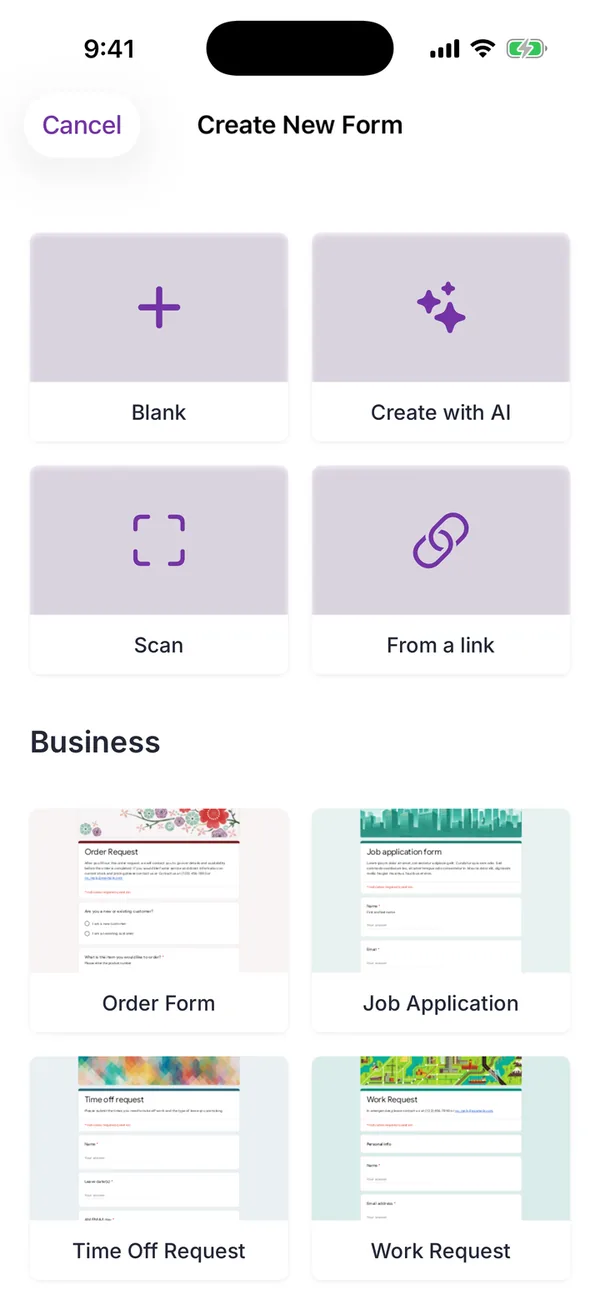
The FormsGen app removes the typing. You photograph the page, the app reads it, and a Google Form appears in your Drive with the questions already in place. The recognition runs on the device itself, using the same text-recognition framework Apple uses when you select text inside a photo. The page is never uploaded anywhere to be read — which matters when the form in your hand is a medical intake sheet.
This one is not a web tool, and it is not going to become one. There is no honest way to run Apple’s on-device recognition inside a browser tab, and running it on a server would mean uploading the very documents this feature exists to keep off servers.
Why it helps
The page never leaves your phone
Text recognition happens on the device, through Apple's Vision framework. Nothing is uploaded to be read, which is the difference between scanning a lunch-order sheet and scanning a patient questionnaire.
You get a form, not a picture
The result is a real Google Form in your own Drive, with questions you can edit, reorder and reword. Not a photograph attached to a document, and not a PDF that someone still has to fill in by hand.
It removes the typing, not the thinking
Transcription is the part that takes an hour and teaches you nothing. Reviewing the result takes a couple of minutes and is worth doing properly, because a form is only useful if the questions came out the way you meant them.
How to do it
-
1
Flatten the page and light it well
This is the step people skip, and it is the one that decides how good the result is. Lay the sheet flat on a table near a window rather than holding it up in a dim room. Creases and shadows are what break text recognition, far more than the age of the paper.
-
2
Photograph it in the app
Fill the frame with the page and keep the camera parallel to it. A photograph taken at an angle makes lines of text converge, and converging lines are harder to segment into questions.
-
3
Read what came back before you share it
Recognition gives you a first draft. Check that a row of tick boxes became a multiple-choice question rather than a paragraph, and that nothing was merged where the original had two columns. Fix what needs fixing in the app.
-
4
Share it and collect answers
From there it behaves like any Google Form. Send the link, print the QR code, and the responses land in your Google account with the linked spreadsheet you would have had anyway.
Questions people ask
- Is my document uploaded anywhere?
- No. The text is read on the device, using Apple's Vision framework. The photograph is not sent to a server for processing, and it is not sent to us.
- Does it read handwriting?
- It is built for printed forms, and that is where it is reliable. Handwriting varies far too much to promise anything, so treat a handwritten page as a rough draft you will end up rewriting.
- What kind of paper form works best?
- A clean printed page, one column, reasonable type size, no shadow across it. A photocopy of a photocopy with a coffee ring on it will need more correcting, though it usually still saves time over retyping.
- Will the new form look like my paper one?
- No, and it shouldn't. What you get is a Google Form, so it follows Google's layout and behaviour. The questions carry over; the design of your printed sheet does not.
- Which devices can do this?
- iPhone, iPad, Mac with Apple Silicon, and Apple Vision Pro. The recognition depends on Apple's framework, so there is no Android version.
- Is there a version that runs in a browser?
- No, and there is unlikely to be one. Running it in a browser would mean uploading your document to a server to be read, which is precisely what the on-device approach avoids.
- What does it cost?
- It is part of the app: $5.99 per week, $49.99 per year, or $89.99 once for lifetime access. Billed by Apple through the App Store.
The scanner lives in the app
Guides that use it
Using Google Forms on a Phone: What Actually Works
I built, published and read a Google Form from an iPhone in Safari, screen by screen. What the mobile editor does well, the two things it does badly, and where an app changes the arithmetic.
How to Create a Google Form on iPhone (Step by Step)
Seven steps in Safari, each with a screenshot from an iPhone: open a blank form, add questions, set the theme, publish, copy the link, test it, read the responses.
Is There a Google Forms App for iPhone?
No, Google does not publish one. What works instead on an iPhone, compared honestly, including when the browser is the better answer.