
How to Add a Photo to a Google Form from Your Phone
Yassine Jaa Published 4 minute read
To add a photo to a Google Form from your iPhone, open the form in Safari, select the question and tap the small image icon to the left of the question type. In the window that opens, do not tap “Photos”: that is Google Photos. Your iPhone’s own pictures are under Upload, then Browse, then Photo Library. The same window serves for an image on an answer option and for an image block between two questions.
I tested this on 30 October 2026 on an iPhone 16 Pro with iOS 26.5, in Apple’s Simulator, with a made-up “Lunch menu vote”: a canteen photo on the question, a photo of each dish on the three answer options, and a picture of cutlery between two questions. The photos are from Unsplash.
Three places a photo can go
On a question. Select the question; the image icon sits just left of the “Multiple choice” menu. My first tap on the question did not select it, so look for the icon before you tap it.
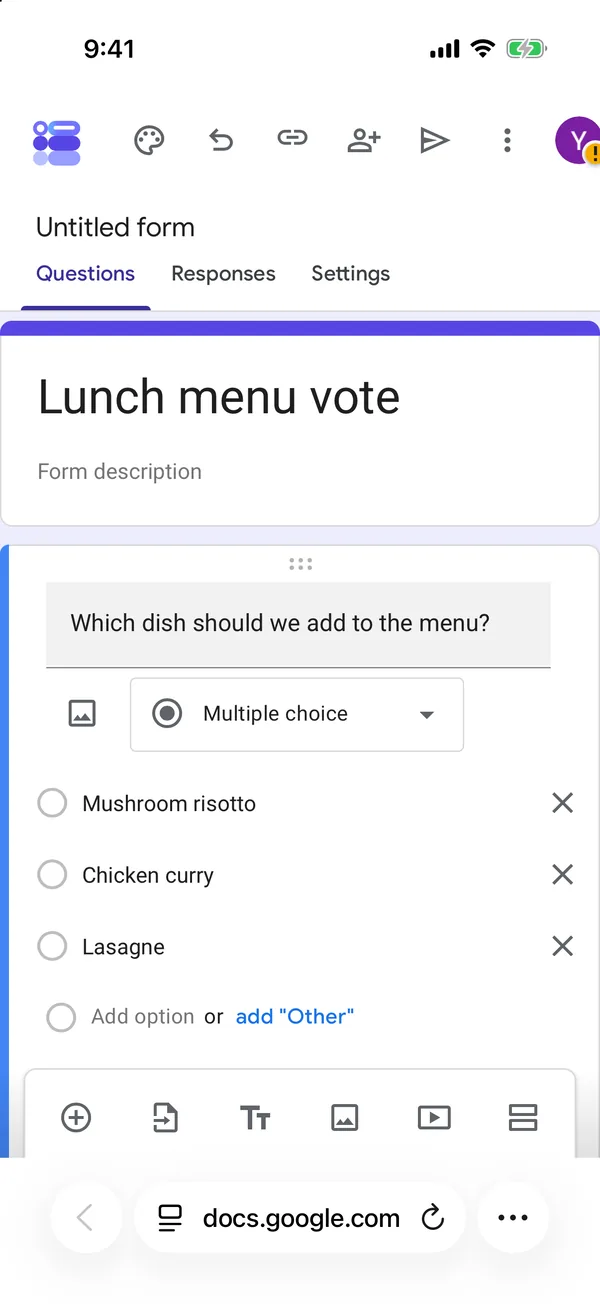
On an answer option. The image icon appears at the right of an option only while you are typing in it. Tap into the option’s text and it shows up.
Between two questions. “Add image” is in the toolbar at the bottom of the editor, and it inserts the image after the question that is selected. My first try put it at the very top of the form, because nothing was selected; select the question above where you want it first.
The Photos trap
The “Insert image” window has six tabs: By URL, Photos, Google Drive, Google Images, Upload and Webcam. It took one to two seconds to load. “Photos” is the one everyone taps, and it opens Google Photos, which is empty unless you back up your iPhone there. The pictures on your phone are behind Upload › Browse › Photo Library. After you confirm, the image takes three to five seconds to appear.
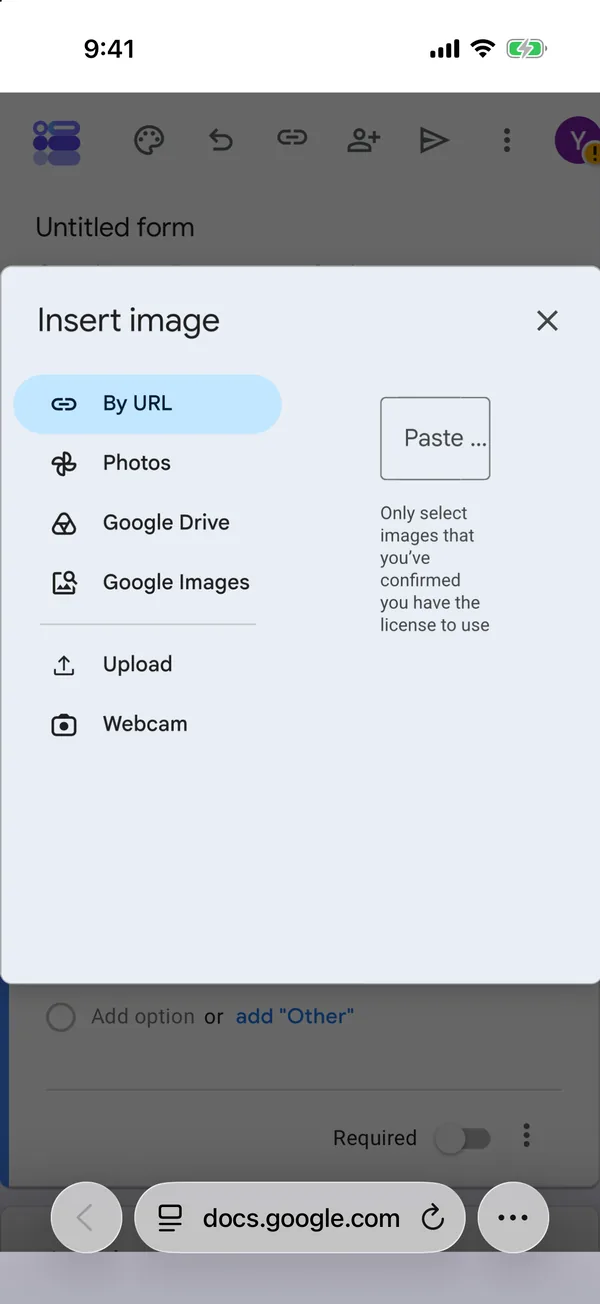
Six tabs, and “Photos” is not your iPhone’s photos
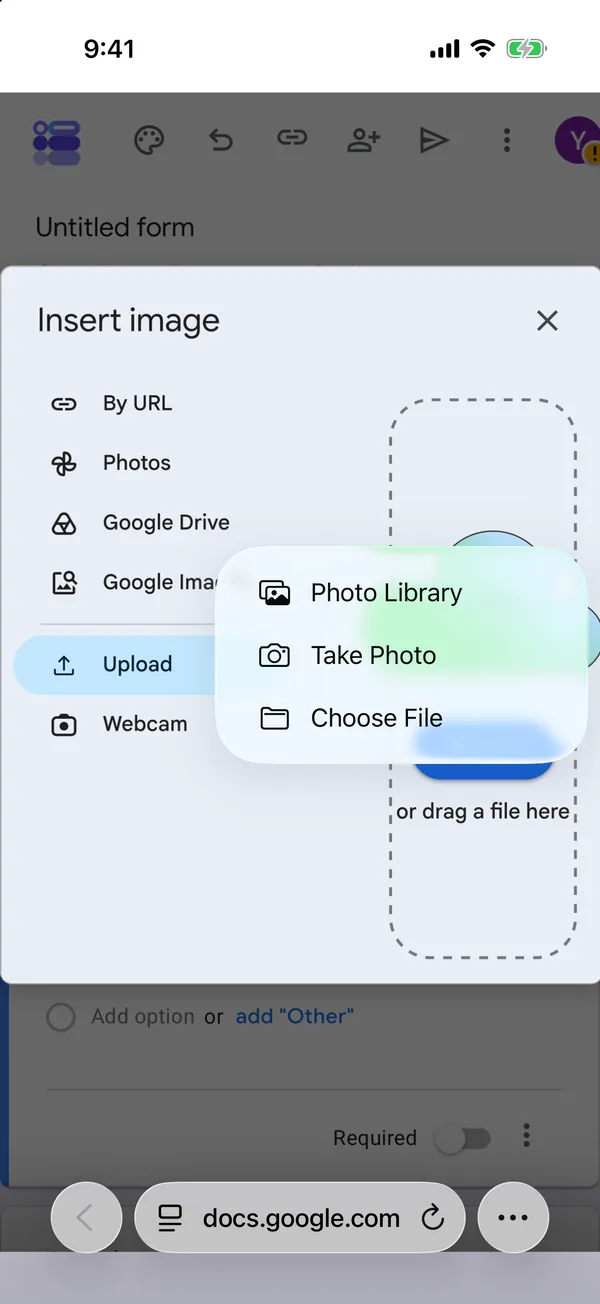
Upload › Browse › Photo Library
The same menu offers Take Photo. The Simulator’s camera only shows grey, so I could not check a photo taken on the spot; on a real iPhone, that is the one to try if the thing you want to show is in front of you.
What you can adjust on a phone
An image on a question or an image block can be aligned left, centre or right, changed or removed, and resized by dragging its corner handles. Only the image block between questions has a caption, called “Image title”. An image on an answer option has no settings at all, just a cross to remove it.
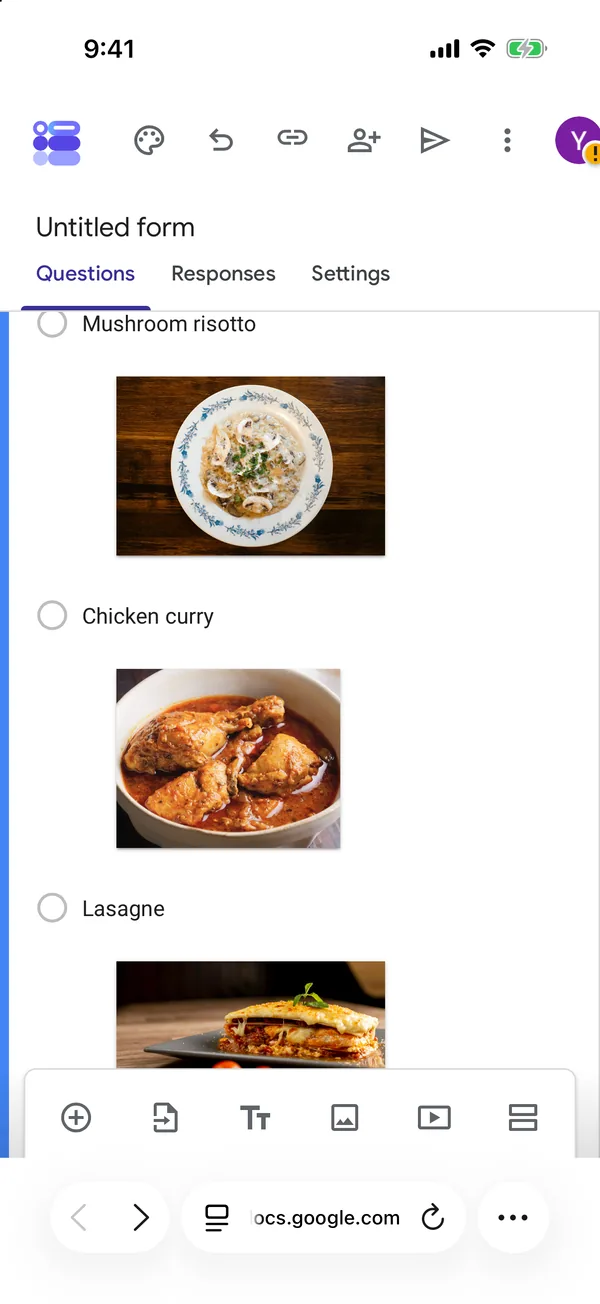
What the people answering see
On a phone, each option with a photo becomes a card with the picture above its label. Tapping the picture selects the option. It does not enlarge it; a long press only brings up Safari’s own image menu. So the photo has to be clear at the size the card gives it. A dish, a product or a colour works. A photo where the detail matters does not.

Photos also make a form longer to scroll, one card at a time. I would use them where the picture is the answer (which dish, which design, which room) and keep words everywhere else.
In the app
AI Form for Google Docs, the app this site is built around, adds images to questions and to options too, and it is free in version 2.1. Its sources are Photo Library and From URL; there is no camera and no Google Drive option. An image took seven to seventeen seconds to upload in my test, and the app keeps it in a folder called “Forms Gen Images” in your Google Drive, so you can find it again. The images I added in Safari did not show up as files in Drive.
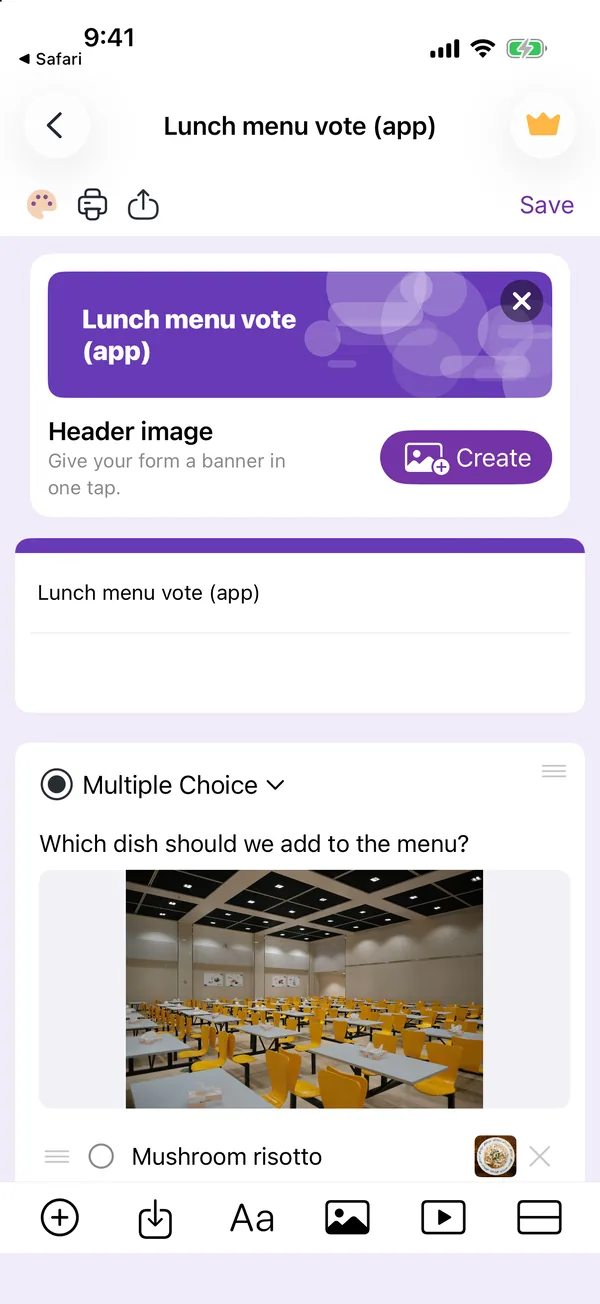
For the banner across the top of a form, the header image is a different setting with its own size rules; the header image guide covers it, and the iPad guide shows the same Photos trap on a tablet.
Build the form on the device you already have
Keep reading
Using Google Forms on a Phone: What Actually Works
I built, published and read a Google Form from an iPhone in Safari, screen by screen. What the mobile editor does well, the two things it does badly, and where an app changes the arithmetic.

Six Google Forms Settings Most People Never Switch On
Six settings that are already in Google Forms and rarely switched on, with the menu paths checked against Google’s documentation — and the one that will cost you responses.
How to Create a Google Form on iPhone (Step by Step)
Seven steps in Safari, each with a screenshot from an iPhone: open a blank form, add questions, set the theme, publish, copy the link, test it, read the responses.