
AI Form for Google Docs 2.0: Describe It, Scan It, Grade It
Yassine Jaa Published Updated 4 minute read
September 2026. Version 2.0 for iPhone and iPad, a free update.
Google Forms is where countless surveys, sign-ups and quizzes live. Building them on a phone has never been pleasant, though: the web editor is made for a mouse, and the parts people want most, themes, quizzes, charts, hide behind menus. Version 2.0 of our app is our answer: a native iOS editor that creates real Google Forms in your own Drive, with those parts made fast.
Here is what changed. I have been building forms with it on my own phone for the last month, and the order below is the order in which I use the features.
Describe the form. The AI writes it.
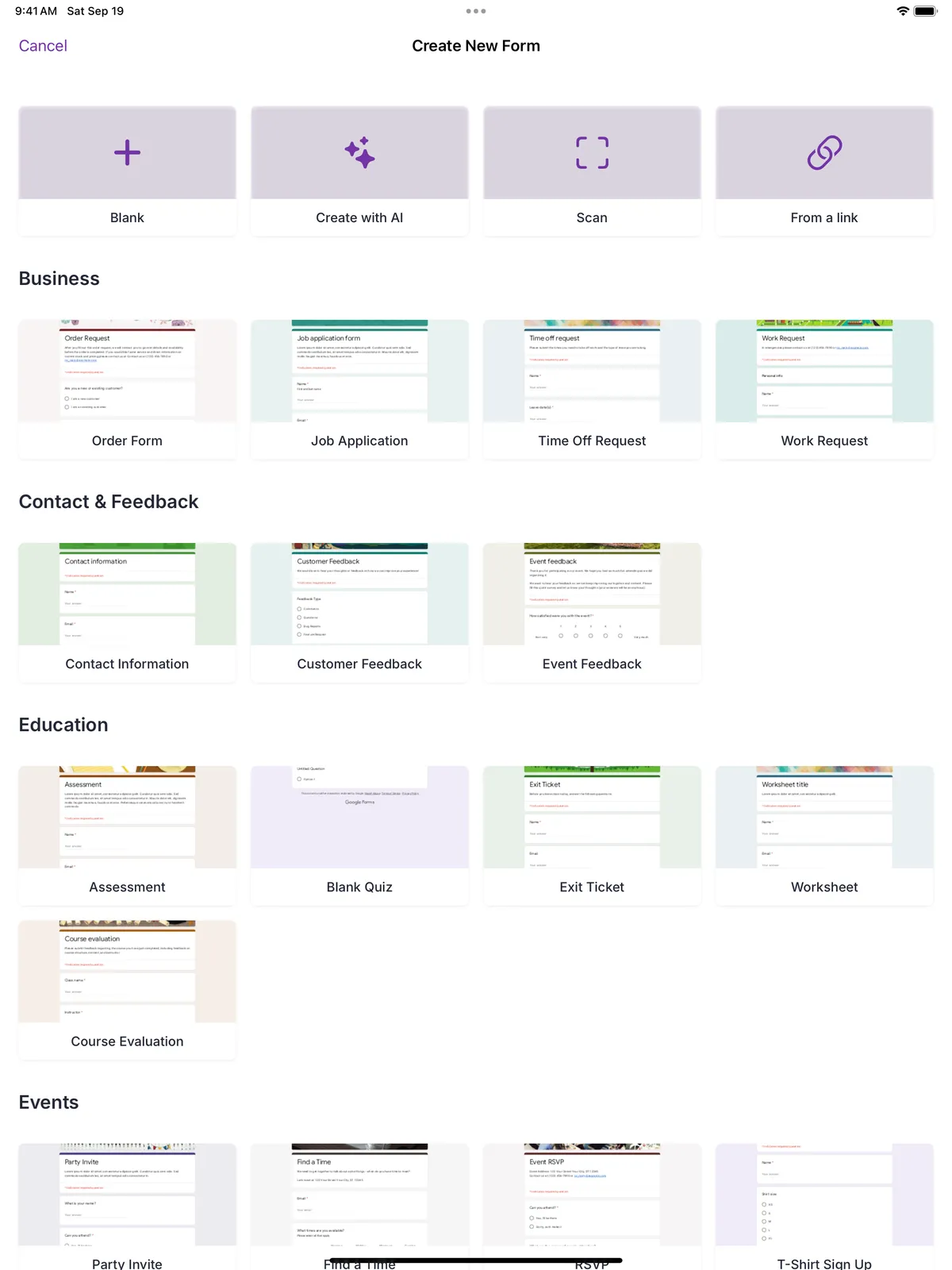
Type one sentence, “customer satisfaction survey for my café: welcome, dishes, prices, atmosphere”, pick the type (survey, quiz, general), the number of questions, the tone and the language, and tap Generate. The app shows you the questions before creating anything: rename the form, regenerate, or use it as is. Then keep editing in the app like any other form.
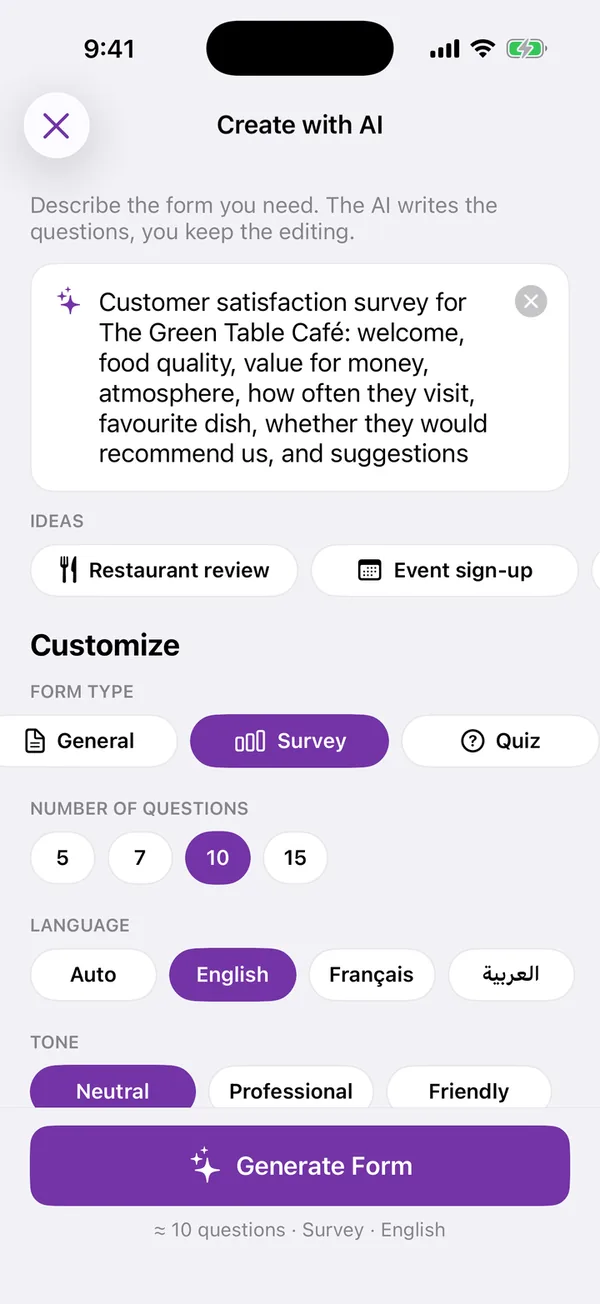
The composer
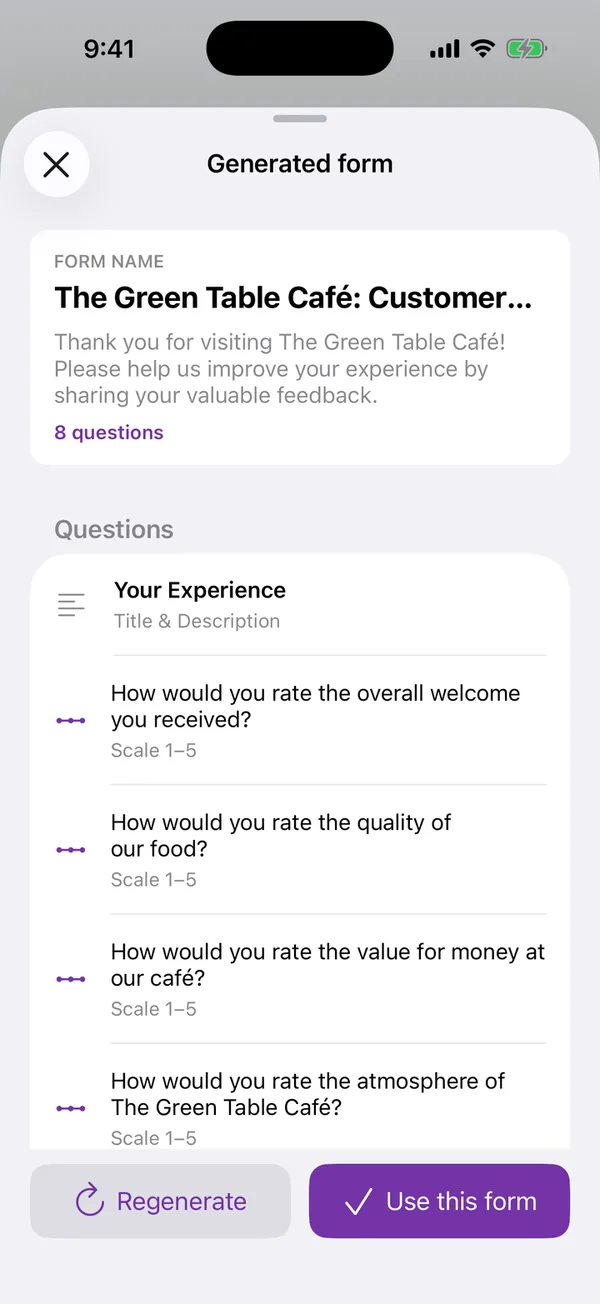
The preview, before anything is created
I wrote a step-by-step guide to this screen, with a screenshot of each step, for anyone who wants the long version.
Scan a paper questionnaire
Point the camera at a printed questionnaire, or pick a photo. The app reads the questions, the options, the checkboxes and the rating scales, and builds the form for you. Recognition runs on the device; the photo never leaves your phone.
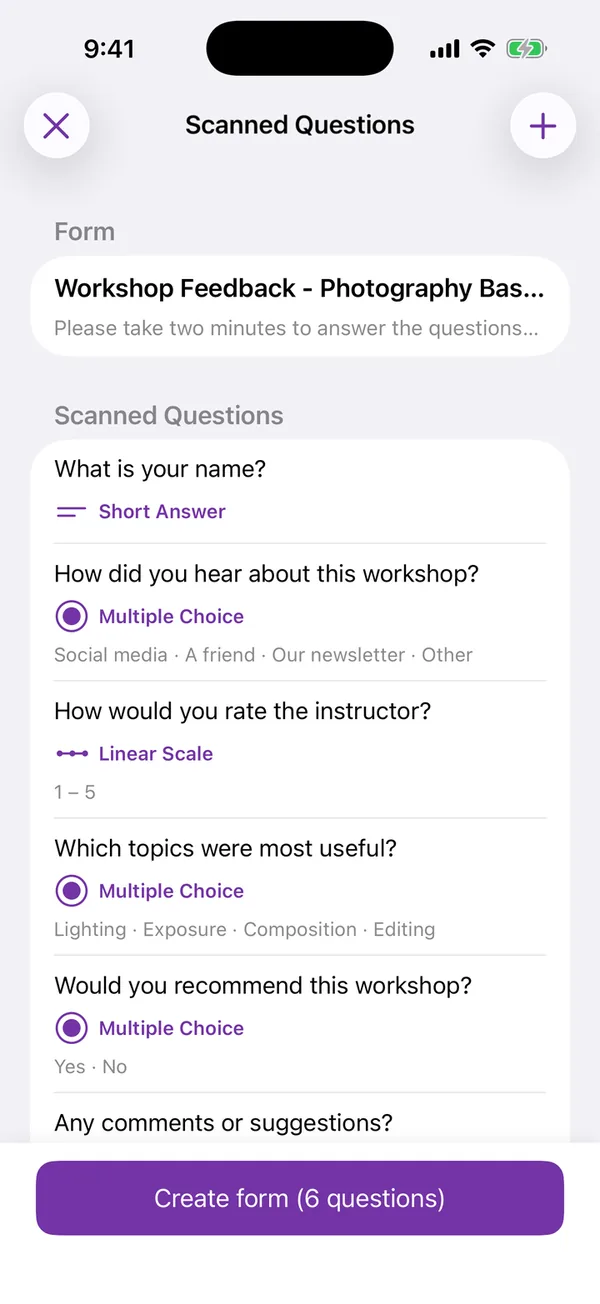
Quizzes with answer keys
Turn any form into a quiz: set the correct answer and the points for each question. Google Forms grades every submission automatically, and the score shows in the app’s Individual responses view.
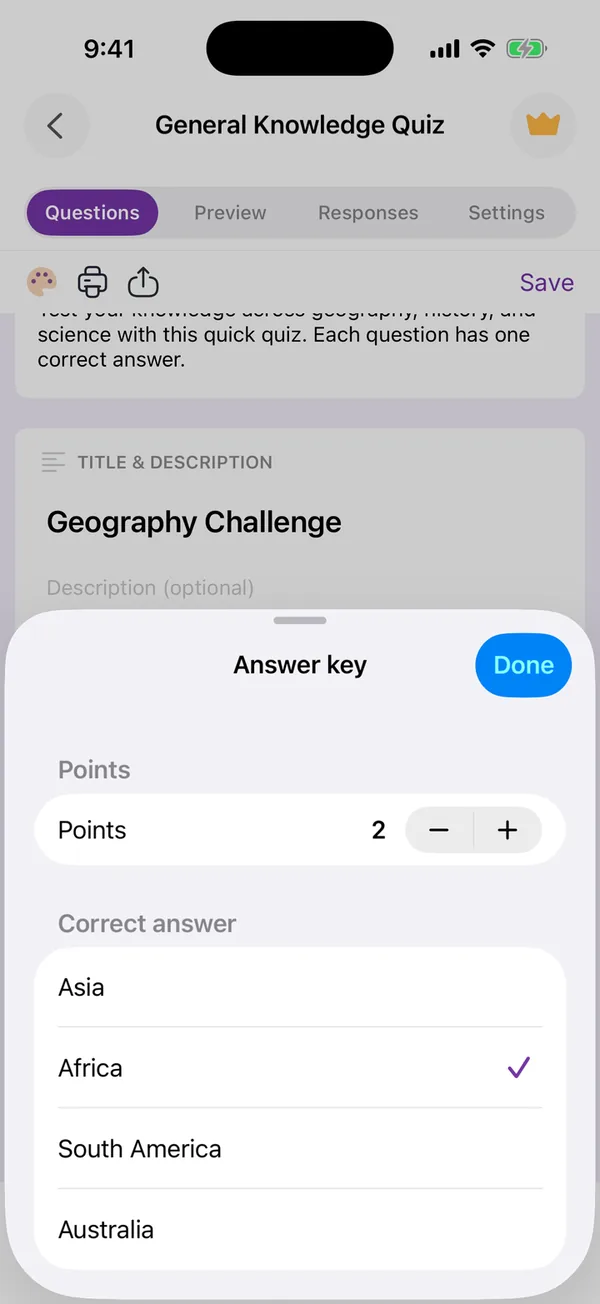
Share by link, QR code, social card or PDF
One sheet for every way to reach respondents: copy the link, show a fullscreen QR code on a screen or a poster, export a card image for Instagram, X or LinkedIn, or print a PDF copy of the form.
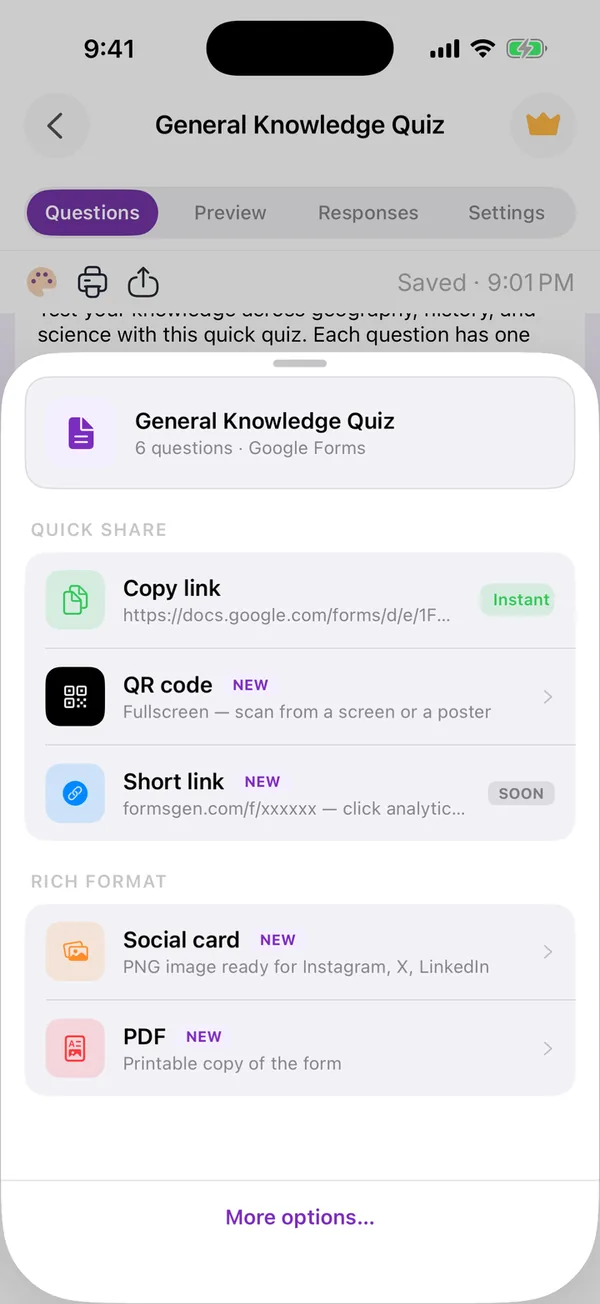
The share sheet
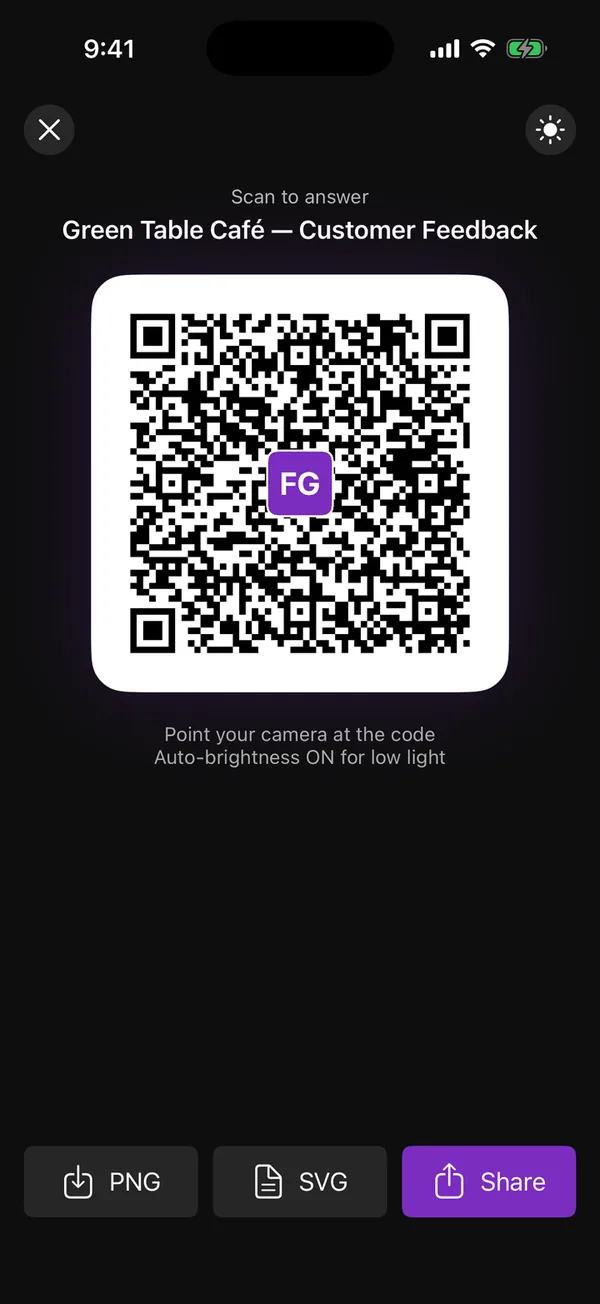
The fullscreen QR code
See every answer as a chart
Pie and bar charts per question, individual responses, and one-tap export to CSV, Excel or Google Sheets. Need the form to stop on its own? Set a response limit or a closing date and the app turns off “accepting responses” for you.
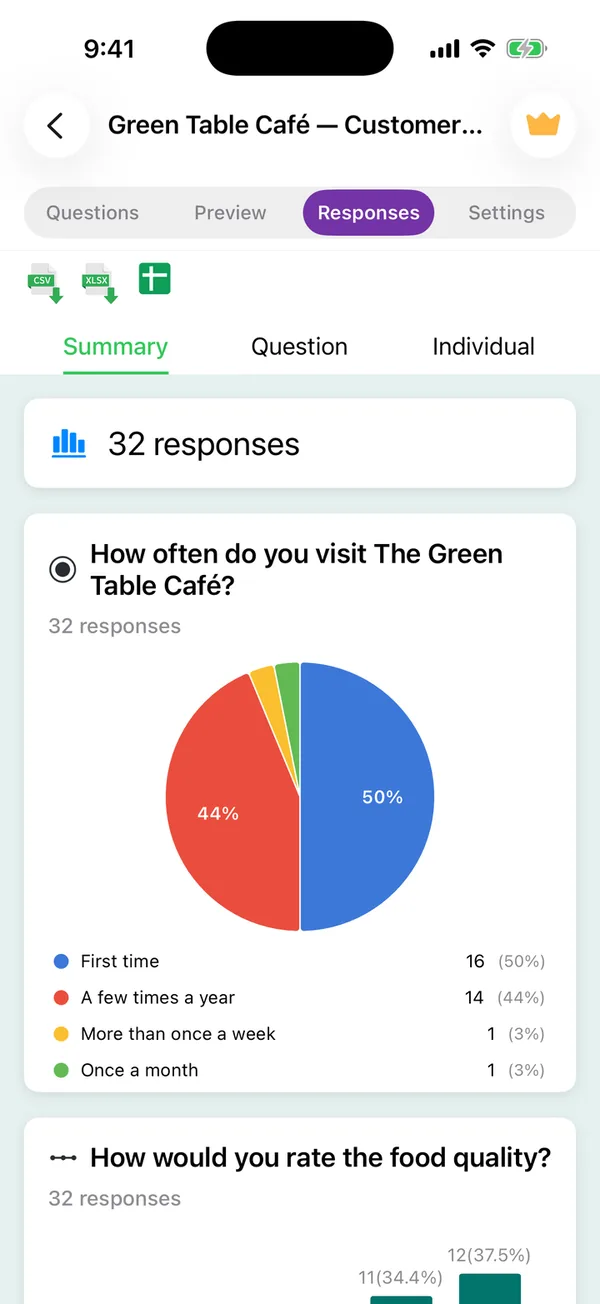
A native editor, and design that shows
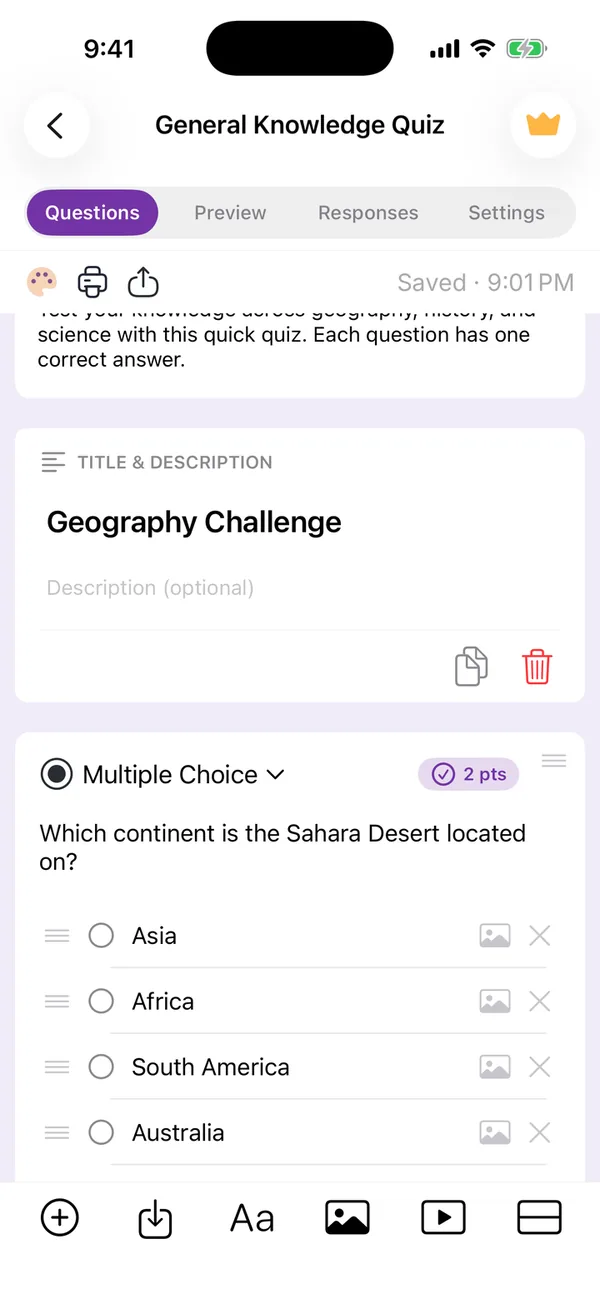
Every Google Forms question type. Images and descriptions on questions and on options. Sections, drag to reorder, undo after a delete. Four tabs: Questions, Preview, Responses, Settings. The Design panel changes fonts, sizes, colours and header image; the Preview tab shows the result before anyone else sees it.
Everything organized, including on iPad
Folders, search, rename, duplicate, move, trash. Any of your existing Google Forms can be opened from its link. On iPad, the template grid, the AI composer and the QR code use the larger screen.
Privacy, unchanged
Your forms and answers live in your Google Drive; we keep nothing on our servers. Scanning is on-device. The text you type for the AI goes to Google’s Generative Language API to write the questions and is not linked to your account. The details are in our privacy policy, updated for this version.
Get it
Version 2.0 is a free update on the App Store for iPhone and iPad (iOS 15.6 or later), with the interface in English, in French and in Arabic. Creating and editing forms is free with ads; Premium removes the ads and includes every feature. The full list is on the release notes page.
Questions or ideas? contact@formsgen.com.
Build the form on the device you already have
Keep reading
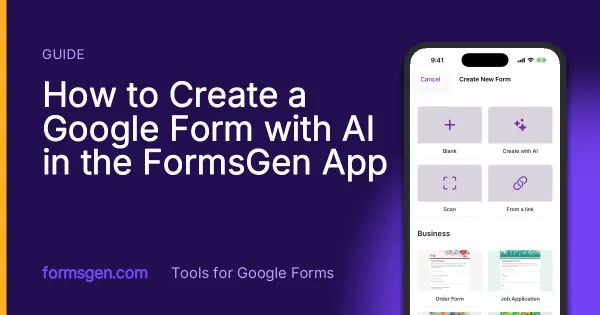
How to Create a Google Form with AI in the FormsGen App
Every screen from "I need a form" to a Google Form in your Drive: the New Form screen, the AI composer and its four settings, the preview, the editor, the answer key, and Save.
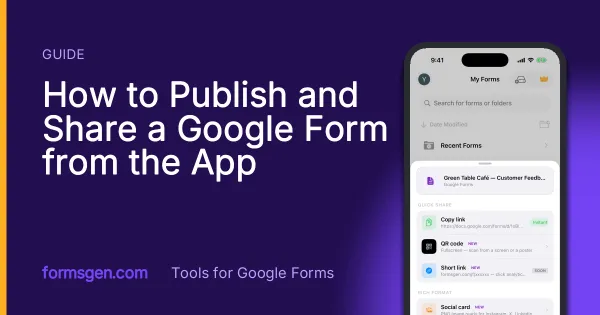
How to Publish and Share a Google Form from the App
The share sheet of the app, screen by screen: the settings to check first, the link, the fullscreen QR code, the social card and the printable PDF, and which one for which situation.
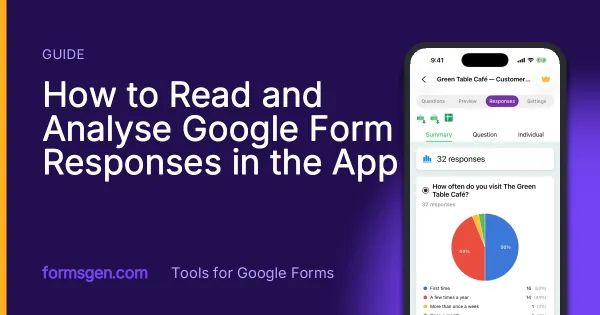
How to Read and Analyse Google Form Responses in the App
The Responses tab screen by screen: summary charts, one question or one person at a time, CSV, Excel and Google Sheets export, and the setting that closes a form on its own.
Tools for this task
Turn a Paper Form into a Google Form
Photograph a printed questionnaire and get a real Google Form in your Drive. The page is read on your device, never uploaded.
In the appAI Quiz Generator for Google Forms
Describe a topic and the app writes the quiz questions as a real Google Form. You set the answer key in the app, then share it.
In the appAI Survey Generator for Google Forms
Describe your survey in a sentence and get a real Google Form with the questions written and the scales set. You review it first.