How to Get Google Forms Notifications on Your Phone
Yassine Jaa Published 5 minute read
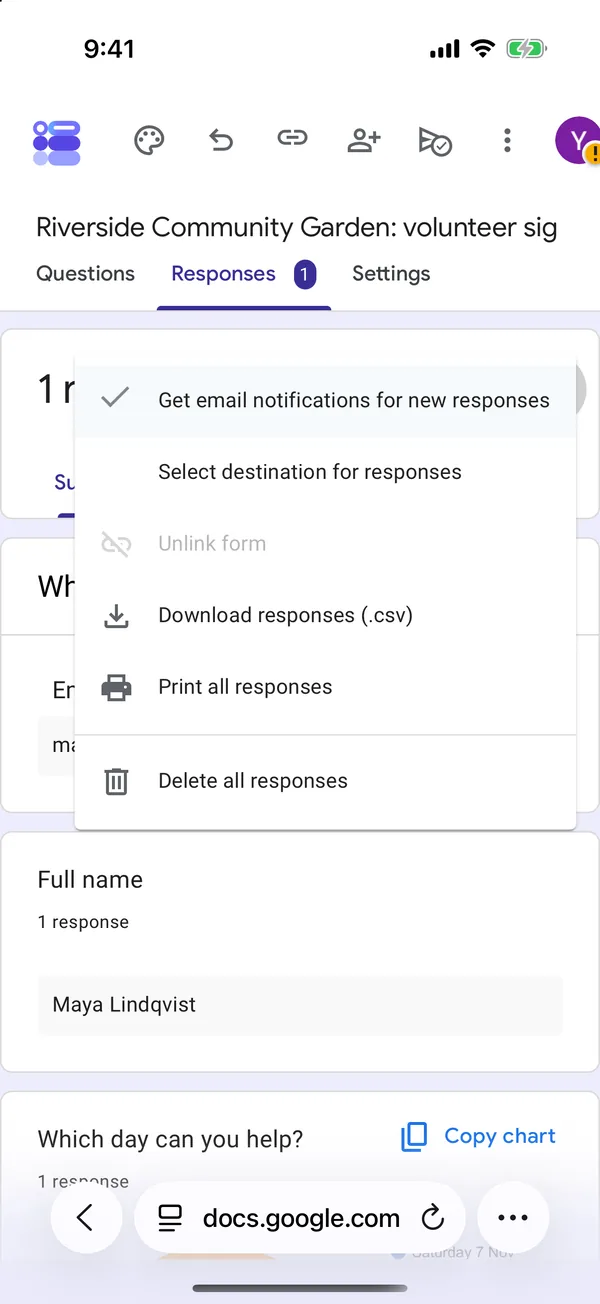
Google Forms has no app, so it cannot send a notification to your phone. What it can do is email you every time someone answers: in the form’s Responses tab, open the ⋮ menu and tap “Get email notifications for new responses”. The email reaches your phone like any other, so the alert you get is your mail app’s alert. If one email per answer is too many, the linked Google Sheet can send a single summary a day instead.
I tested this on 26 October 2026, in Safari on an iPhone 16 Pro with iOS 26.5 and on an iPad Air with iOS 27.0, both in Apple’s Simulator, with the made-up community garden sign-up from the previous guides and a demo Google account.
Switching on email alerts
In the form’s editor, go to Responses and tap the three dots at the top right of the tab. “Get email notifications for new responses” is one line in that menu. One tap, a short “Email notifications enabled”, and a tick appears in front of it. The setting belongs to that form only: a quiz in the same account still had it off. If you run several forms, switch it on for each one you care about.
Both times I sent a test answer, the email arrived in under a minute. It comes from “Google Forms” at forms-receipts-noreply@google.com, with the subject “Your form, [form name], has new responses.” It does not contain the answers. You get the email address of whoever replied, if the form collects it, and a “View summary” button that opens the Responses tab. So the alert tells you that something came in, not what it says.
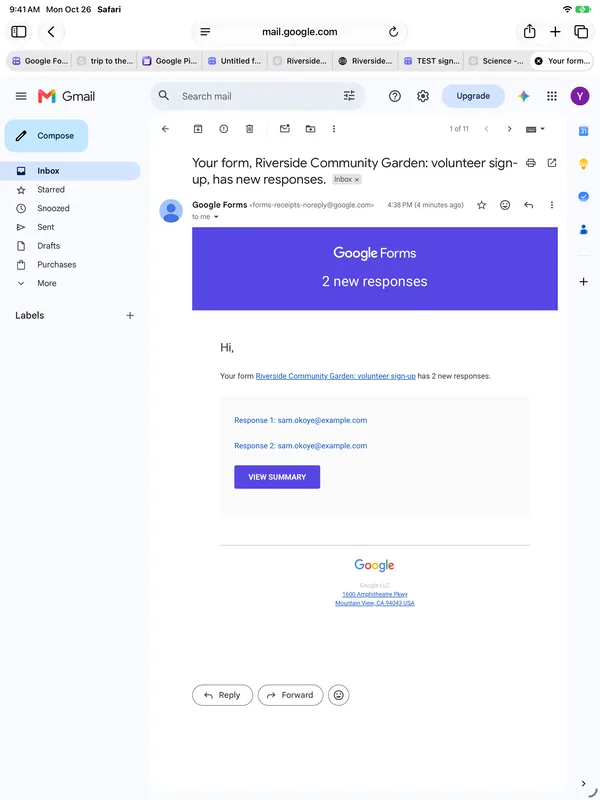
One oddity I cannot explain: for a single answer, both test emails said “2 new responses” and listed the same address twice. The Responses tab counted one. Trust the tab, not the email.
Turning the email into an alert
Here I have to be honest about what I could not test. The Simulator has neither Apple’s Mail app nor the Gmail app, so I could not check how either one rings for these emails on a real iPhone. What I could set up is the Gmail side, which decides which emails count as important.
In Gmail on the web, search for mail from forms-receipts-noreply@google.com, then “Create filter”, and tick “Apply the label” (I called mine “Form responses”), “Never send it to Spam” and “Always mark it as important”. The filter worked: the next notification arrived labelled.
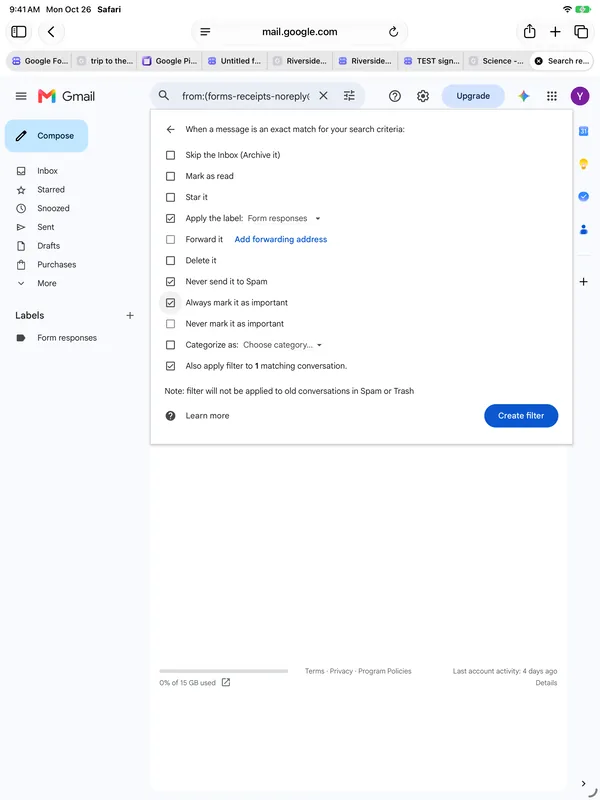
Watch for one catch. The copy Google sends to people who ask for a copy of their own answers comes from the same address, so this filter catches those too if you ever fill in a form yourself. Adding the words “has new responses” to the filter’s subject field should keep it to notifications only; I did not test that variant.
On the phone, the idea is to let only those important emails make a sound. The Gmail app has a notification setting for high-priority mail only, and Apple’s Mail lets you mark a sender as VIP. Both are the obvious next step, and neither could be checked here, so treat them as a direction rather than a tested recipe.
When one email per answer is too many
The linked spreadsheet has a quieter option. In Google Sheets, Tools › Notification settings › Edit notifications opens “Set notification rules”: notify me when “A user submits a form”, by “Email – daily digest” or “Email – right away”. The daily digest is one email a day, whatever the number of answers.
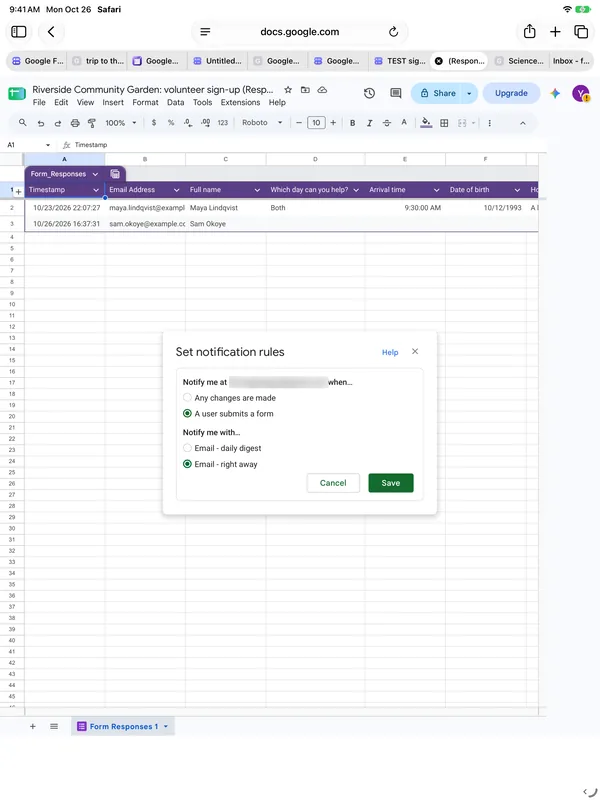
Setting it up on a phone is awkward. Safari on the iPhone opens a cut-down Sheets with no Tools menu; the setting only appears after “Request Desktop Website”, in very small type. On the iPad, the full Sheets opened straight away. I would do this once, on a computer or a tablet, and forget about it.
For the person who answered, Google offers one thing: if the form allows it, a copy of their answers by email, with an “Edit response” button. It arrived in under a minute in my test.
In the app
AI Form for Google Docs, the app this site is built around, does not notify you of new responses either. It shows them, with charts, when you open the form, but nothing arrives on its own; I checked the code of version 2.1 rather than guess. The email setting above is the only alert there is, wherever you build the form.
For my own forms, I leave alerts off and look at the responses when I decide to. It is more flexible, and a phone that buzzes for every answer to a sign-up sheet interrupts you forty times for something you could read in two minutes in the evening. When I do want to know, the daily digest from Sheets is the version that respects my time. To read what came in, the responses guide covers the Responses tab on a phone.
Build the form on the device you already have
Keep reading
Using Google Forms on a Phone: What Actually Works
I built, published and read a Google Form from an iPhone in Safari, screen by screen. What the mobile editor does well, the two things it does badly, and where an app changes the arithmetic.
How to Add a Photo to a Google Form from Your Phone
Add a photo to a Google Form question, answer option or image block from an iPhone: where each image button is, the Google Photos trap, what you can adjust on a phone, and what respondents see. Tested on 30 October 2026.
Six Google Forms Settings Most People Never Switch On
Six settings that are already in Google Forms and rarely switched on, with the menu paths checked against Google’s documentation — and the one that will cost you responses.