
How to Upload a File to a Google Form from Your Phone
Yassine Jaa Published 5 minute read
To upload a file to a Google Form from your iPhone, you first have to sign in to a Google account: any form with a file upload question sends you to Google’s sign-in page before it shows you a single question. Once you are in, tap “Add file”, then “Browse”, and pick a photo from your Photo Library or a document from the Files app. The file goes into the form owner’s Google Drive, with your name attached.
I tested this on 31 October 2026 on an iPhone 16 Pro with iOS 26.5, in Apple’s Simulator, with a made-up photo competition entry for a community garden: one question for a photo (images only, 10 MB at most) and one for a signed entry form (PDF only, 1 MB at most).
Why the form makes you sign in
Without an account, the link did not open the form at all; it went straight to “Sign in — to continue to Google Forms”. Google requires it for every form with a file upload question. The creator is warned when they add the question. You are not.
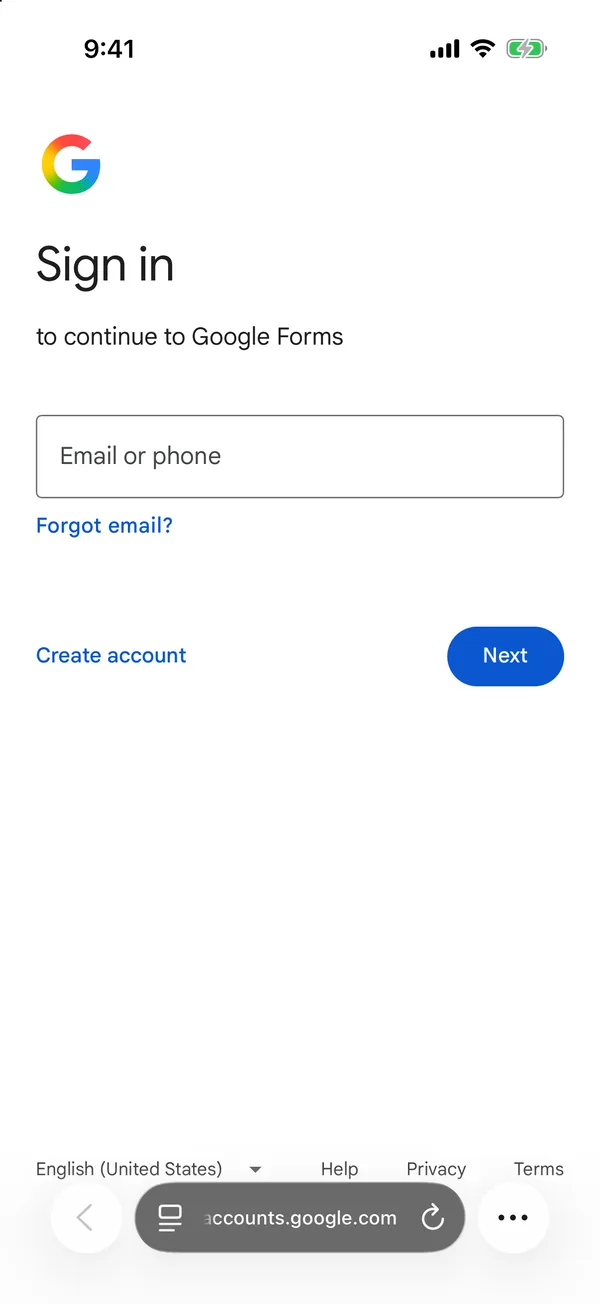
Without an account: no form, only the sign-in page
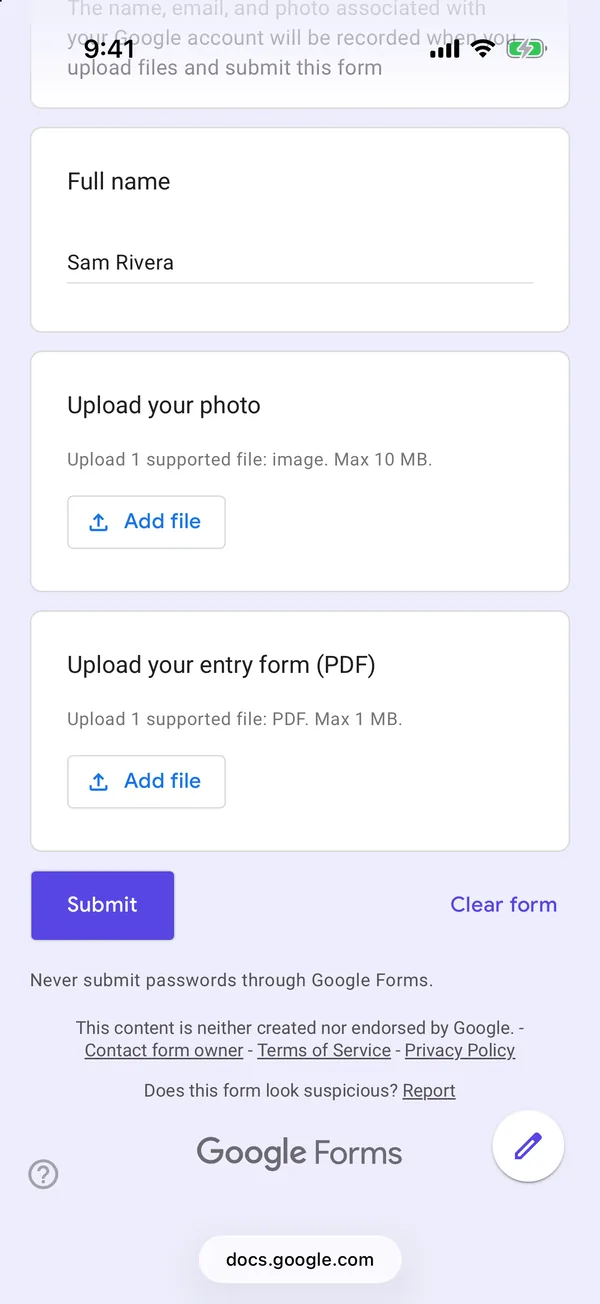
Signed in: the question and its Add file button
Signed in, the top of the form shows your account and a line worth reading: “The name, email, and photo associated with your Google account will be recorded when you upload files and submit this form”. So a file upload form is never anonymous, whatever the rest of it says. If that bothers you, use another account or ask the sender for another way to send the file.
Choosing the file on an iPhone
“Add file” opens Google’s “Insert file” window, with three tabs: Upload, My Drive and Recent. For something on your phone, stay on Upload and tap Browse. iOS then offers Photo Library, Take Photo and Choose File; the last one opens the Files app, which is where PDFs and other documents live. I could not try Take Photo, because the Simulator has no camera.
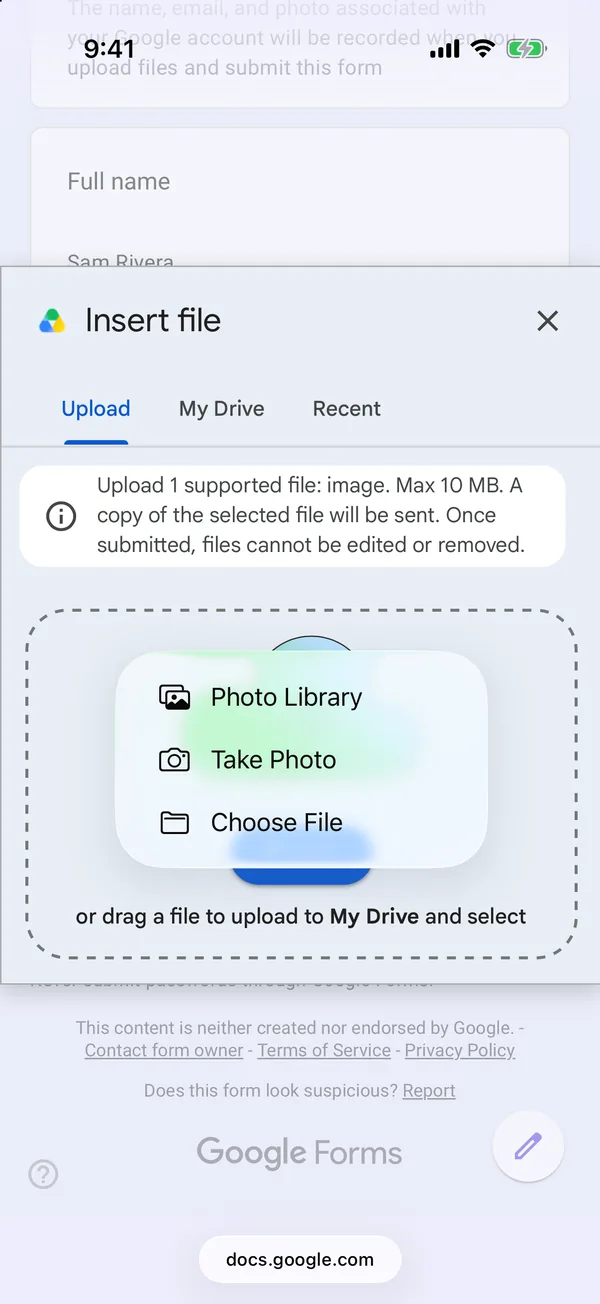
Browse opens the iOS menu
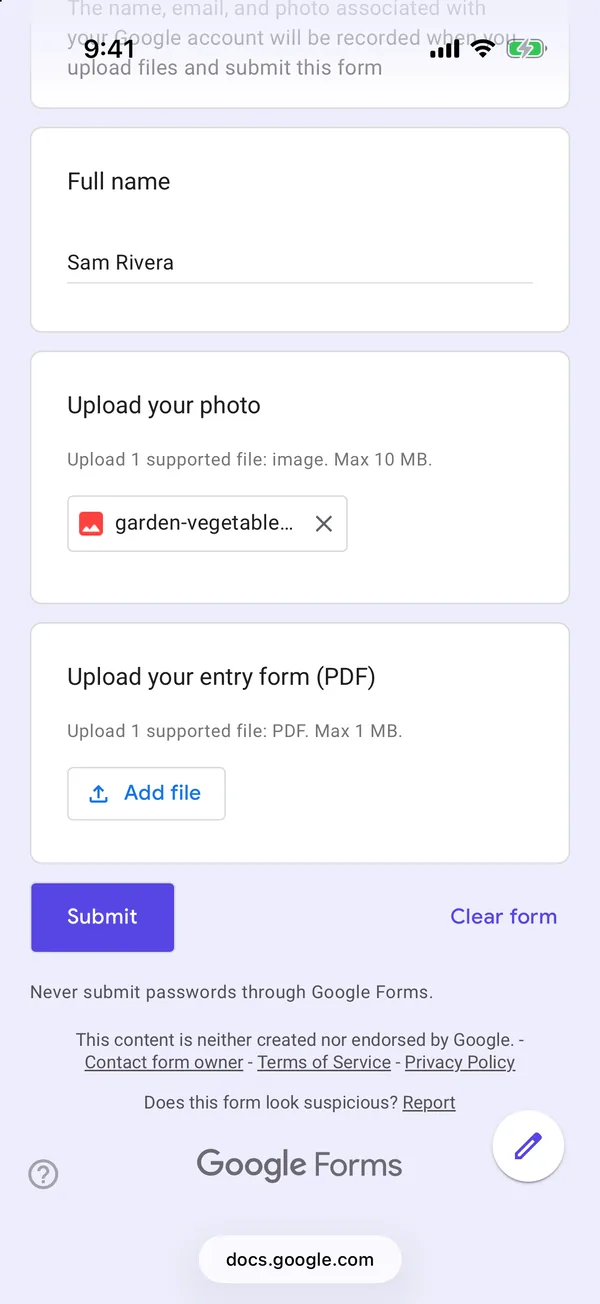
The file, once added
A 971 KB photo took about twelve seconds to upload, and arrived renamed as a .jpeg. Once a file is added, the question shows its name with a cross. The cross removes it at once, with no confirmation; to replace a file, remove it and add the new one. Do not tap the file name itself: it opens a Drive preview in the same tab. The Back button brings you to the form with your answers intact, but it is an unnerving moment.
Size and type limits
The creator sets the allowed types, the number of files and the maximum size per question. Go over the size and Google says so plainly: “Your file [name] exceeds the 1 MB limit.” A wrong type never gets that far. On the PDF-only question, Browse went straight to the Files app with the photo greyed out, and the My Drive tab hid everything that was not a PDF.
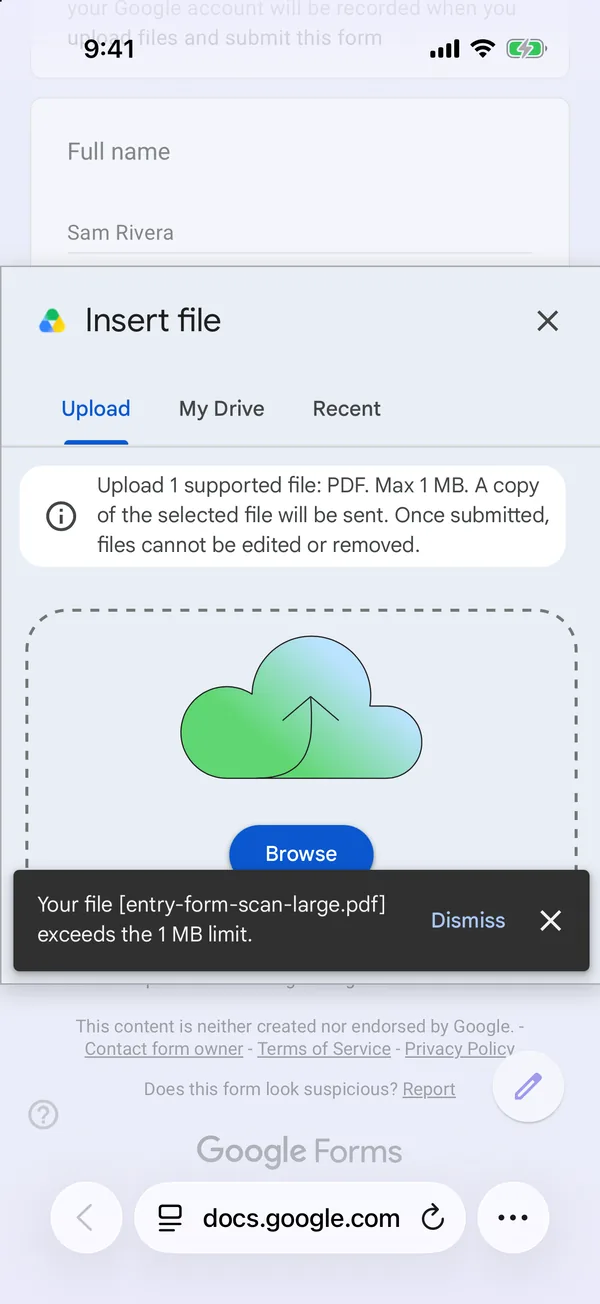
If your file is too big, the usual culprit on an iPhone is a scan or a photo of a document. Exporting it again at a smaller size, or sending one photo instead of a multi-page PDF, can get it under the limit.
Where your file goes
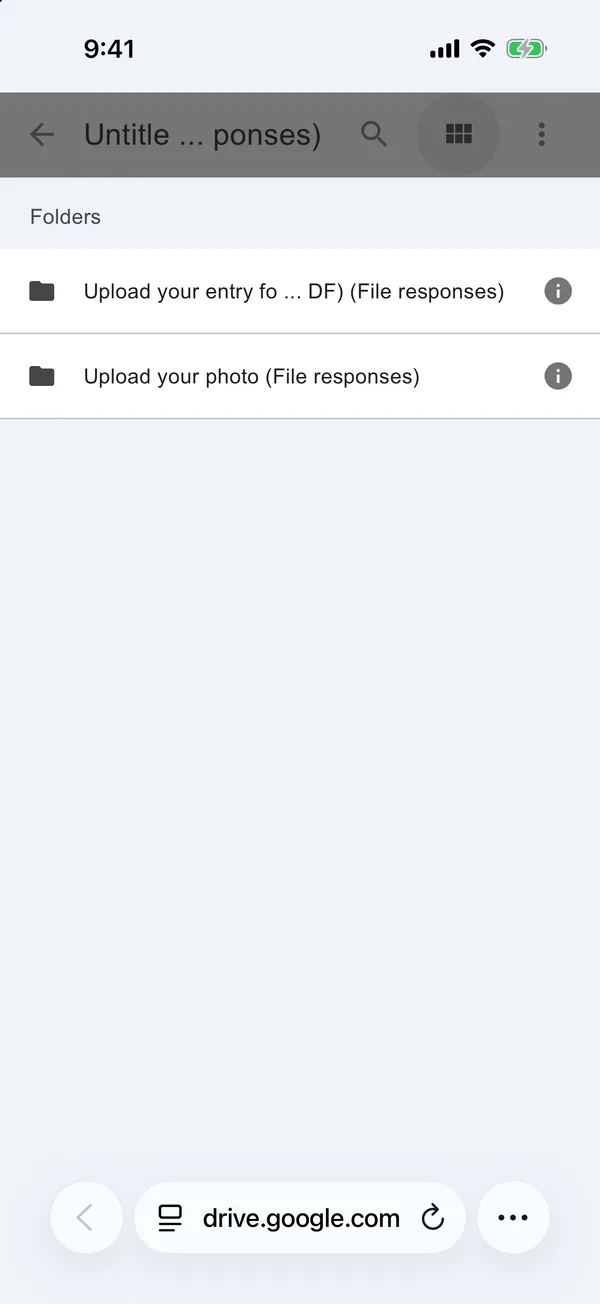
On the creator’s side, Google creates a folder in their Drive as soon as the question is added, named after the form’s file (“Untitled form (File responses)” in my test, because I had not renamed the file), with one subfolder per question. Each file is renamed with the respondent’s account name after the original name. In the Responses tab, each answer shows the file name and a “View folder” link.
If you are the one making the form
A file upload question costs you every respondent who has no Google account or does not want to sign in, and it removes anonymity for everyone. Use it when you genuinely need the file inside your Drive: entries to a competition, signed documents within a team. When a link would do, ask for one instead, a link to a CV or to a photo in a shared album; our job application template does exactly that.
Also note that AI Form for Google Docs, the app this site is built around, cannot add a file upload question: Google’s Forms API does not allow it. A form that already has one keeps it, shown read-only in the app. Add the question in Safari or on a computer.
Build the form on the device you already have
Keep reading
Using Google Forms on a Phone: What Actually Works
I built, published and read a Google Form from an iPhone in Safari, screen by screen. What the mobile editor does well, the two things it does badly, and where an app changes the arithmetic.

Six Google Forms Settings Most People Never Switch On
Six settings that are already in Google Forms and rarely switched on, with the menu paths checked against Google’s documentation — and the one that will cost you responses.
How to Create a Google Form on iPhone (Step by Step)
Seven steps in Safari, each with a screenshot from an iPhone: open a blank form, add questions, set the theme, publish, copy the link, test it, read the responses.