
How to Turn a Printed Worksheet into a Google Forms Quiz
Yassine Jaa Published 6 minute read
To turn a printed worksheet into a Google Forms quiz, photograph it in our app with Create › Scan. The app reads the page in a few seconds and gives you a draft of the questions; you tidy the draft, save it as a Google Form, switch on Quiz in Settings and tick the right answers in each question’s answer key. All of that is free in the app. What decides whether it saves you time is the way your worksheet is laid out, and I will be precise about that, because the first draft is never the finished quiz.
I tested this on 26 October 2026 in version 2.1 of AI Form for Google Docs, on an iPhone 16 Pro with iOS 26.5 in Apple’s Simulator, signed in to a free account. The worksheet was a made-up one-page sheet for a Year 7 class, “States of matter”, with eleven questions of the usual kinds: three multiple choice with the options A to D on one line, two true or false, two fill-in-the-blanks, a question over two lines, a small table, a question with m² in it, and one written in a handwriting-style font.
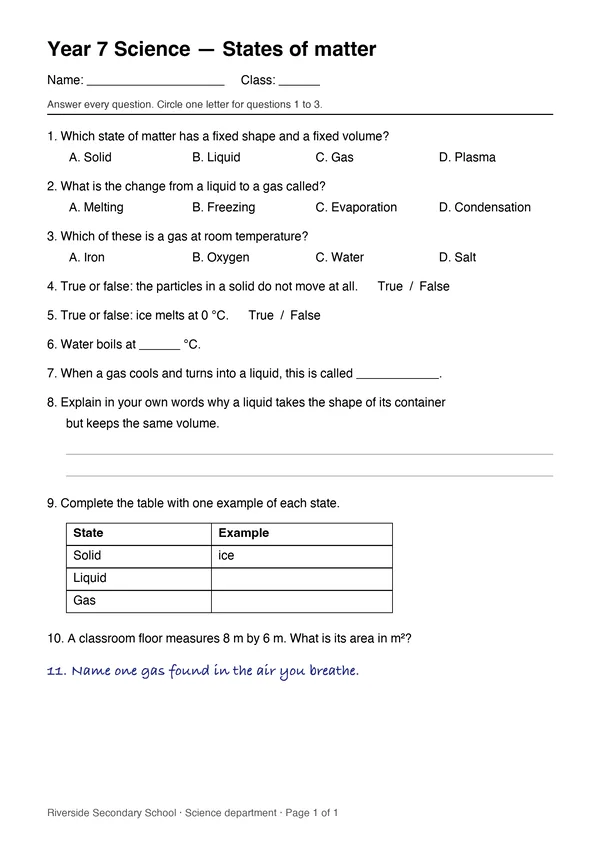
The Simulator’s camera only shows a grey picture, so I added the sheet to Photos and used “Choose from library” instead of “Take photo”. Everything below is what the app made of a clean, straight image. A real photo of a real sheet, at an angle, in classroom light, is unlikely to do better, and I have not been able to test one yet.
The scan itself
Create › Scan opens a screen called “Scanned Questions”, with “Take photo” and “Choose from library”. There is no cropping step: you pick the picture, the app shows “Recognizing text…”, and under three seconds later you have the list. If your photo shows the desk around the sheet, crop it in Photos first.
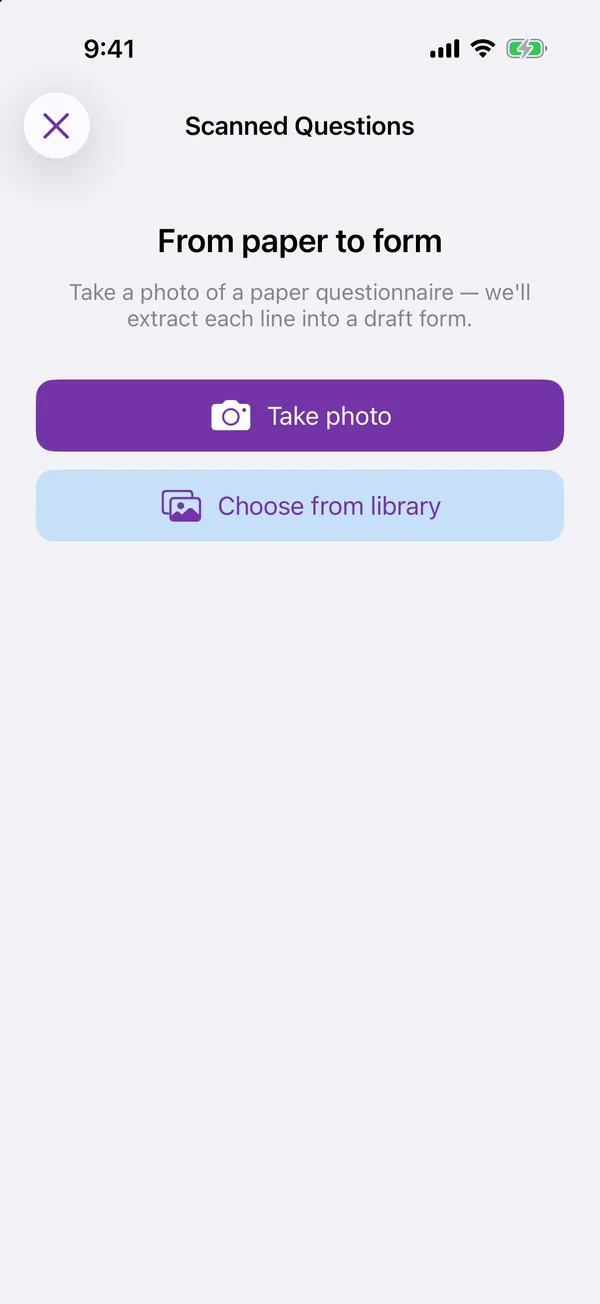
Scan: take a photo or pick one
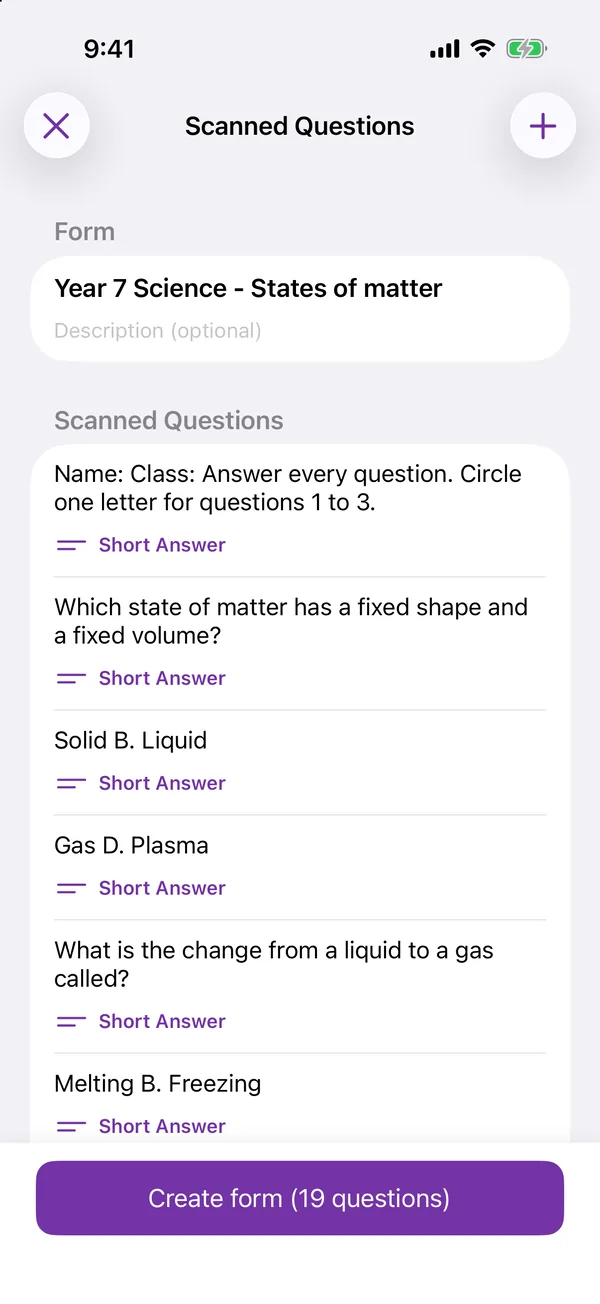
Three seconds later: a draft, and the count is the first clue
The title was right. The count was not: “Create form (19 questions)” for a sheet with eleven. That number is worth reading before you tap anything, because the gap between it and your real count is roughly the tidying you are about to do.
What it read well, and what it did not
The text itself was read almost perfectly, including the handwriting-style question and “°C”. The question numbers were stripped from the titles, which is what you want. One true or false question came through as a proper multiple choice with True and False as options.
The layout is where it struggled. The app reads line by line, and a worksheet is not written line by line. Every multiple choice question with its options on a single line (“A. Solid B. Liquid C. Gas D. Plasma”) became a short answer question, followed by two or three extra “questions” made of option fragments, with the first letter lost. The name and class line merged with the instructions into one question. The table became a multiple choice whose options were its rows glued together. “m²” came out as “m??”. And the school’s name from the footer was stuck to the end of the last question.
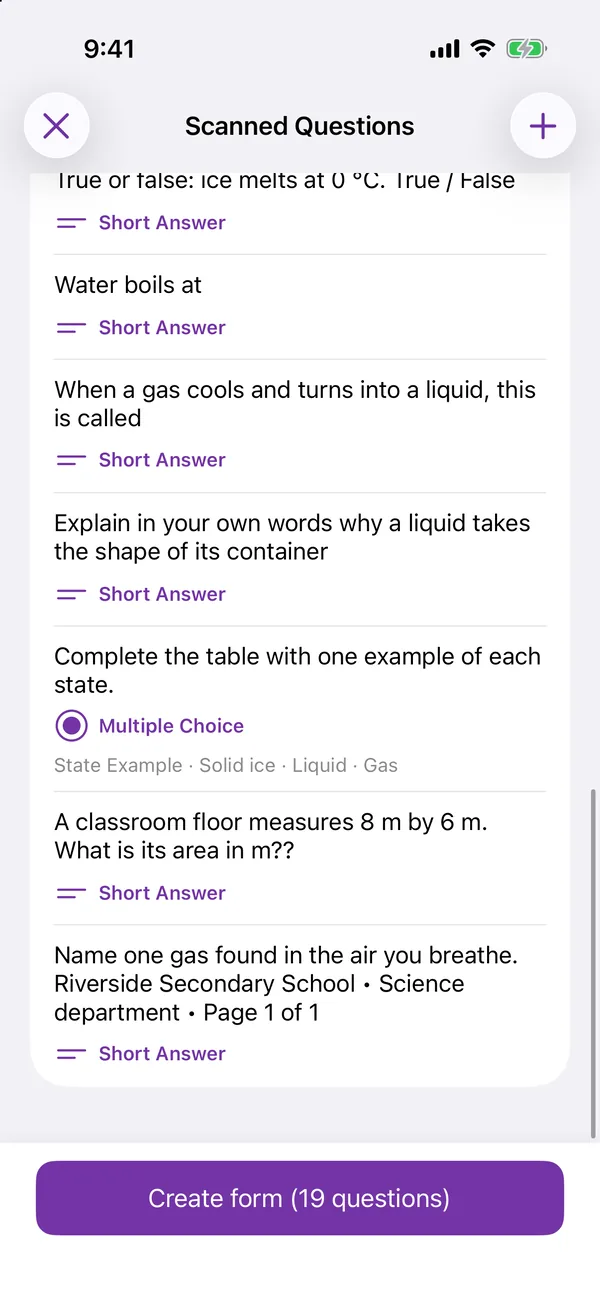
Tidying the draft
Create form opens the draft in the app’s editor, and everything is fixed there: delete the fragment questions, switch the three multiple choice questions to the right type and type their options, rewrite the table as a question a form can ask, put back what the scan dropped. It took me about 25 minutes to get thirteen clean questions, most of it typing options one at a time. Someone typing with their thumbs will go faster than my test setup did, but the options still go in one at a time.
Two things slowed me down. A new option starts as the text “Option 1”, which you have to delete, and after “Add option” the cursor stays in the previous option, so tap the new line before you type. And once, changing a question’s type left two cards behind, one with the old title and one with the new. If you change a type, look at the card above and below before you move on.
My honest advice comes from that test. If your worksheet puts each option on its own line, the scan will save you real time. If it puts the options side by side, as most printed worksheets do, you will retype them anyway, and for a short sheet it can be quicker to build the quiz from scratch with the sheet next to you. Where the scan earns its place is a long sheet of written questions with little layout, and the next worksheet you write, laid out one item per line.
Making it a self-marking quiz
Save the form first: the Settings tab only appears once it exists in your Drive. Then Settings › General › Quiz, “Make this form a quiz with automatic scoring”. Each question gets an Answer key button, which opens a sheet with a points counter and the options to tick. Nothing is filled in for you, by the scan or by the AI.
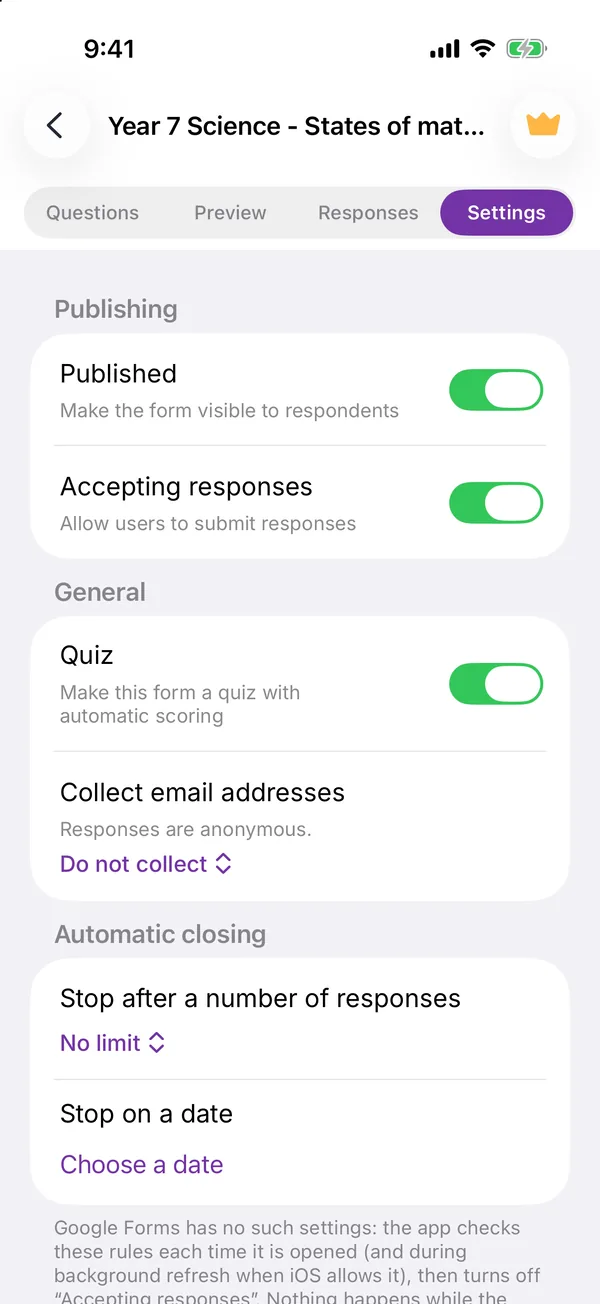
Settings › General › Quiz
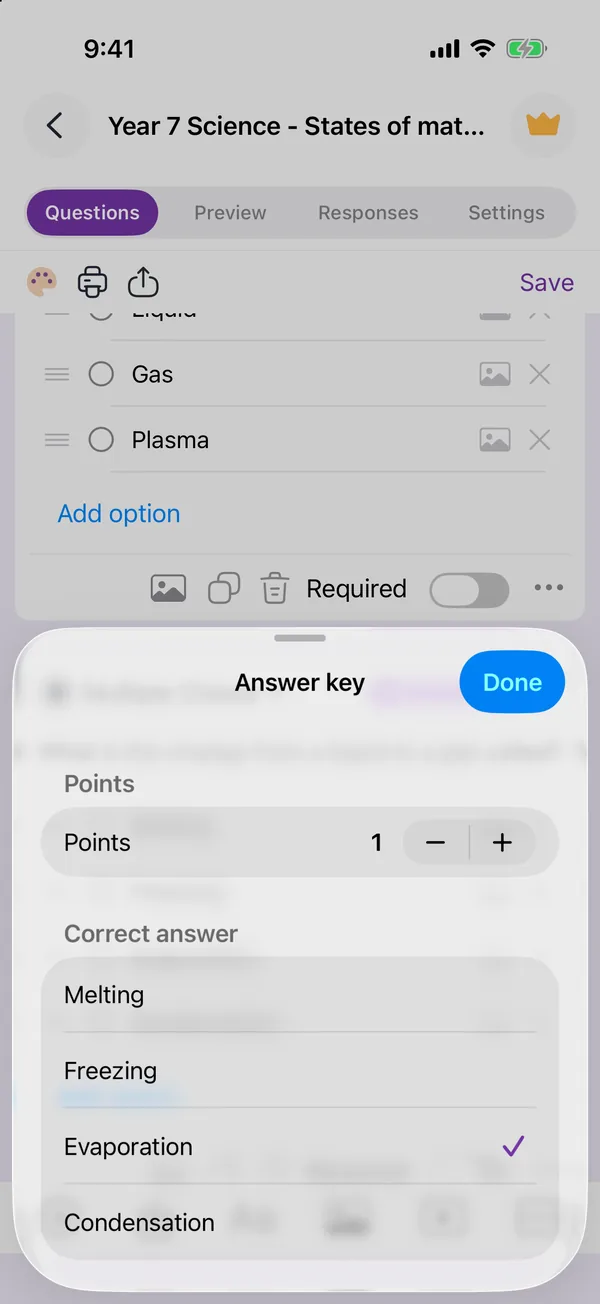
One point, Evaporation ticked
I set three questions to one point each and checked the result on Google’s side: the form showed “Total points: 3”, and a test answer with two right out of three came back as “Total points 2/3”. The grading guide covers what Google marks by itself and what you mark by hand once the answers arrive.
Giving it to the class
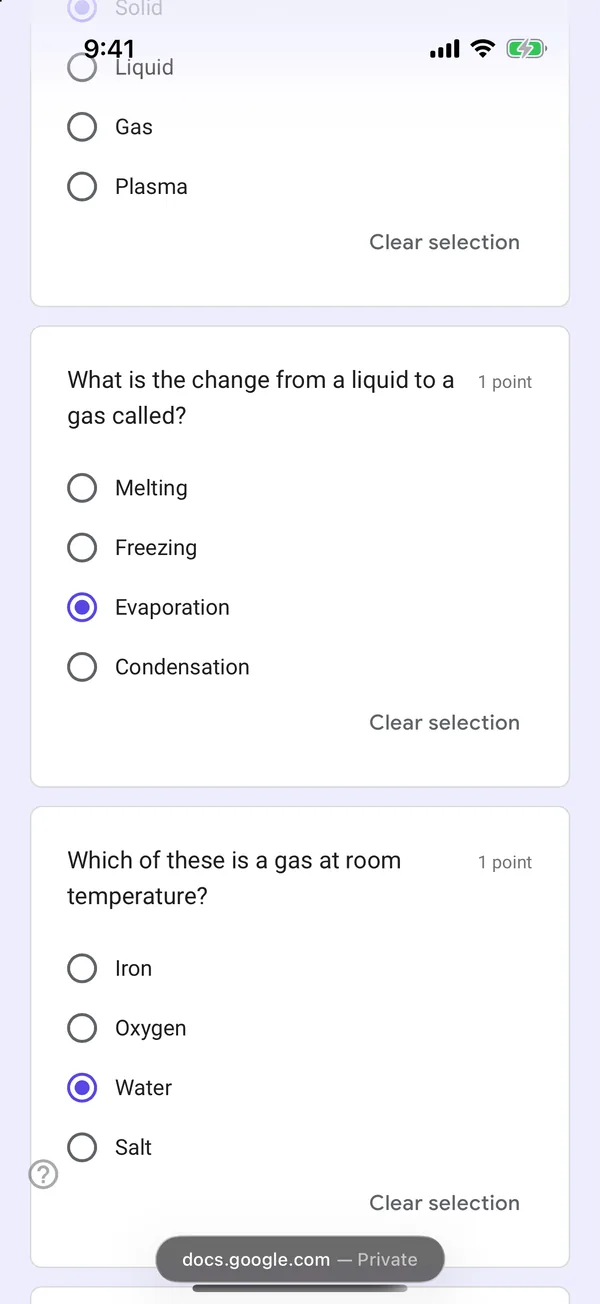
“Copy link” is free and instant. The fullscreen QR code is the nicer way to do it in a classroom, but a free account gets three tries at it before Premium, so save it for the lesson rather than testing it at your desk. Students need nothing installed: the quiz opens in Safari, with “1 point” next to each marked question, and after Submit they get a “View score” button with their total.
If you would rather start from a description than from paper, the AI quiz generator writes the questions for you; the answer key is still yours to set.
Build the form on the device you already have
Keep reading
Using Google Forms on a Phone: What Actually Works
I built, published and read a Google Form from an iPhone in Safari, screen by screen. What the mobile editor does well, the two things it does badly, and where an app changes the arithmetic.

Six Google Forms Settings Most People Never Switch On
Six settings that are already in Google Forms and rarely switched on, with the menu paths checked against Google’s documentation — and the one that will cost you responses.
How to Create a Google Form on iPhone (Step by Step)
Seven steps in Safari, each with a screenshot from an iPhone: open a blank form, add questions, set the theme, publish, copy the link, test it, read the responses.
Tools for this task
Turn a Paper Form into a Google Form
Photograph a printed questionnaire and get a real Google Form in your Drive. The page is read on your device, never uploaded.
In the appAI Quiz Generator for Google Forms
Describe a topic and the app writes the quiz questions as a real Google Form. You set the answer key in the app, then share it.
Runs in your browserQR Code Generator for Google Forms
Paste a Google Form link, get a QR code ready to print. Free, no sign-up, and nothing leaves your browser.