
How to Create a Google Form with AI in the FormsGen App
Yassine Jaa Published Updated 7 minute read
This is the guide I wish had existed when I built the app: every screen between “I need a form” and “the form exists in my Google Drive”, in order, with a screenshot of each. It covers version 2.0 of FormsGen on an iPhone, as of 20 September 2026. If your screens look different, you are on an older version, and the App Store update is free.
Ten minutes if you read everything. About ninety seconds once you have done it once. I timed the second run on an iPhone 15 Pro: from opening the app to a published form, one minute and forty seconds, most of it spent reading the questions the AI had written.
Before you start
You need a Google account and the app signed in to it. The first launch asks for permission to create files in your Drive; that permission is the whole architecture, because the form you are about to build will be a real Google Form in your own account, not a copy on our servers. If you skipped that screen, the app has nothing to write into and every step below fails at step 6. Sign in first.
Step 1: open a new form
On My Forms, the home screen, tap the purple plus button at the bottom right. The New Form screen offers four ways in: Blank, Create with AI, Scan, and From a link, with the template library underneath.
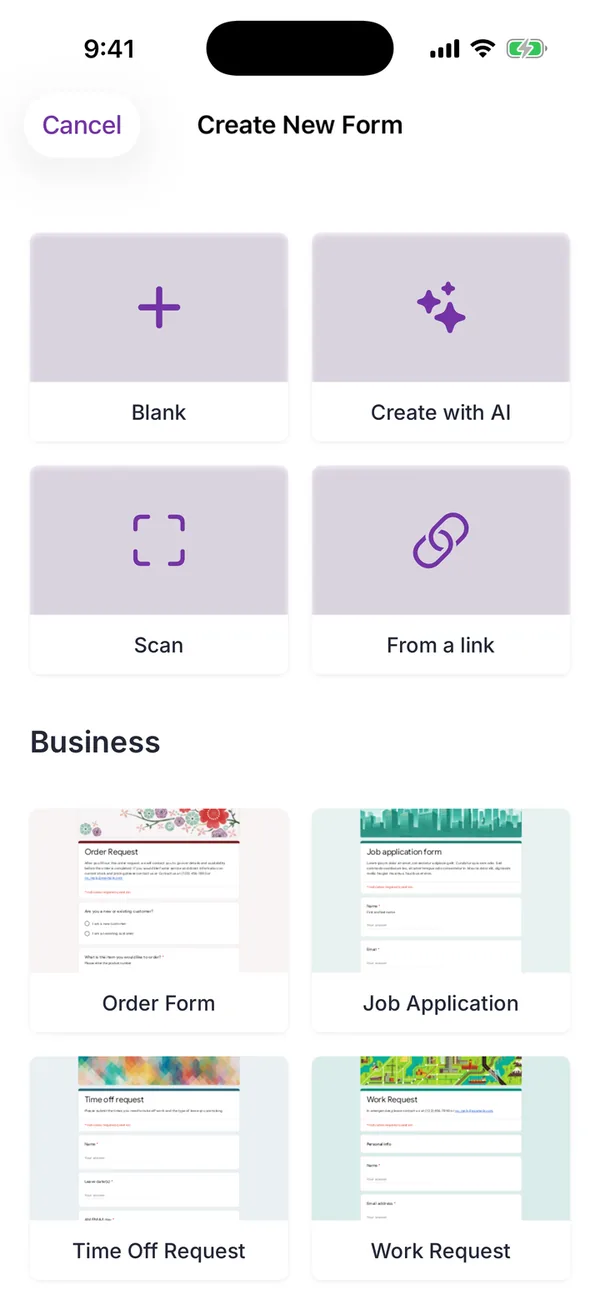
Blank gives you an empty editor, which is the right choice if you already have the questions written down. Scan is for a printed questionnaire, covered in its own guide. From a link opens a form that already exists in your Drive. Tap Create with AI.
Step 2: describe the form
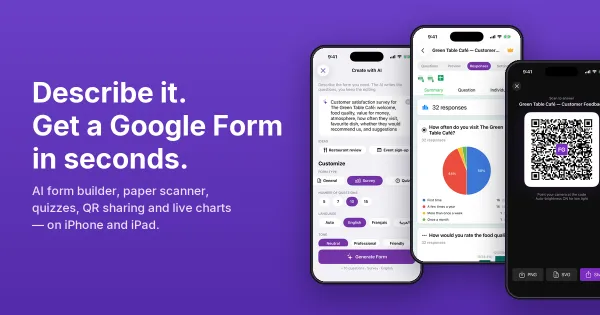
The composer has one text box and four rows of chips under it. The box is where you say what the form is for. Write it the way you would explain it to a colleague, not the way you would type a search: “Customer satisfaction survey for The Green Table Café: welcome, food quality, value for money, atmosphere, how often they visit, favourite dish, whether they would recommend us, and suggestions” is the prompt in the screenshot, and it produced exactly those eight questions.
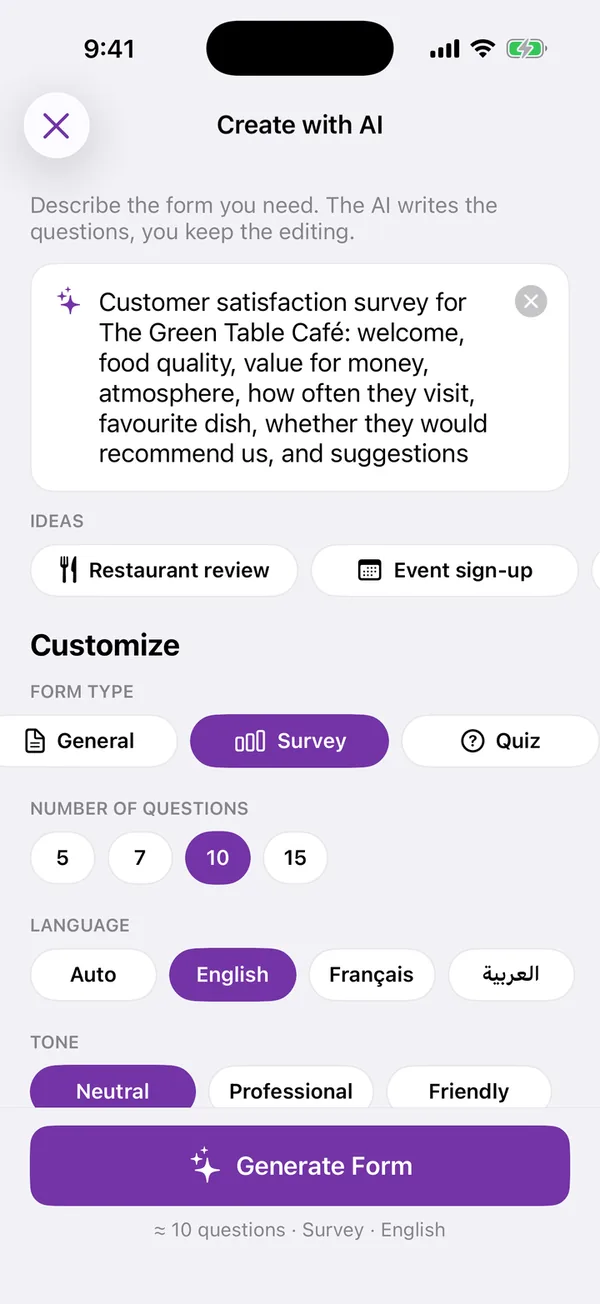
The four rows under the box decide the shape before the AI writes a word:
Form type: General, Survey or Quiz. A quiz is written with questions that have one defensible answer; a survey with questions that do not lead the respondent. Pick this first, because the AI writes them differently.
Number of questions: 5, 7, 10 or 15. My advice, from watching where responses drop off: five for anything people fill in on the way out of a room, ten for a proper survey, fifteen only for a quiz. You can delete questions afterwards, but you cannot recover the responses a long form loses.
Language: Auto, English, Français or العربية. Auto follows the language of your prompt. The questions are written in that language, not translated afterwards.
Tone: Neutral, Professional or Friendly. Professional for a customer or a parent; Friendly for a team or a class.
Tap Generate Form.
Step 3: wait about eight seconds
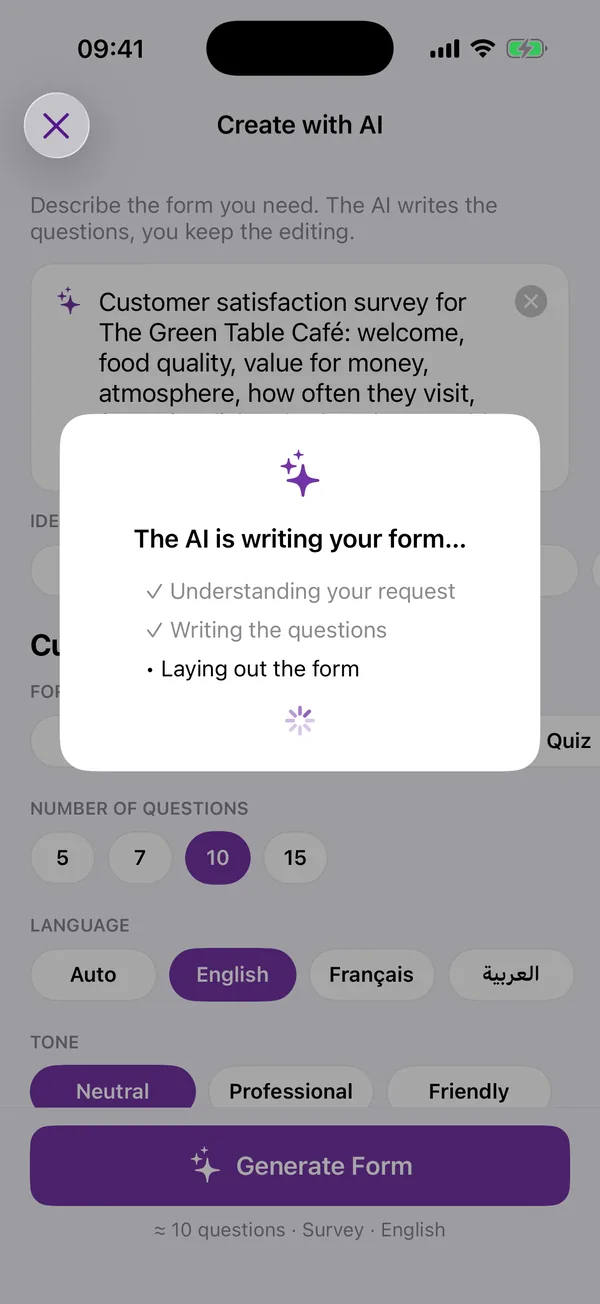
The app shows three lines while it works: understanding your request, writing the questions, laying out the form. On my phone it takes six to ten seconds. Only the text you typed and the four settings are sent, to Google’s Generative Language API; your name and account are not attached to the request, and we do not store the prompt.
Step 4: review the generated form
This is the screen that matters. The AI has written a form name, a description and the questions, each with a type: Title & Description for the intro, Scale 1 to 5 for the ratings, Multiple Choice for the frequency, Short Answer for the favourite dish, Paragraph for the suggestions. Read every question. The AI is good at the tedious part, turning a description into questions of the right type; it is not a substitute for knowing what you want to ask.
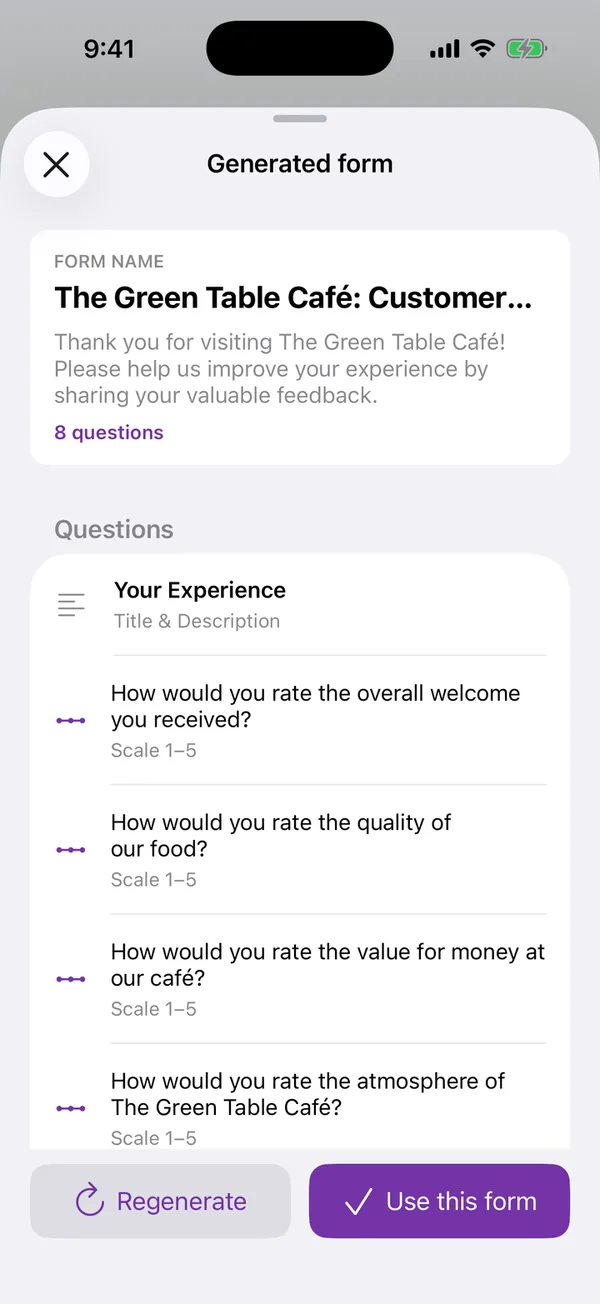
Two buttons at the bottom. Regenerate throws the whole set away and writes a new one from the same prompt; use it if the overall angle is wrong. Use this form accepts the set as it is and opens it in the editor, where you fix individual questions. Still nothing in your Drive at this point.
Step 5: edit what needs editing
Use this form opens the editor, with four tabs at the top: Questions, Preview, Responses and Settings. Each question is a card. Tap the type to change it, tap the text to rewrite it, use the handle on the right to drag it somewhere else, the toggle to make it required, the bin to delete it. If you delete the wrong one, there is an undo.
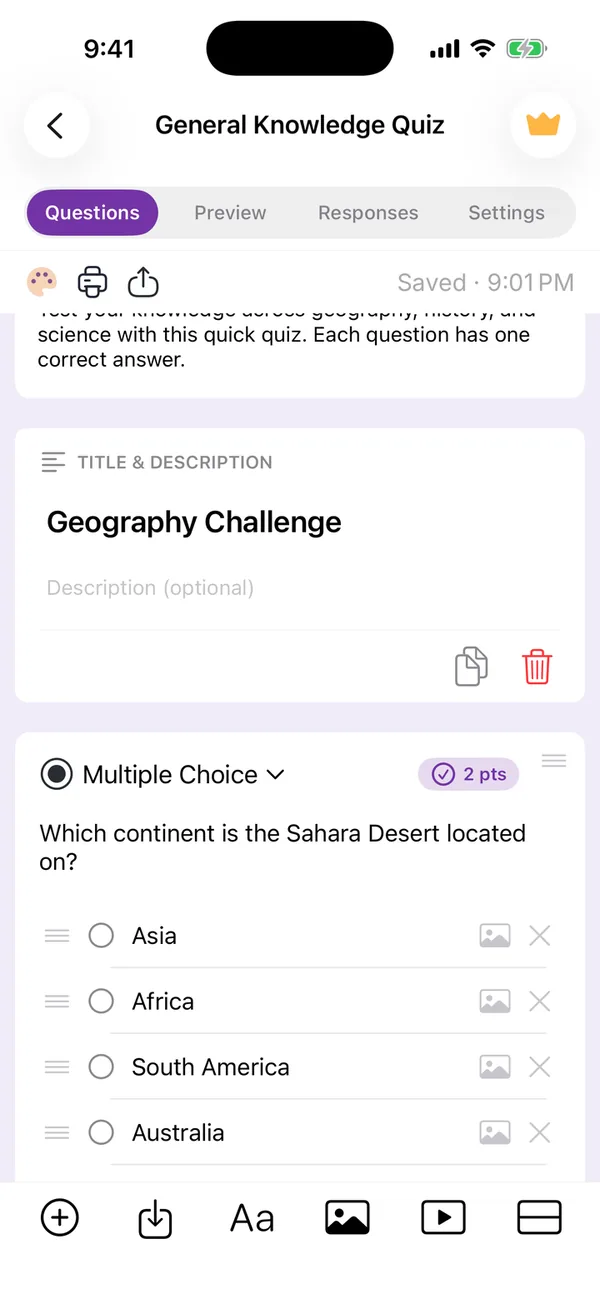
The type picker has every Google Forms type: short answer, paragraph, multiple choice, checkboxes, dropdown, file upload, linear scale, rating, the two grids, date and time. The plus button adds a question; the tool row at the bottom adds a title, an image, a video or a section. Images you add to a question are uploaded to a folder named “Forms Gen Images” in your Drive, so they belong to you like the rest.
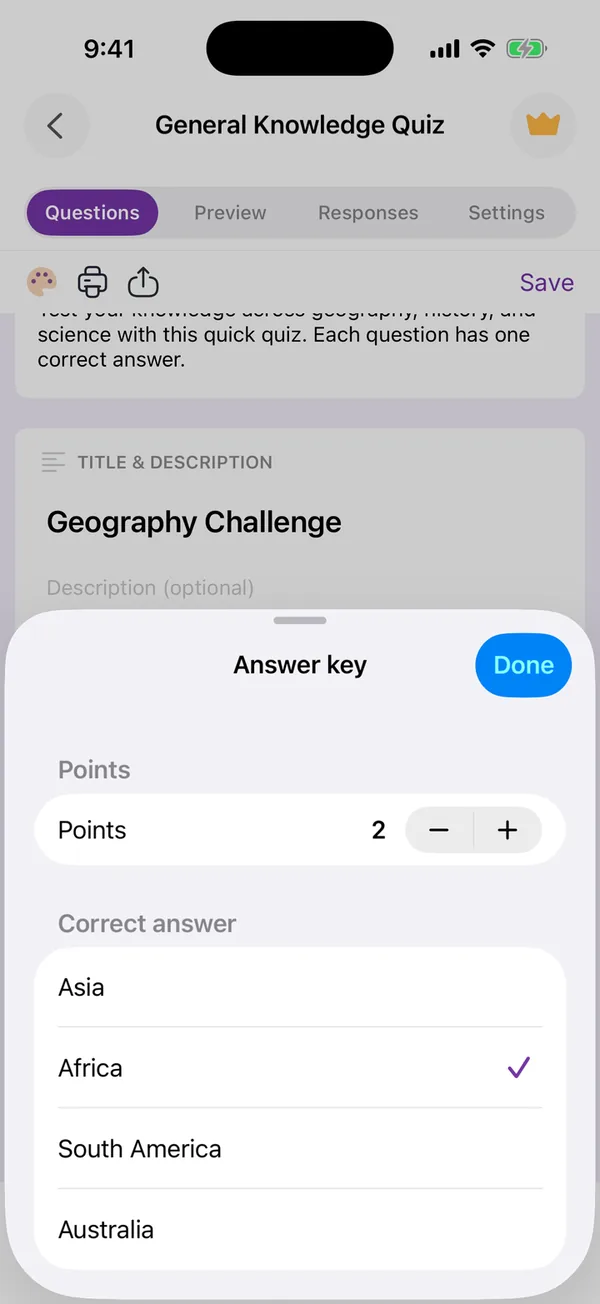
Choosing Quiz in step 2 shapes the questions, but it does not make the form a quiz, and the AI does not fill in the answers or the points. For a graded quiz, save the form first (step 6), then switch on Quiz in the Settings tab. Each question then gets an Answer key button: tap it, set the points and tick the correct answer. Google Forms grades every submission itself after that.
Step 6: save, and it is a Google Form
Tap Save at the top right. This is the moment the form is created in your Google Drive, with the questions and their types, as a normal Google Form. Open drive.google.com on any computer and it is there, editable in the Google Forms editor if you prefer, with the app’s changes and Google’s changes going to the same file.
The form is not accepting responses from anyone yet, because nobody has the link. Sharing it is the next guide: how to publish and share a Google Form from the app, by link, QR code, social card or PDF. And once the answers come in, how to read and analyse the responses without opening a laptop.
What I get wrong most often
Choosing ten questions when five would do. Every form I have built with fifteen questions has had fewer than half the responses of the five-question version of the same thing. The AI will happily write fifteen good questions; the respondents will not answer them.
Forgetting the tone. A friendly customer survey reads oddly from a bank; a professional one reads oddly from a bakery. It is one tap and it changes every question.
Not reading the preview. I have accepted a form with a question that asked customers to rate “the quality of our development team” because my prompt reused a word from a previous form. Eight seconds of reading would have caught it. It always does.
Build the form on the device you already have
Keep reading
How to Publish and Share a Google Form from the App
The share sheet of the app, screen by screen: the settings to check first, the link, the fullscreen QR code, the social card and the printable PDF, and which one for which situation.
How to Read and Analyse Google Form Responses in the App
The Responses tab screen by screen: summary charts, one question or one person at a time, CSV, Excel and Google Sheets export, and the setting that closes a form on its own.
AI Form for Google Docs 2.0: Describe It, Scan It, Grade It
Version 2.0 of the FormsGen iOS app: describe a form and the AI writes it, scan a paper questionnaire, grade quizzes, share by QR code and see answers as charts.
Tools for this task
AI Quiz Generator for Google Forms
Describe a topic and the app writes the quiz questions as a real Google Form. You set the answer key in the app, then share it.
In the appAI Survey Generator for Google Forms
Describe your survey in a sentence and get a real Google Form with the questions written and the scales set. You review it first.