
How to Fill In a Google Form on Your Phone
Yassine Jaa Published 6 minute read
To fill in a Google Form on your phone, tap the link. It opens in Safari as an ordinary web page, and for most forms you need neither an app nor a Google account: you answer, tap Submit, and you are done. Google only asks you to sign in when the person who made the form has limited it to one response per person, or added a question where you upload a file.
I tested this on 23 October 2026 on an iPhone 16 Pro with iOS 26.5, in Apple’s Simulator, from the side of the person answering. The form was a made-up volunteer sign-up for a community garden: an email address, a name, a day from a list, an arrival time, a date of birth, then a second section with a grid of tasks, a 0 to 10 scale and a free-text box.
What you see when it opens
Without a Google account, or in a private tab, the form starts with its title and one line: “Sign in to Google to save your progress.” You can ignore it. Everything works without signing in; you just cannot leave halfway and come back later to find your answers waiting.
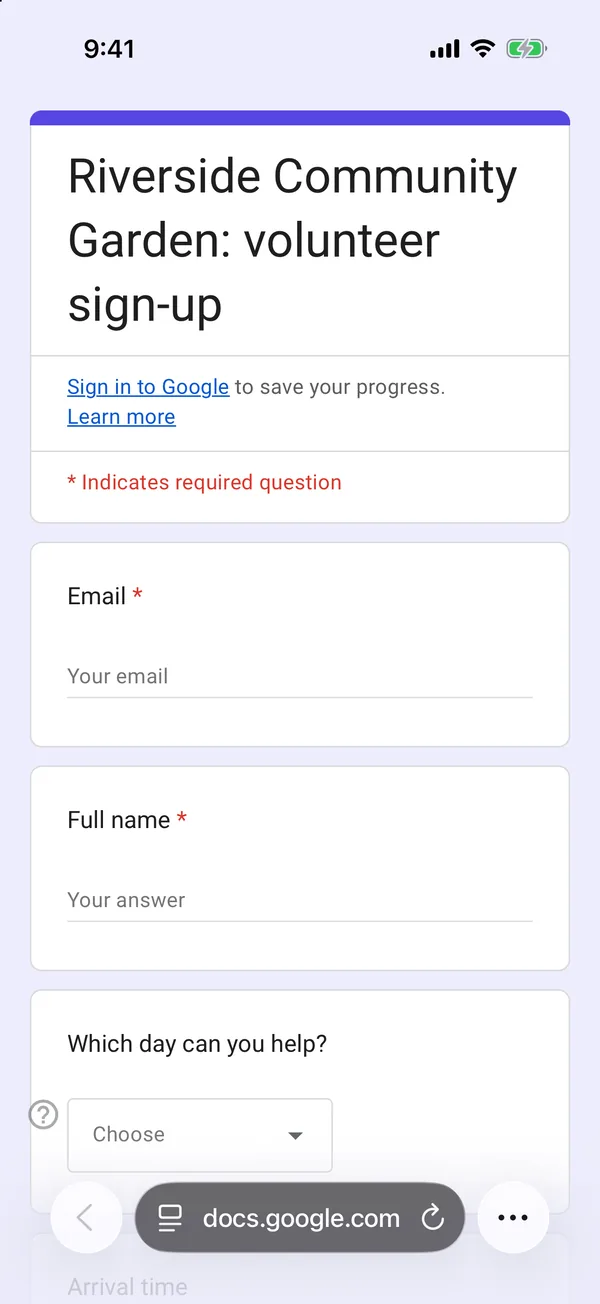
If your phone is already signed in to Google in Safari, the top of the form shows that account’s address with “Switch account”, and “Draft saved” appears as soon as you type your first answer. Google keeps that draft for you. Check which account is shown before you start, especially on a shared or family phone.
When Google makes you sign in
Two settings on the creator’s side change everything for you. If the form is limited to one response per person, it appears greyed out behind a box that says “Sign in to continue”, with “To fill out this form, you must be signed in. Your identity will remain anonymous.” Tapping beside the box does nothing. If the form has a file upload question, you do not even see the form: the link goes straight to Google’s sign-in page.
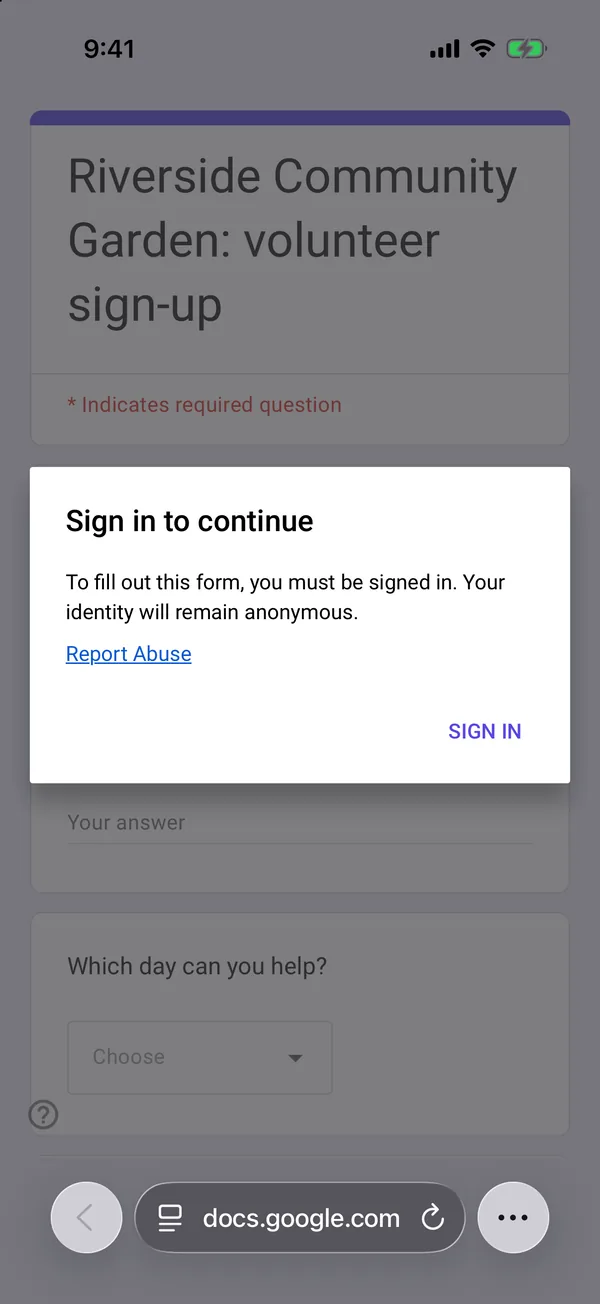
“Your identity will remain anonymous” means the creator does not see which account you used, unless the form also collects your email. Without any Google account, there is no way round the box; the only option is to ask the person who sent the link for another way to reply.
The questions that fight back on a phone
Most question types behave. An email field brings up the keyboard with the @ key, and a half-typed address gets “Must be a valid email” when you move on. A dropdown opens Google’s own short menu. The grid of tasks fitted the width of the screen, with the column headings split over two lines, and stayed readable.
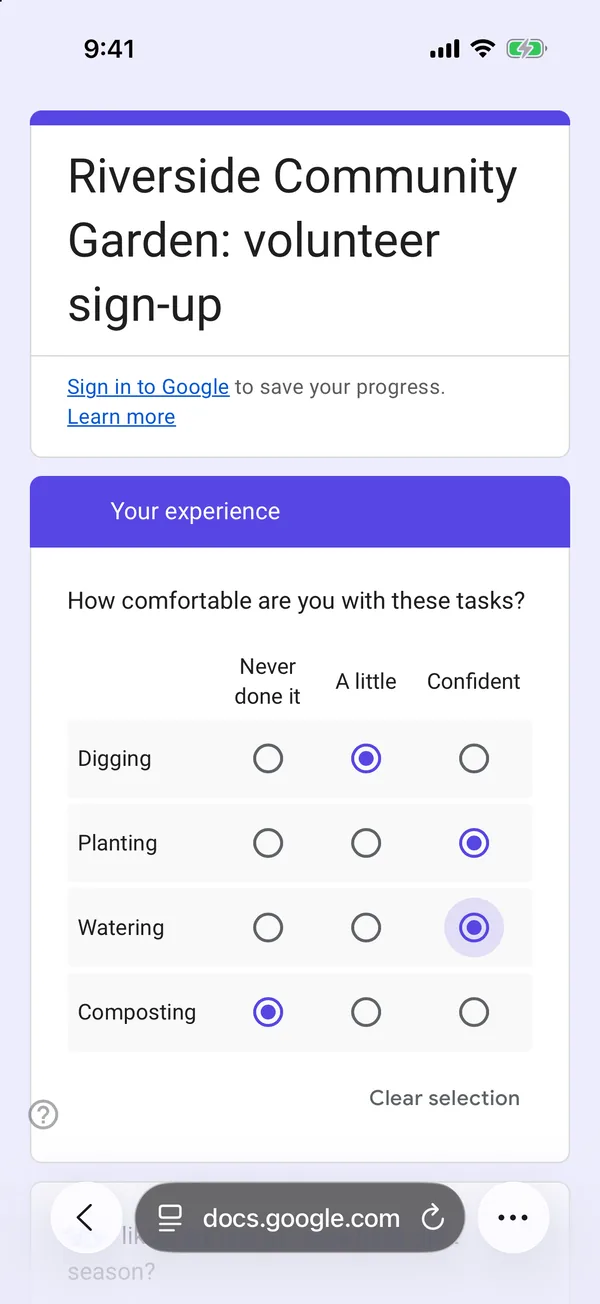
The grid fits a phone screen
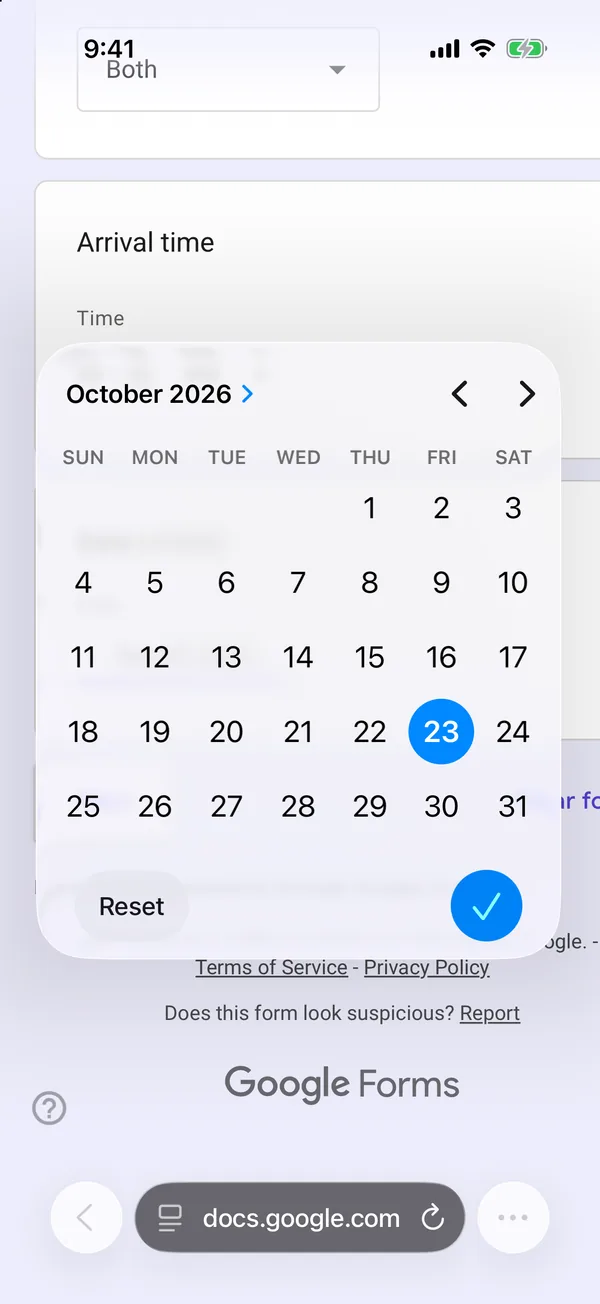
A date question opens the iOS calendar
The rest needs patience. Safari zooms in on every text box you tap and stays zoomed when you leave it, so you pinch back out more often than you would like. A date question opens the iOS calendar on the current month: for a date of birth, tap the month name to switch to the month and year wheels, then spin the years. A time question is not the iOS clock but two little boxes and an AM/PM menu, and my first tap on it did nothing. The 0 to 10 scale becomes a column of eleven buttons that takes a whole screen.
Watch out for “Clear selection”. It appears under a question once you have answered it and pushes everything below it down a line. My next tap, meant for the free-text box, landed beside it, and what I typed went nowhere. After answering a scale or a grid, look before you tap.
That is also what puts me off most as the person answering: a form that is too long or plainly not built for a phone. A wall of questions, a list of thirty options, a scale that fills the screen on its own. I give up on those far more often than on anything Google could fix.
Missing answers, sections and Submit
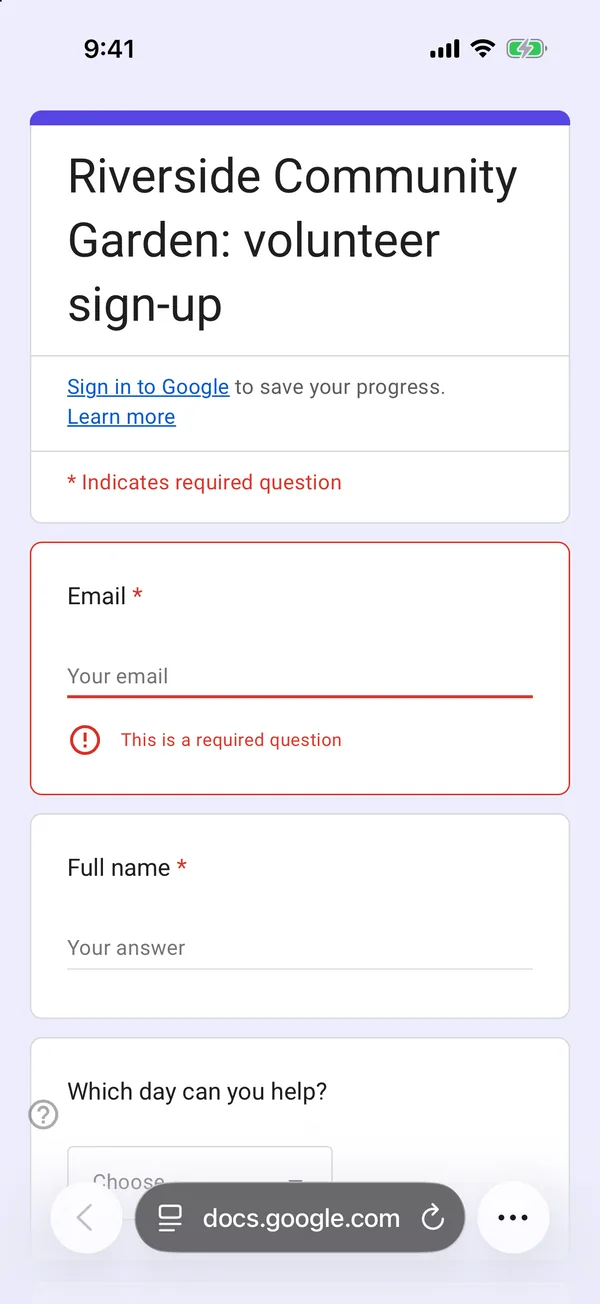
If you skip a required question and tap Next, the page jumps back to it, framed in red with “This is a required question”, and the next section will not open until you answer.
Back and Next between sections keep your answers, even without an account, as long as you stay on the page. At the end you will find Submit, sometimes a “Send me a copy of my responses” switch, and “Clear form”. That last one asks first: “This will remove your answers from all questions, and cannot be undone.” It is the only button on the page you can regret, and it sits right next to Submit.
Changing your answer after you send it
After Submit you get “Your response has been recorded.” If the creator allows it, there is also an “Edit your response” link, which reopens the form with every answer you gave, ready to change and send again.
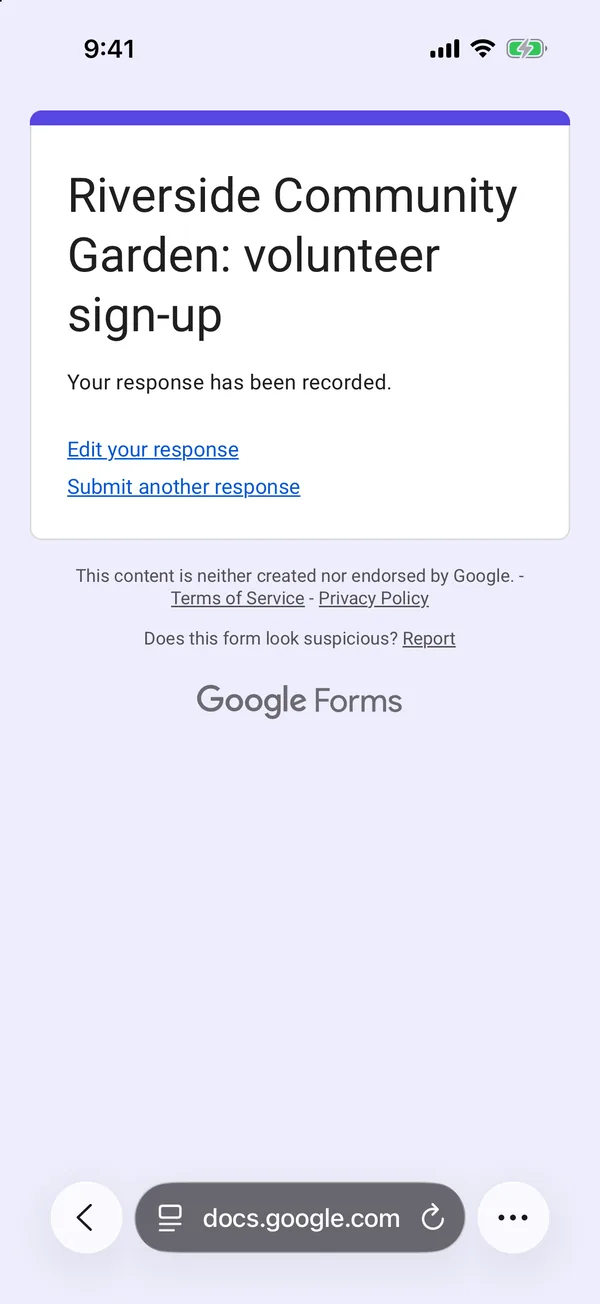
Two things about that link. Keep it: the confirmation page is the one place it is shown, so copy it or bookmark the page before you close it. And it is not private. While you edit, Google shows a banner saying that sharing the address lets others edit your response too, so do not paste it into a group chat. If you asked for a copy of your responses, Google sends it to the email address you gave; my test address could not receive mail, so I cannot show you that email or tell you whether it carries the edit link.
If the link opens a page saying the form is no longer accepting responses, it has been closed; the closing guide explains what you are looking at, from the other side.
If you are the one making the form, my advice is short: short, clear questions, simple answer choices, and nothing that needs a bigger screen than the one your respondents are holding. Most of them will be on a phone, because that is where your link or QR code reaches them; the sharing guide covers getting it there.
Build the form on the device you already have
Keep reading
Using Google Forms on a Phone: What Actually Works
I built, published and read a Google Form from an iPhone in Safari, screen by screen. What the mobile editor does well, the two things it does badly, and where an app changes the arithmetic.

Six Google Forms Settings Most People Never Switch On
Six settings that are already in Google Forms and rarely switched on, with the menu paths checked against Google’s documentation — and the one that will cost you responses.
How to Create a Google Form on iPhone (Step by Step)
Seven steps in Safari, each with a screenshot from an iPhone: open a blank form, add questions, set the theme, publish, copy the link, test it, read the responses.