
Sharing a Google Form on a Phone: Link, QR Code, WhatsApp
Yassine Jaa Published 7 minute read
Sharing a Google Form from a phone comes down to one small icon that is easy to miss, and one thing Google Forms cannot do at all. I went through it on my iPhone on 15 September 2026, in Safari, and this page is what I found: how to get the link, where it can go from there, how to make a QR code when you need one, and the two settings to check before the link leaves your hands.
If you have not built the form yet, start with how to create a Google Form on iPhone. This page assumes the questions are done.
Where the link is
On a computer you would click “Send”. On a phone, in the current Google Forms, there is no Send button. The icon at the right end of the top bar opens a dialog called “Published options”, and that dialog is where sharing lives.
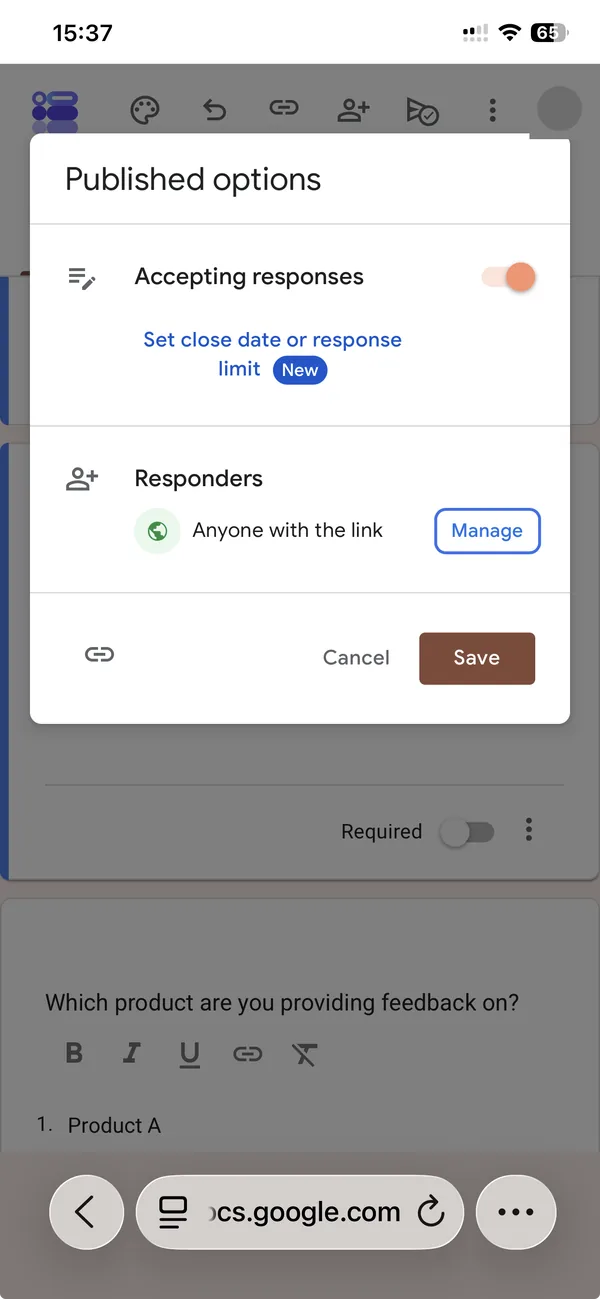
The form’s address is behind the link icon in the bottom-left corner, next to Cancel and Save. Tap it and the URL is copied. There is no button that says “Copy link” and no field showing the address, which is why people scroll the dialog up and down looking for it. I did too, the first time.
Before you tap it, read the two rows above. “Accepting responses” must be on, or the link opens on a “not accepting responses” page. “Responders” says who can open the form. “Anyone with the link” is the setting for a public form; if it says “Restricted”, only people in your Google Workspace organisation will get past the sign-in screen, and the friends you send it to will see a permission error instead of the form. Tap Manage to change it.
Where the link can go
Once the link is on the clipboard, sharing is Safari’s job, not Google’s. Long-press in any text field and tap Paste: a Messages thread, a WhatsApp group, a Telegram channel, an email, a Slack channel, an Instagram bio. The address Google gives you is long, something like docs.google.com/forms/d/e/ followed by fifty characters, and on a phone that is the part I would change before sending.
Two ways to shorten it. Google’s own: the same link icon in the desktop version offers a “Shorten URL” checkbox that produces a forms.gle address; I could not find that checkbox on the phone, so if you want the short form, open the form on a computer once, or paste the long link into the QR tool below, which accepts either. Or use any link shortener you already trust. Do not use one you found five minutes ago: a form link that goes through someone else’s redirect is a form link you no longer control.
One habit worth keeping: send the link to yourself first. Open it in a new Safari tab, answer the form, and check that the confirmation message at the end says something you would want a stranger to read. It costs a minute and it is the only test that catches a wrong “Responders” setting before your respondents do.
Making a QR code
Google Forms has never generated a QR code, on desktop or on mobile, and the “Published options” dialog has nothing for it. For a poster, a slide, a card on a table at an event, or a sticker on a shop counter, you need one, and you need to make it somewhere else.
The full walkthrough, with sizes for printing and the browser trap to avoid, is in how to make a QR code for a Google Form on mobile. The short version: our QR code generator is built for this. Paste the form link, and the code is drawn in the browser on your phone; the link never leaves the page, there is no account and nothing is stored. Save the PNG to Photos and drop it into whatever you are printing. If the link changes later, the code is wrong, so make it from the final link, after the Responders setting is right.
The other way is the one I use for my own forms, because it skips the copy-paste: our app puts a full-screen QR code one tap from the share screen of any form it created, with PNG and SVG export for print.
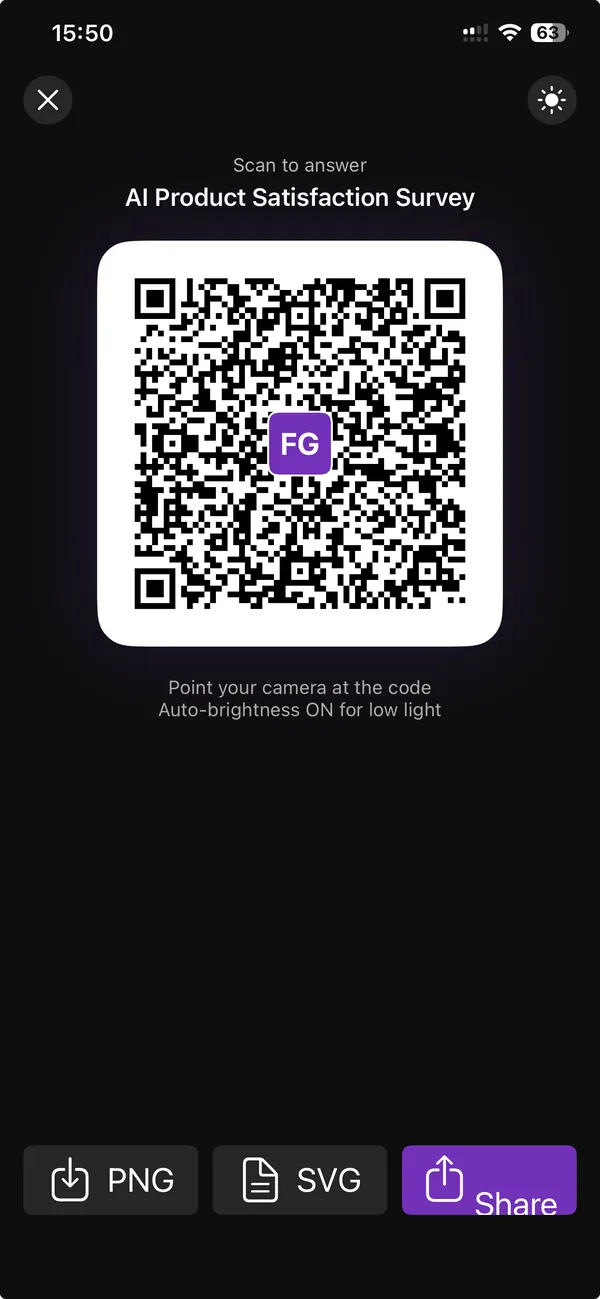
The QR screen in the app: hold the phone up, or export
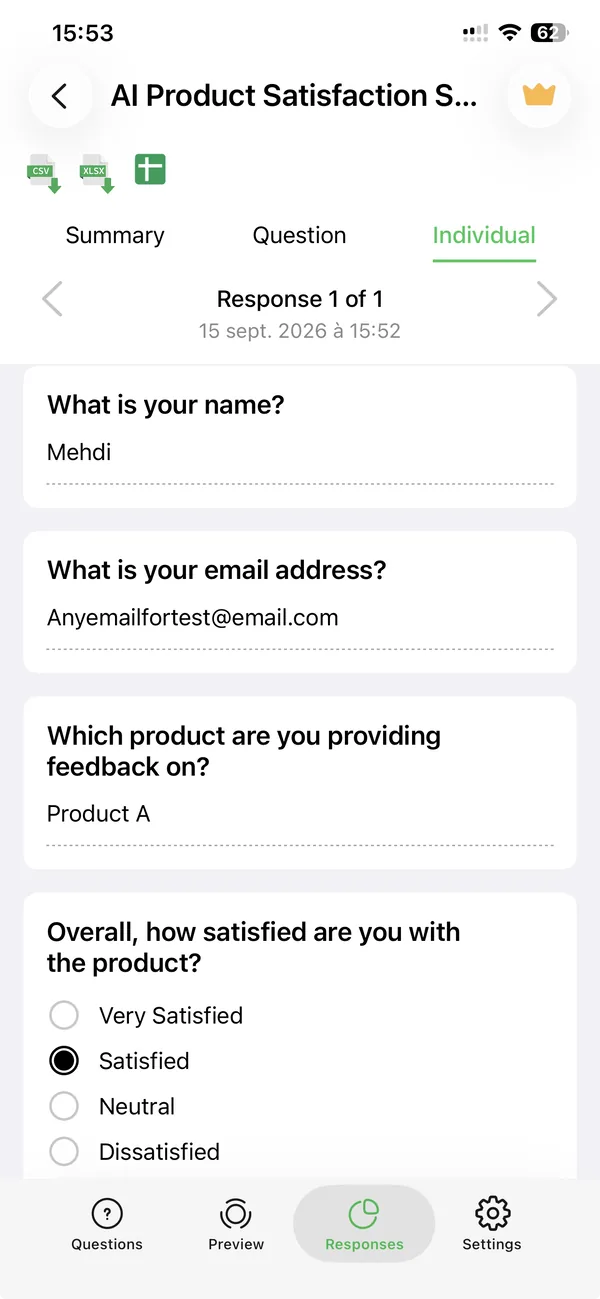
Responses come back to the same app, with CSV and XLSX export
The form behind that code is a normal Google Form in your own Drive; the app just wrote it and gave it a share screen. If you already have your form and only need the code, the browser tool is the shorter path.
Sharing with people who will fill it in on a phone
Most links sent from a phone are opened on a phone. Google Forms renders well on a phone screen, but a few choices on your side make the difference between a form people finish and one they abandon at question three.
Keep it short. On a phone every question is a screen, or close to it. Five questions is comfortable; fifteen is a commitment. If you need more, use sections so there is a sense of progress.
Prefer Dropdown over Multiple choice for long lists. Twelve radio buttons are twelve rows of scrolling; a dropdown is one tap and a native picker.
Avoid File upload unless you must. It requires the respondent to sign in to Google, and on a phone that is a login screen in the middle of your form. The same applies to “Limit to 1 response” in Settings: it forces sign-in, so leave it off for a public link.
If the form collects email addresses (check the “This form is collecting emails” line at the top of the editor, it was on by default on mine), say so in the description. People on a phone abandon forms that ask for an email before they know why.
Closing the form later
The same “Published options” dialog has a link, marked new when I looked, to set a close date or a response limit. Both are done from the phone. This replaces the Apps Script that used to be the only way to cap sign-ups, and it means the link you shared on a poster can be safely left there: after the date or the limit, it opens on a polite closed page rather than on a form nobody is reading.
If you need to stop responses right now, the “Accepting responses” toggle in the same dialog does it immediately, and the link stays valid for when you turn it back on.
What I still do on a computer
Everything above works from Safari on the phone. Two sharing tasks I would still open a laptop for: embedding the form in a web page (the embed code is in the desktop dialog and I did not find it on the phone), and adding collaborators who can edit the form, which is possible on mobile through the “add person” icon in the top bar but easier to get right with a keyboard and the full sharing dialog. Neither comes up for most forms. For sending a link and printing a QR code, the phone is enough.
Build the form on the device you already have
Keep reading
Using Google Forms on a Phone: What Actually Works
I built, published and read a Google Form from an iPhone in Safari, screen by screen. What the mobile editor does well, the two things it does badly, and where an app changes the arithmetic.
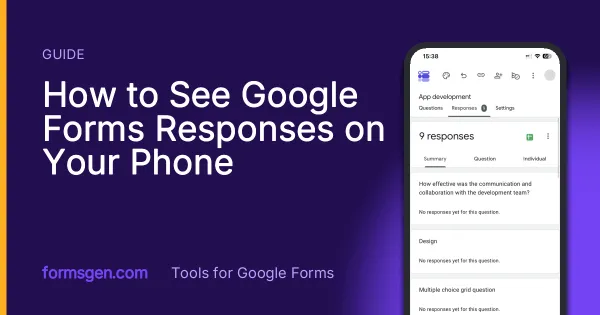
How to See Google Forms Responses on Your Phone
Three ways to read the answers on a phone, tested in Safari, in the Sheets app and in a third-party app, with which one to use for a glance, for the file and for a real analysis.
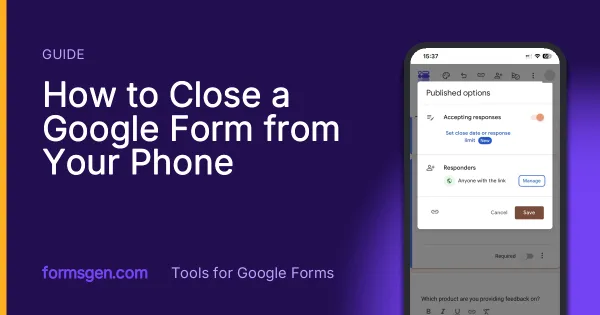
How to Close a Google Form from Your Phone
Close a Google Form from an iPhone in Safari, schedule it by date or number of responses, and why the app's automatic closing only acts when you open the app. Tested on 20 October 2026.
Tools for this task
QR Code Generator for Google Forms
Paste a Google Form link, get a QR code ready to print. Free, no sign-up, and nothing leaves your browser.
Runs in your browserGoogle Forms Header Image Size and Maker
The header size Google never documents, why the often-repeated figure makes your header blurry, and a maker that crops it properly.