
How to See Google Forms Responses on Your Phone
Yassine Jaa Published Updated 6 minute read
You can read the responses to a Google Form on a phone in three ways: the Responses tab of the form in Safari, the Google Sheets app, or a third-party app. I use all three, for different jobs, and this page says which one for which, with a screenshot of each. Tested on my iPhone on 15 September 2026 in Safari and in our own app, on a café feedback form that had nine responses in the Google Forms version and thirty-two in the app version.
The short answer: for a glance at who answered and what the mood is, Safari is fine and needs nothing installed. For anything with the numbers, the phone hands you over to Sheets, and that is where reading responses on a phone stops being pleasant.
In Safari: the Responses tab
Open the form in Safari, signed in to the Google account that owns it. The editor has three tabs at the top, Questions, Responses and Settings, and the Responses tab carries the count as a badge, 9 in my case. Tap it.
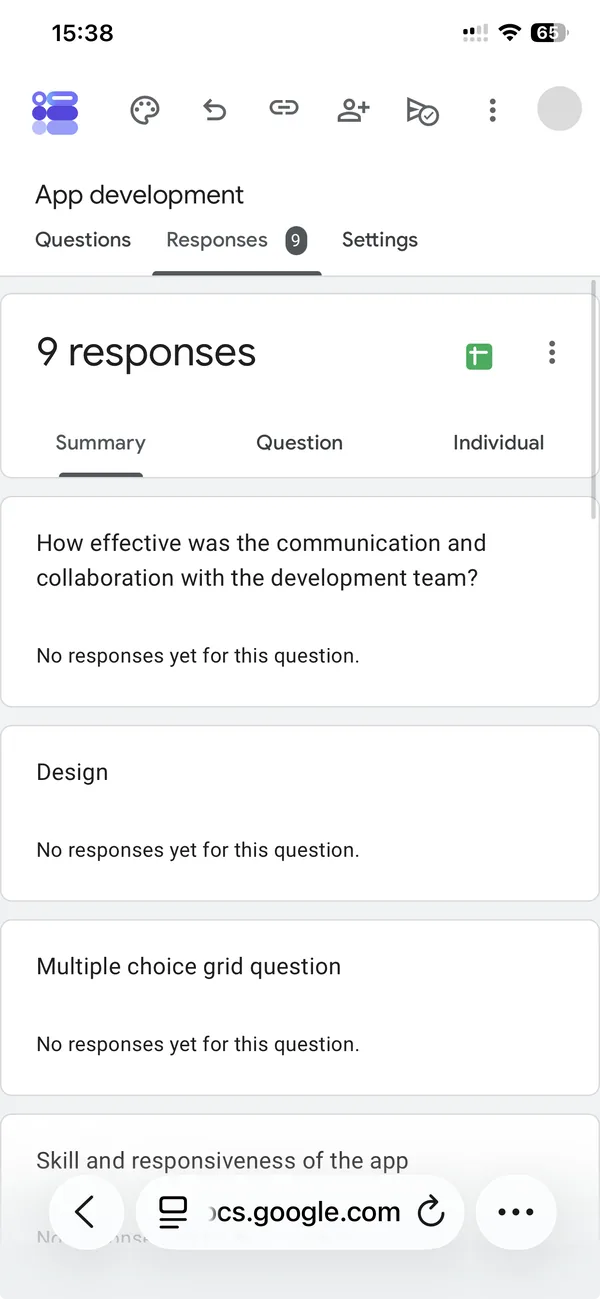
Three views, the same as on a computer. Summary gives one chart per question: a pie for multiple choice, bars for a scale, a list for text answers. Question shows one question at a time with every answer to it. Individual walks through respondents one by one. On my phone the summary was readable without pinching, which is more than I expected from a page built for a mouse.
What you cannot do here: sort, filter, or see two questions against each other. For those you need the spreadsheet, and that is the next section.
One thing worth checking on this tab before you share a form: the toggle “Accepting responses” sits at the top of the Responses view on a desktop, and on a phone it is inside the publish dialog instead. If the count stays at zero after you sent the link, that toggle is the first suspect.
In Sheets: the linked spreadsheet
The green spreadsheet icon at the top right of the Responses tab links the form to a Google Sheet, one row per response, one column per question, with the timestamp first. On a computer it opens in a tab. On a phone, Safari hands you over to the Google Sheets app if you have it installed, and to the App Store if you do not. My phone has it, so I landed here:
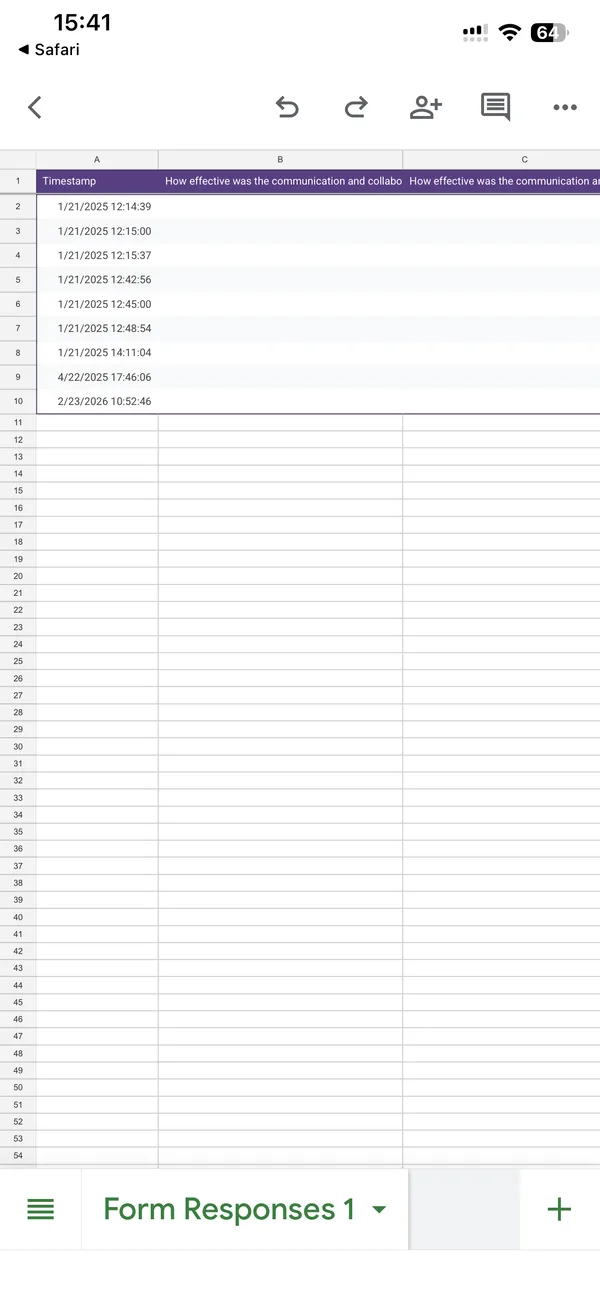
This is the only place on a phone where you can sort a column, filter on an answer, or read the free-text answers in a column next to the name of who wrote them. It is also a spreadsheet with twelve columns on a screen that shows two and a half. I read it in landscape, one column at a time, and I would not do a real analysis here. For a real analysis, the file is already in your Drive; open it on a computer later.
A detail that trips people up: the link icon creates the sheet the first time you tap it. Responses that arrived before that are copied in; responses after it arrive on their own. If you unlink and relink later, you get a new sheet with all the responses again.
In an app: charts, individuals, exports, on one screen
The third way is the reason our app exists, and I will describe it the way I would describe anyone else’s: it does the Responses tab natively, with export buttons where Google puts a link. Open the form in the app, tap Responses, and the count, the charts and the export icons are on one screen.
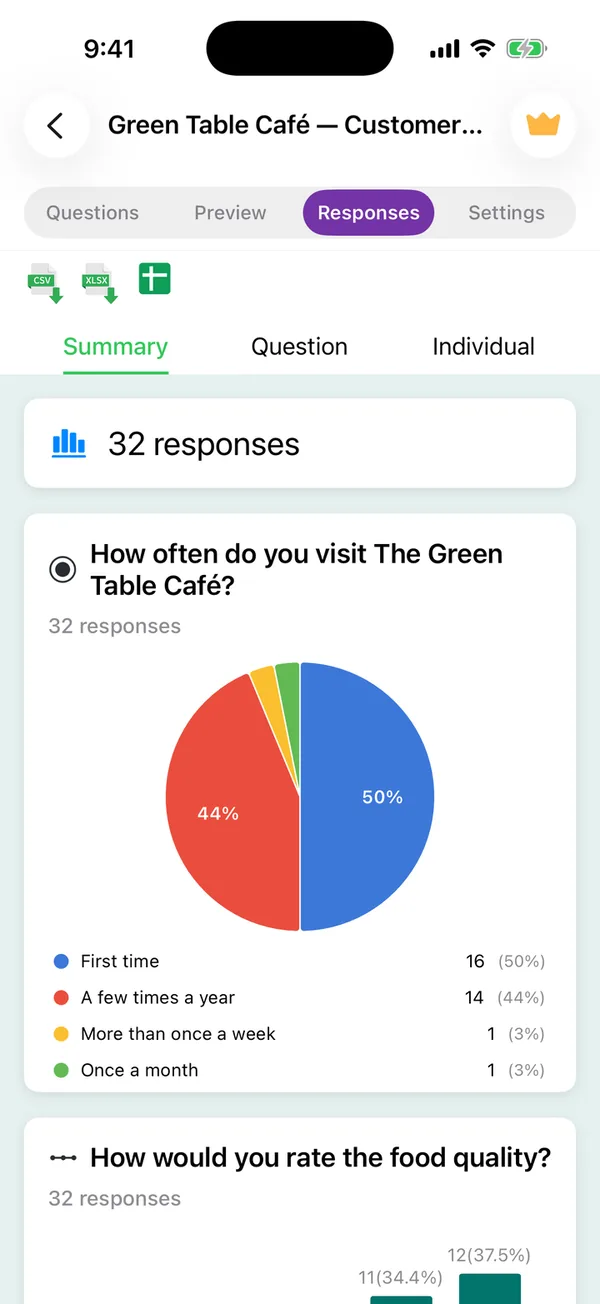
Summary in the app
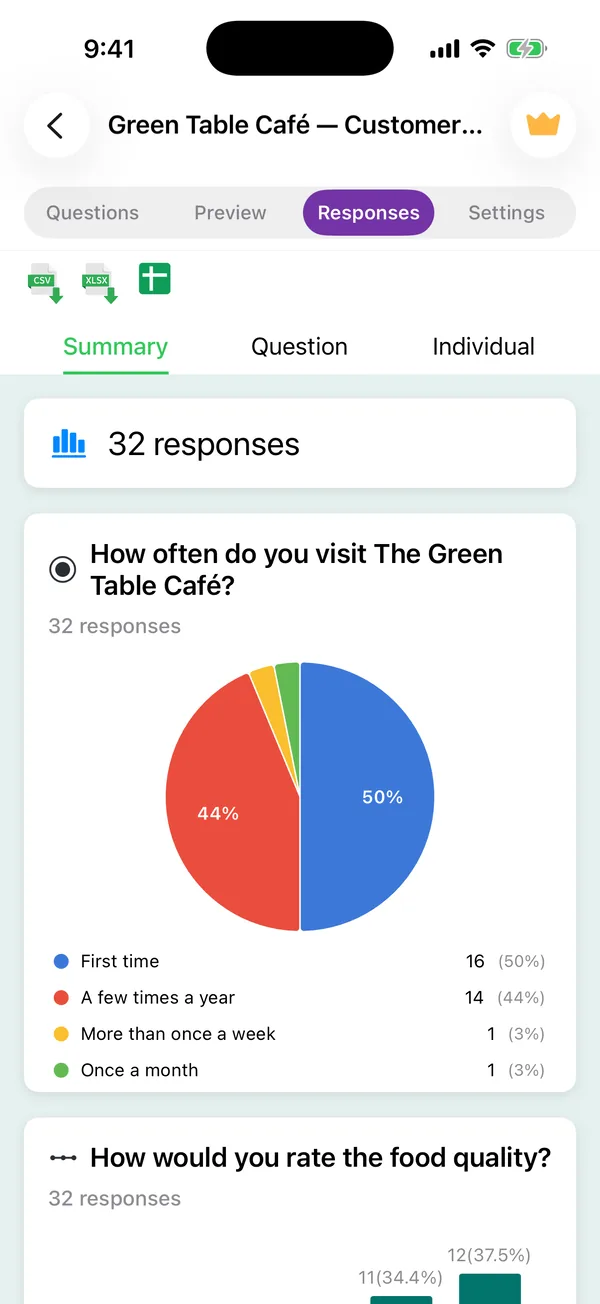
One respondent at a time
The three green icons are the difference. CSV and Excel build the file on the phone and hand it to the iOS share sheet, so “send me the numbers” is AirDrop or Mail without a spreadsheet app in between. Google Sheets does what the Safari icon does, creates the linked sheet in your Drive, one tap. The Individual view shows a quiz score when the form is a quiz.
Reading responses in the app is free since version 2.1; only the AI analysis of them is Premium. One honest limit, though: the app does not cross-tabulate either, “value for money among first-time visitors” is a spreadsheet question on every platform I know. The full walkthrough of that screen is in how to read and analyse responses in the app.
Which one, when
At an event, in the room, wanting to know whether it went well: Safari, Summary view, thirty seconds. Or the app, if you built the form there, because the charts are one tap closer.
Someone asks for the file: the app’s CSV or Excel button, or on a computer, the CSV download from the Responses tab. Not the Sheets app on a phone; exporting from there is three menus deep.
You need to sort, filter or compare: Sheets, and preferably not on a phone. Create the linked sheet from your phone so it is waiting for you, then open it on a laptop.
Reading one long free-text answer someone just sent: the Individual view, in Safari or the app; the spreadsheet cell truncates it.
What none of the three will do
None of them notifies you. Google Forms can send an email for each new response, from the Responses tab menu on a desktop (“Get email notifications for new responses”), and the email arrives on your phone like any other; that is the closest thing to a push notification that exists for Google Forms today. Our app does not send notifications either, in version 2.0. If you are waiting on a form, the honest method is the one everyone uses: open it and look at the count.
And none of them shows responses to a form you do not own or edit. If a colleague built the form, they need to add you as a collaborator first, from the form’s menu on a desktop; a shared link to the form itself only lets you answer it.
If you have not built the form yet, start with how to create a Google Form on iPhone, then how to share it from a phone. The longer story of what the mobile editor does well and badly is in Using Google Forms on a phone.
Build the form on the device you already have
Keep reading
Using Google Forms on a Phone: What Actually Works
I built, published and read a Google Form from an iPhone in Safari, screen by screen. What the mobile editor does well, the two things it does badly, and where an app changes the arithmetic.
How to Close a Google Form from Your Phone
Close a Google Form from an iPhone in Safari, schedule it by date or number of responses, and why the app's automatic closing only acts when you open the app. Tested on 20 October 2026.
How to Make a QR Code for a Google Form on Mobile
Google Forms does not make QR codes. Where the link hides on a phone, and three ways to turn it into a code without a laptop, with the one that encodes the wrong address.
Tools for this task
Export Google Forms Responses to Excel
The one-off CSV download and the live linked spreadsheet, when to use each, and the response counts at which Google stops keeping up.
Step-by-step guideGoogle Forms to PDF
A PDF of the responses and a PDF of the blank form are two different jobs. Both routes, with the one that Google does not document flagged as such.